
What Is an SSID on a Network? How to Find It and Manage Wi-Fi Settings on Windows, Mac, and Mobile
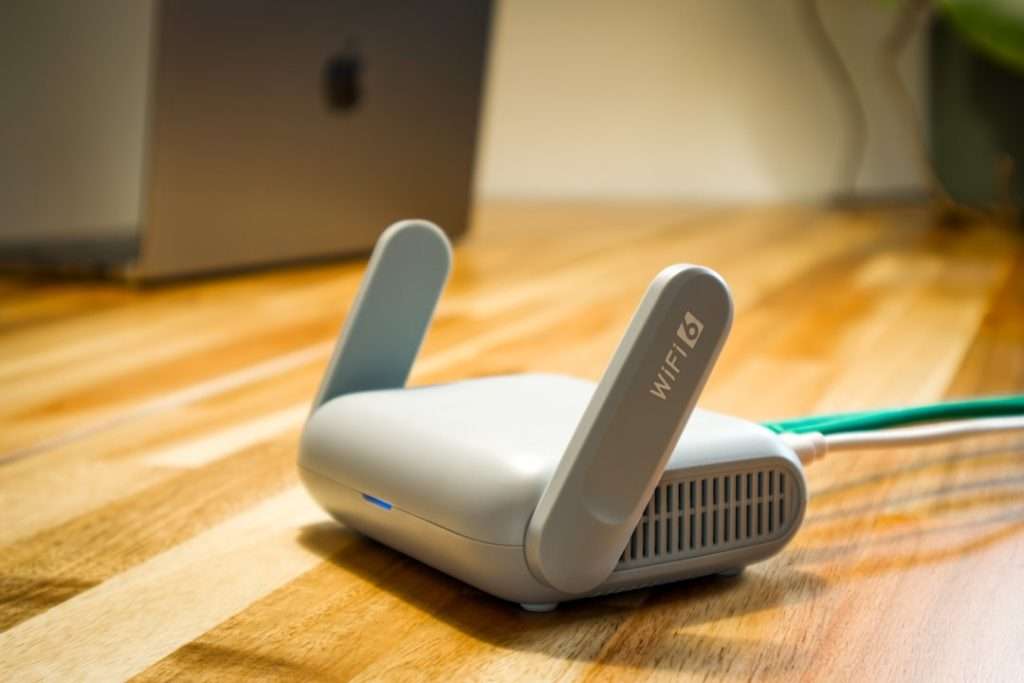
An SSID is the name of a Wi-Fi network. It is what you click when you connect your phone, laptop, tablet, or smart TV to the internet. Windows shows nearby Wi-Fi network names in its Wi-Fi panel [source: Microsoft].
TLDR: An SSID is your Wi-Fi network name, like SmithFamilyWiFi or CoffeeShopGuest. You can find it in your device’s Wi-Fi settings. If you see 12 network names in an apartment building, each one is usually a different SSID. Pick the right one, enter the password, and save yourself from accidentally joining the neighbor’s printer network again.
What does SSID mean?
SSID stands for Service Set Identifier. Fancy name. Simple job.
It is the label your router broadcasts so devices can find it. Think of it like a name tag at a party. Without it, your laptop would just see a room full of mystery signals. Not helpful.
Your SSID might be:
- HomeWiFi
- Apartment 4B
- Library Guest
- Pretty Fly for a WiFi
The SSID is not the password. It is only the network name. The password is a separate lock.
How to find your SSID on Windows
On Windows, the SSID is the name beside the Wi-Fi icon. Easy. Unless Windows decides to hide things in yet another settings panel. Honestly, it feels like one extra click appears every year.
To find it on Windows 11 or Windows 10:
- Click the Wi-Fi icon near the clock.
- Look at the connected network.
- The name shown there is your SSID.
You can also go to:
- Settings
- Network and Internet
- Wi-Fi
Your current network name will be shown near the top.
How to find your SSID on Mac
On a Mac, it is just as simple.
- Click the Wi-Fi icon in the top menu bar.
- Look for the network with a check mark.
- That name is your SSID.
You can also open System Settings, then choose Wi-Fi. Apple shows nearby networks there too [source: Apple].
How to find your SSID on iPhone or iPad
On iPhone and iPad, the SSID is shown in Wi-Fi settings.
- Open Settings.
- Tap Wi-Fi.
- Look for the network with the blue check mark.
That checked network is the one you are using.
How to find your SSID on Android
Android phones can look a little different by brand. Samsung, Pixel, OnePlus, and others all enjoy moving buttons around. It drives me crazy when the same setting has three names.
Try this:
- Open Settings.
- Tap Network and Internet or Connections.
- Tap Wi-Fi.
- The connected network name is your SSID.
How to manage Wi-Fi settings
Finding the SSID is step one. Managing it is where you clean things up.
Here are the most useful options:
- Connect: Join a Wi-Fi network.
- Forget: Remove a saved network.
- Auto join: Let your device connect by itself.
- Private address: Hide your real device address on some networks.
- Metered connection: Reduce data use on Windows.
Use “Forget” often. Old hotel, airport, and café networks can pile up. Your phone may try to join them later. That can slow things down or put you on a weak network.
How to change your SSID
You change the SSID in your router settings. This is usually done in a browser or router app.
- Connect to your home Wi-Fi.
- Open your router app, or type the router address into a browser.
- Sign in with the admin username and password.
- Find Wireless, Wi-Fi, or Network Name.
- Change the SSID.
- Save the settings.
After you change it, your devices may disconnect. That is normal. Join the new SSID and enter the password again.
Good SSID names and bad SSID names
A good SSID is clear. A bad one gives away too much.
Good examples:
- MapleHouse
- BlueRouter
- GuestWiFi
Avoid names like:
- Your full name
- Your street address
- Your phone number
- Your router model
Do not call it John Smith 44 Oak Street. That is basically a tiny billboard.
Image not found in postmeta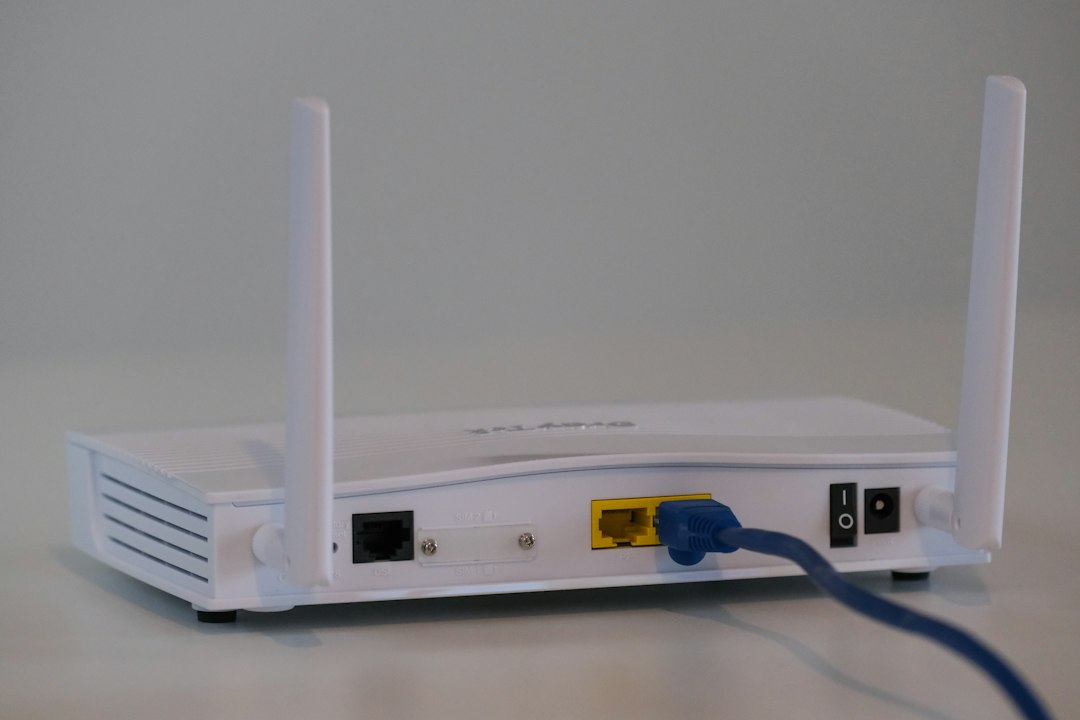
Should you hide your SSID?
You can hide an SSID. That means it will not show in the normal Wi-Fi list. Sounds safer, right?
Not really.
Hidden networks can still be found with common tools. Also, they are annoying to use. You must type the name by hand. One typo, and nothing works.
For most homes, do this instead:
- Use WPA2 or WPA3 security.
- Pick a strong password.
- Update your router software.
- Use a separate guest network.
Quick fixes when you cannot find your SSID
- Move closer to the router.
- Turn Wi-Fi off and on.
- Restart the router.
- Check if the router lights are on.
- Make sure airplane mode is off.
- Look for a hidden network option.
Your SSID is just your Wi-Fi’s name. Once you know that, Wi-Fi settings feel less weird. Still a little annoying sometimes. But at least now you know what you are clicking.
