
EXOS Router Login Guide: EXOS vs UniFi for Managing a Home Network
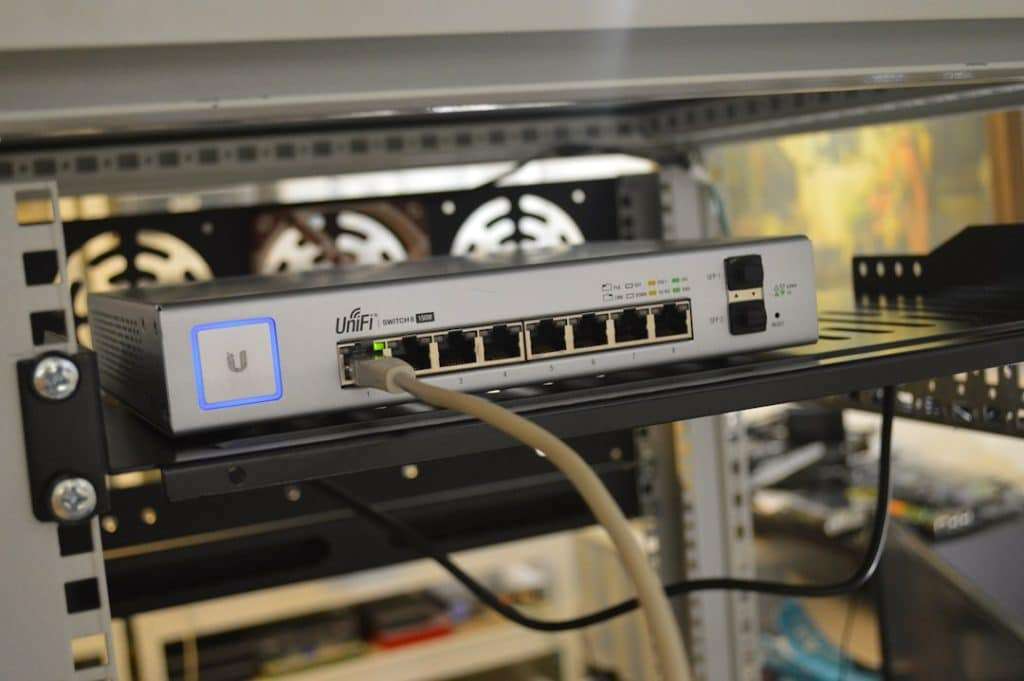
UniFi is the better choice for most home networks, while EXOS fits users who want business-grade switching controls and do not mind a command line. An EXOS device is usually managed through its management IP address, either by browser or SSH, while UniFi is managed through a cleaner web console or mobile app. For a home network with phones, laptops, cameras, and smart TVs, UniFi will feel easier on day one.
TLDR: For a typical home with 20 to 40 connected devices, UniFi is faster to set up and easier to monitor. EXOS offers deeper VLAN, routing, and port control, but it can feel heavy for a living room network. For example, a homeowner adding a guest WiFi network may finish in about 2 minutes in UniFi, while EXOS may take closer to 10 minutes if VLAN tagging and switch ports need manual setup. EXOS is powerful, but UniFi wins for daily home use.
What EXOS Login Means
EXOS, often called ExtremeXOS, is the operating system used on many Extreme Networks switches and related network devices. It is not a simple consumer router platform. That matters. A user expecting a basic router page with one password box and a few tabs may be surprised.
EXOS management usually starts with the device’s management IP address. The admin enters that IP into a browser, or connects by SSH from a terminal app. Some setups also use a console cable during first setup. The exact method depends on the device model and how it was configured before.
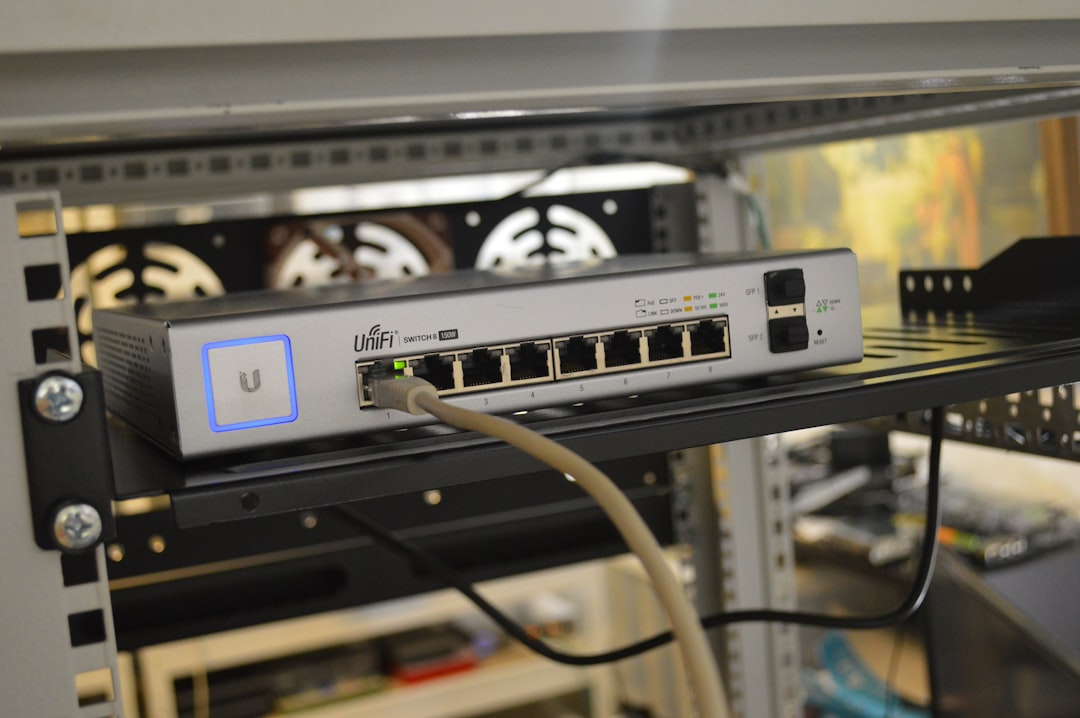
Basic EXOS Router Login Steps
- Connect to the network. The admin should plug into the same network as the EXOS device or connect through an approved management port.
- Find the management IP. This may come from the router’s DHCP client list, network scanner, device label, or setup notes.
- Open a browser or SSH client. For browser access, the admin enters the IP address in the address bar. For SSH, the admin connects to the same IP using a terminal app.
- Enter the admin credentials. Default credentials vary by model and setup history. The device manual or installer notes should be checked.
- Change the password at once. Any default or shared password should be replaced with a strong one.
- Save the configuration. EXOS often requires changes to be saved, or they can disappear after a reboot.
The annoying part is that EXOS can make simple tasks feel slower than they should. A basic port check may take 30 seconds longer than expected if the admin has to switch between web pages, CLI commands, and config notes.
UniFi Login Is More Home Friendly
UniFi is built around a central controller style. That controller may run on a UniFi Cloud Gateway, Cloud Key, local server, or hosted account. Many home users reach it through unifi.ui.com, the UniFi mobile app, or the local gateway address such as 192.168.1.1, depending on the setup.
The login process is usually simpler:
- Open the UniFi web console or app.
- Sign in with the owner account.
- Select the site or gateway.
- View clients, WiFi, security, and internet status from one dashboard.
This is where UniFi shines. A homeowner can see which device is using bandwidth, rename a client, pause a child’s tablet, or create a guest WiFi network without touching a terminal. Honestly, it feels like UniFi respects the fact that home admins have other things to do.
EXOS vs UniFi: Management Style
EXOS is precise. It suits users who care about port roles, VLAN IDs, routing tables, spanning tree, link aggregation, and logs. It is common in offices, schools, labs, and advanced home racks. For someone building a segmented smart home with cameras, IoT gear, guest access, and servers, EXOS can be very useful.
UniFi is visual. It suits users who want one clean panel for WiFi, routing, firewall rules, clients, cameras, switches, and access points. It hides much of the messy network detail unless the admin asks for it. That makes it less intimidating.
Image not found in postmetaSecurity Differences
Both systems can be secure, but they ask for different habits. EXOS expects the admin to know what should be locked down. SSH access, management VLANs, admin accounts, SNMP, firmware updates, and saved configs must be handled carefully.
UniFi guides more of the process. It prompts for updates, shows alerts, and makes account management easier. Still, it should not be treated as magic. Remote access, two-factor authentication, admin roles, and backup codes should be reviewed.
For home use, the best security setup is simple:
- Use a unique admin password.
- Enable two-factor authentication where available.
- Update firmware on a planned schedule.
- Keep guest WiFi separate from private devices.
- Place cameras and smart home gear on a separate network if possible.
Performance and Features
EXOS may offer excellent switching performance and advanced traffic control. It is strong when many wired devices need stable links. It can also support advanced routing features on capable models. For a wired home lab, EXOS can be a serious tool.
UniFi focuses on whole-home control. It handles WiFi roaming, device lists, firewall rules, VPN settings, and traffic stats in a friendly way. For most families, those features matter more than deep CLI control. A parent can spot a gaming console using heavy traffic. A remote worker can check WAN status fast. A hobbyist can add another access point without rewriting the whole setup.
Which One Should a Home User Pick?
UniFi should be picked for most homes. It is easier to manage, easier to teach to another family member, and easier to check from a phone. It also works well when the home grows from one router to several access points and switches.
EXOS should be picked when control matters more than comfort. It is a better fit for home labs, advanced VLAN designs, mixed business hardware, or users already comfortable with enterprise networking. It can be overkill for a simple internet and WiFi setup.
The catch is that EXOS may not forgive casual changes. A wrong VLAN setting can cut off access to the management page. UniFi can also break if misconfigured, but recovery is usually less painful for home admins.
Practical Recommendation
A balanced home network can use both. UniFi can run routing, WiFi, and daily monitoring, while an EXOS switch handles advanced wired segmentation. This gives the household the comfort of UniFi and the power of EXOS where it makes sense.
For a new setup, the recommended path is clear: start with UniFi. Add EXOS only when there is a real need for advanced switching. Buying complex hardware too early often creates more login screens, more passwords, and more ways to break the network on a quiet Sunday night.
FAQ
Is EXOS a normal home router system?
No. EXOS is mainly an enterprise network operating system. It can work in advanced homes, but it is not as beginner friendly as UniFi.
How does an admin log in to an EXOS device?
The admin usually connects to the device’s management IP address through a browser or SSH. Some first-time setups may require a console cable.
Is UniFi easier than EXOS?
Yes. UniFi has a cleaner dashboard, mobile app support, and simpler tools for WiFi, clients, guest networks, and updates.
Can EXOS and UniFi be used together?
Yes. A common setup is UniFi for routing and WiFi, with an EXOS switch used for wired devices, VLANs, and advanced port control.
Which is better for guest WiFi?
UniFi is usually better for guest WiFi. It offers a simple interface for guest networks, passwords, isolation, and access rules.
Which is better for a home lab?
EXOS may be better for a serious home lab. It gives more control over switching, VLANs, routing behavior, and port-level settings.
