
Surface Book 2 Yellow Spots on Screen? How to Fix It
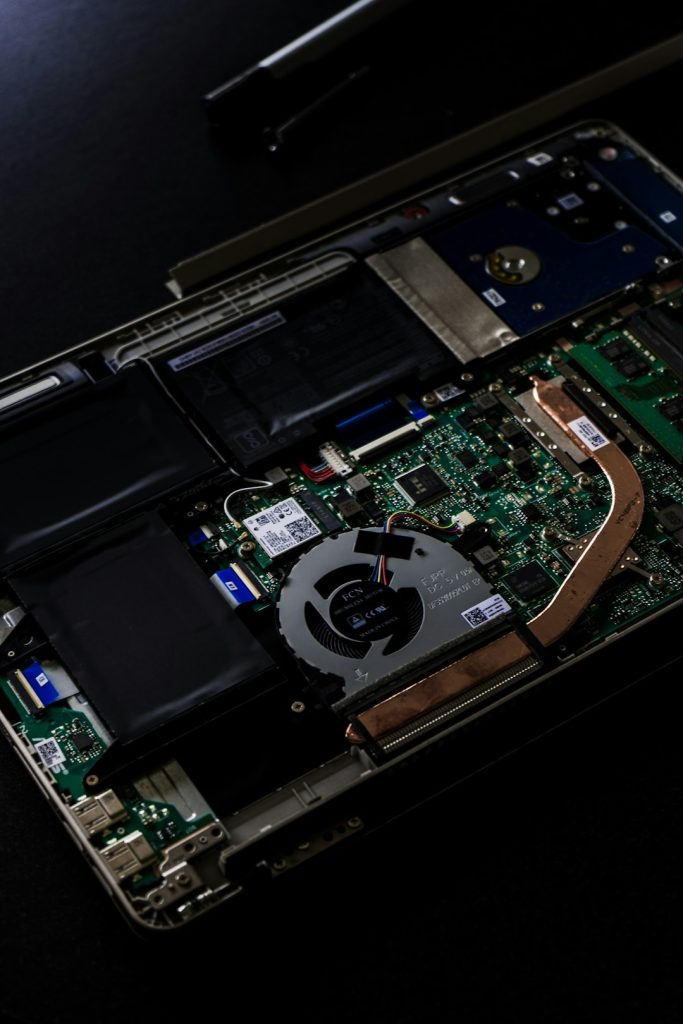
The Microsoft Surface Book 2 is widely known for its premium build quality, powerful performance, and high-resolution PixelSense display. However, some users have reported an issue that can be both distracting and concerning: yellow spots appearing on the screen. These discolorations may show up as faint patches or more noticeable yellowish areas that affect the viewing experience. Understanding what causes these spots and how to resolve them can help restore the device’s display quality and extend its lifespan.
TLDR: Yellow spots on a Surface Book 2 screen are often caused by display pressure damage, overheating, adhesive issues, or LCD aging. Some cases can be improved with simple troubleshooting steps such as screen cleaning, display recalibration, and software updates. In more severe cases, professional repair or screen replacement may be necessary. Identifying the root cause early helps determine the proper solution.
What Do Yellow Spots on the Surface Book 2 Look Like?
Yellow spots typically appear as small, unevenly colored patches on the screen. They may be more visible when displaying white or light-colored backgrounds. In some cases, they resemble a warm tint in certain areas rather than clearly defined circles.
Common characteristics include:
- Faint yellow or brownish areas near the edges or center of the display
- Spots that are more visible on white backgrounds
- Discoloration that does not disappear after restarting the device
- Areas that may expand slightly over time
Users often first notice the issue while browsing websites, editing documents, or opening blank pages with white backgrounds.
What Causes Yellow Spots on the Screen?
Several factors can contribute to the appearance of yellow spots on a Surface Book 2 display. Identifying the likely cause is the first step toward fixing the issue.
1. Pressure Damage
Pressure on the screen—such as placing heavy objects on top of the closed laptop or carrying it tightly packed in a bag—can damage the LCD layers. Over time, this may create localized discoloration.
Even minor but repeated pressure can lead to:
- LCD panel distortion
- Uneven backlighting
- Persistent yellow patches
2. Heat Exposure
Excessive heat can weaken adhesive materials inside the display assembly. The Surface Book 2, especially under heavy workloads like video editing or gaming, can generate significant warmth. Prolonged heat exposure may cause internal components to shift slightly, creating visible spots.
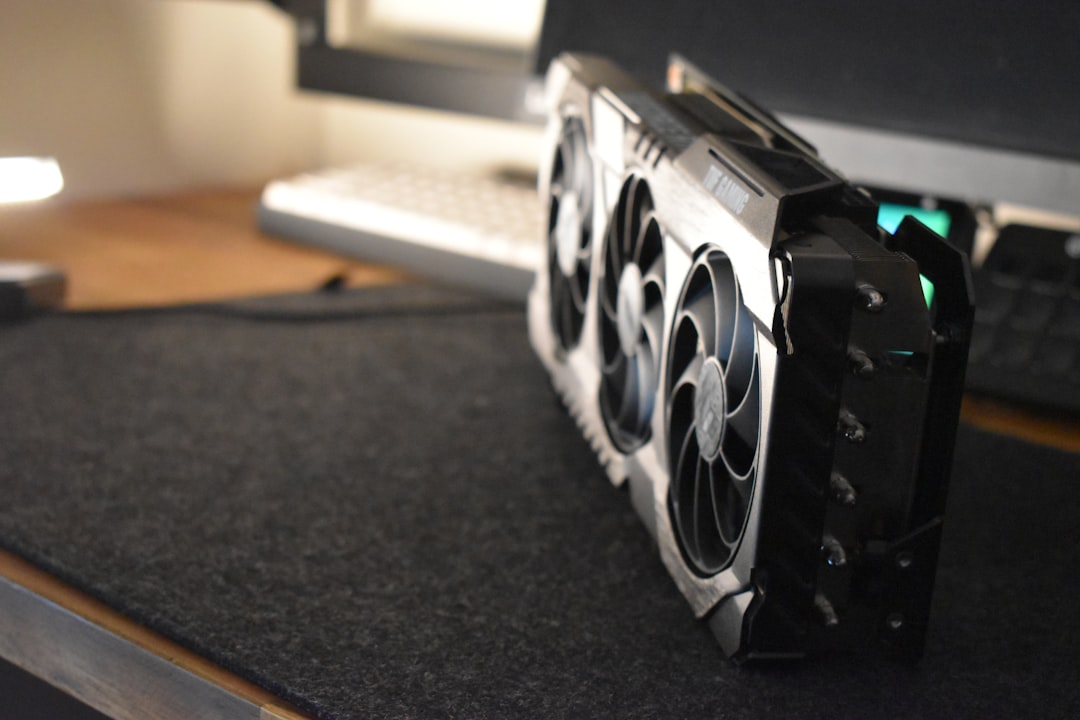
If the yellow spots worsen after extended use, overheating could be a contributing factor.
3. Adhesive Deterioration
Some displays rely on adhesive bonding between layers. Over time, heat and aging can cause the adhesive to degrade, leading to uneven coloration. This is often seen near screen edges.
4. LCD Aging or Backlight Issues
All LCD panels gradually age. The backlight may become uneven after years of use, especially if the brightness has consistently been set at high levels. Aging backlights can create a slightly yellow tone in specific areas.
5. Software or Display Calibration Problems
While less common, incorrect color profiles or graphics driver issues can sometimes make discoloration appear worse than it is. A software glitch is usually easier to fix than a hardware defect.
How to Fix Yellow Spots on Surface Book 2
The appropriate solution depends on the root cause. Below are several practical troubleshooting steps.
1. Clean the Screen Properly
Before assuming hardware damage, the display should be cleaned carefully.
- Turn off the device and unplug it.
- Use a microfiber cloth slightly dampened with water.
- Gently wipe the affected area.
- Avoid harsh chemicals or excessive moisture.
Sometimes smudges or residue can mimic yellow stains.
2. Restart and Perform a Display Check
A simple restart can rule out temporary display rendering issues. After rebooting, users can open a plain white image in full screen to check if the spot persists.
If the discoloration is still present during startup (before Windows fully loads), the issue is likely hardware-related.
3. Update Graphics Drivers
Outdated drivers may cause unusual display behavior.
- Open Device Manager.
- Locate the display adapter.
- Select Update driver.
- Follow on-screen instructions.
Users can also check Windows Update for system patches that might correct display calibration issues.
4. Adjust Color Calibration
Windows includes a built-in color calibration tool.
- Search for Calibrate display color in the Start menu.
- Follow the guided adjustments.
- Reset to default color profile if necessary.
While this will not fix physical damage, it can improve minor tint irregularities.
5. Reduce Heat Exposure
If heat is suspected, preventive action is essential.
- Use the laptop on hard, flat surfaces.
- Avoid blocking ventilation areas.
- Consider a cooling pad.
- Lower screen brightness.
Consistent overheating may worsen existing screen discoloration over time.
6. Check for Battery Swelling
Although rare, battery swelling can apply pressure to internal components, including the display. Signs include:
- A slightly bulging screen
- Keyboard separation from the base
- Difficulty closing the device completely
If battery swelling is suspected, the device should be powered off immediately and evaluated by a professional technician.
7. Professional Repair or Screen Replacement
When yellow spots are caused by pressure damage, adhesive breakdown, or LCD aging, the only permanent solution may be replacing the display. The Surface Book 2’s screen is bonded to the chassis, making DIY replacement difficult.
Professional repair services typically:
- Diagnose the exact source of discoloration
- Replace the entire display assembly
- Test brightness and color uniformity
If the device is still under warranty, contacting Microsoft support is strongly recommended.
How to Prevent Yellow Spots in the Future
Preventative care significantly reduces the chances of screen issues.
- Avoid placing heavy objects on top of the closed device.
- Use a protective sleeve during transport.
- Keep brightness at moderate levels when possible.
- Ensure proper airflow during intensive tasks.
- Perform periodic software updates.
Treating the display gently and minimizing heat exposure are the most effective long-term strategies.
When Should It Be Considered Serious?
Not all yellow spots are emergencies. However, professional attention is advisable if:
- The spots expand rapidly.
- Other display issues appear, such as flickering or dead pixels.
- The screen bulges outward.
- Device performance declines along with overheating.
In such cases, delaying inspection may lead to additional internal damage.
Conclusion
Yellow spots on the Surface Book 2 screen can range from minor cosmetic distractions to signs of deeper hardware problems. In many cases, basic troubleshooting—such as cleaning the screen, updating drivers, and adjusting calibration—can rule out software causes. However, persistent spots often point to pressure damage, adhesive degradation, overheating, or LCD aging. Early diagnosis and preventative care are key to maintaining display quality. When hardware repair becomes necessary, professional assistance ensures the device is handled safely and correctly.
Frequently Asked Questions (FAQ)
1. Are yellow spots on the Surface Book 2 permanent?
If caused by hardware damage or adhesive deterioration, yellow spots are usually permanent unless the screen is replaced. Software-related tint issues, however, may be reversible.
2. Can overheating alone cause yellow spots?
Yes, prolonged heat can damage display components or weaken adhesive layers, which may result in discoloration over time.
3. Will a factory reset fix yellow spots?
A factory reset may resolve software-based display calibration problems but will not fix physical LCD damage.
4. Is it safe to keep using the Surface Book 2 with yellow spots?
If the issue is purely cosmetic and there are no signs of swelling or overheating, continued use is generally safe. However, worsening symptoms should be evaluated professionally.
5. How much does it cost to replace the screen?
Costs vary depending on location and service provider, but replacing a Surface Book 2 display can be relatively expensive due to the bonded design of the screen assembly.
6. Can battery swelling cause screen discoloration?
Yes, a swollen battery can exert pressure on the display from behind, potentially leading to visible yellow spots or distortions.
7. How can one check if the issue is hardware-related?
If yellow spots are visible during startup, in the BIOS screen, or before Windows loads, the issue is almost certainly hardware-related rather than software-based.
