
Surface Laptop Trackpad Popped Out? Here’s How to Fix It
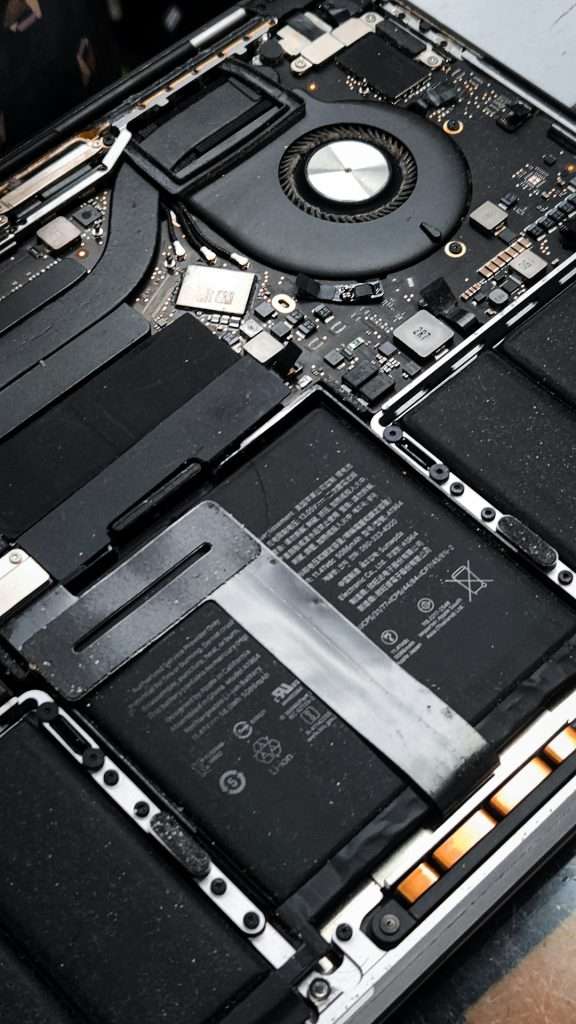
A Surface Laptop is known for its sleek design, precise trackpad, and premium build quality. So when the trackpad suddenly looks raised, uneven, or fully popped out of place, it can be both frustrating and alarming. Whether it happened gradually or after a drop or battery issue, a popped-out trackpad is something you should address quickly to prevent further internal damage.
TLDR: A Surface Laptop trackpad that has popped out is usually caused by battery swelling, loose adhesive, or physical damage. First, power down the device and inspect it carefully—especially for signs of battery expansion. Minor alignment issues may be fixable at home, but swelling batteries or severe structural damage require professional repair. Acting quickly can prevent permanent hardware damage and safety risks.
Why Does a Surface Laptop Trackpad Pop Out?
The trackpad on a Surface Laptop is tightly integrated into the chassis. It sits flush with the palm rest and is secured internally with screws, adhesive, and structural brackets. When it pops out or becomes uneven, it’s typically a sign that something inside has shifted.
Here are the most common causes:
- Battery swelling – The most serious and common issue.
- Impact or drop damage – Internal components can shift after physical trauma.
- Worn adhesive or mounting hardware – Over time, internal fasteners may loosen.
- Manufacturing defect – Rare, but possible in older devices.
Identifying the root cause is the first step toward determining whether this is a simple fix or something that requires professional service.
Step 1: Power Down Immediately
If you notice your trackpad lifting, clicking unevenly, or separating from the chassis, do not continue using the laptop. Shut it down completely and unplug the charger.
This is especially important if battery swelling is involved. A swollen lithium-ion battery can:
- Damage other internal components
- Pose a fire hazard
- Rupture under pressure
- Release harmful chemicals
Safety always comes first. If the trackpad looks like it’s being pushed upward from underneath, treat it as a potential battery issue.
Step 2: Inspect for Signs of Battery Swelling
Battery swelling is one of the leading causes of a popped-out Surface Laptop trackpad. As lithium-ion batteries age or fail, they can expand and push against internal components—including the trackpad.
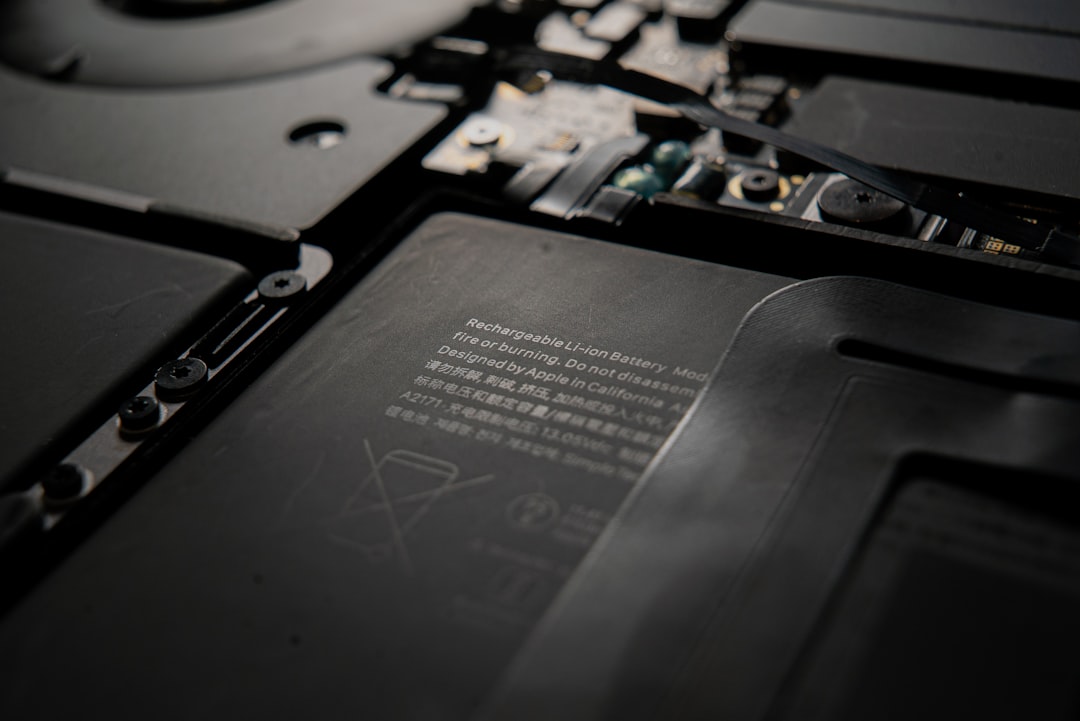
Look for these warning signs:
- The bottom of the laptop bulges or doesn’t sit flat
- The keyboard appears raised
- The trackpad is visibly lifted from one side
- You hear creaking when pressing near the trackpad
- Battery drains unusually fast or overheats
If you suspect battery swelling:
- Do not press the trackpad back into place.
- Do not attempt to puncture or flatten the battery.
- Do not continue charging the device.
- Seek professional repair immediately.
Battery replacement in a Surface Laptop is complex due to its sealed design. Most models are not user-serviceable without specialized tools and experience.
Step 3: Check for Physical Damage
If the laptop was recently dropped or bumped, the trackpad may have shifted due to internal bracket or chassis damage. Unlike battery swelling, this typically affects only one edge or corner rather than lifting the entire trackpad.
Signs of impact-related issues include:
- Visible dents near the palm rest
- Cracks around the trackpad perimeter
- Trackpad clicking improperly on one side
- Loose or rattling sounds inside
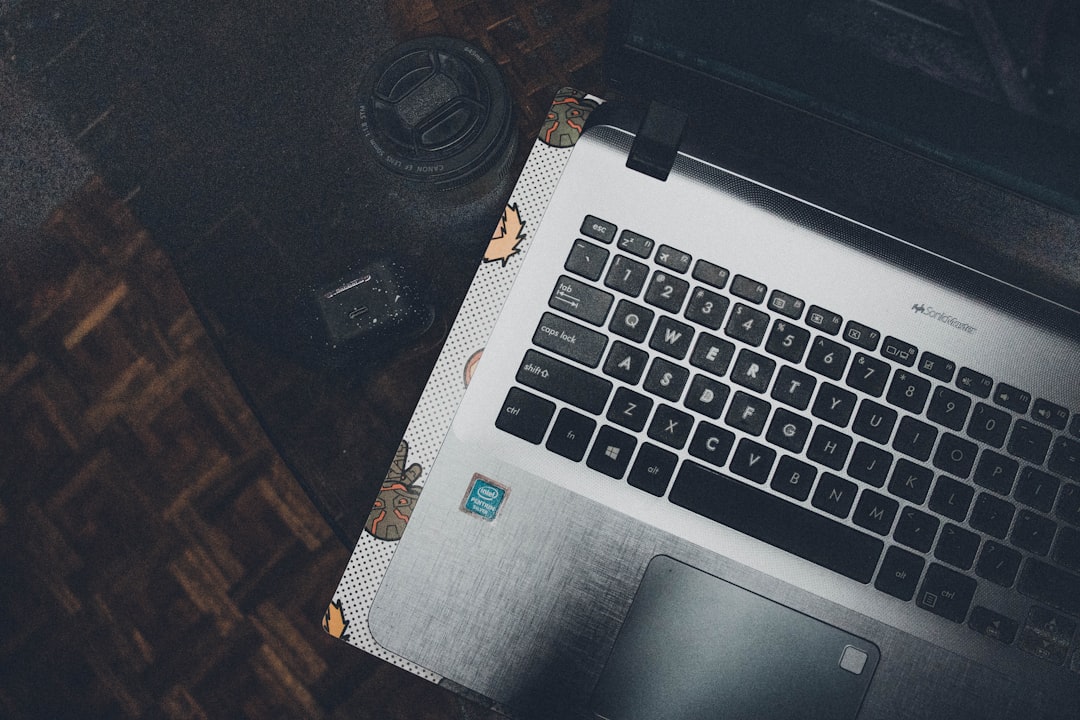
In minor cases, internal screws or mounting clips may have loosened. In more severe cases, the aluminum chassis can warp, making reinstallation difficult without replacing the top case assembly.
Can You Fix a Popped-Out Trackpad Yourself?
This depends on the cause and your experience with electronics repair.
Situations Where DIY Might Be Possible
- The trackpad is only slightly misaligned
- There is no battery swelling
- The device is out of warranty
- You have precision tools and repair experience
Situations Where You Should Avoid DIY
- Any sign of battery expansion
- The trackpad is severely lifted
- You lack proper opening tools
- The laptop is still under warranty
Surface Laptops are not designed for easy home repairs. Opening them often requires heating adhesive, carefully removing the keyboard deck, and navigating tightly packed internal components.
If You Choose to Attempt a Repair
Disclaimer: Proceed at your own risk. Improper repair can cause permanent damage.
General repair steps typically involve:
- Powering down and disconnecting all cables.
- Removing the top cover carefully (often glued in place).
- Disconnecting the battery before touching internal components.
- Inspecting the trackpad assembly and securing brackets.
- Re-tightening screws or replacing damaged mounts.
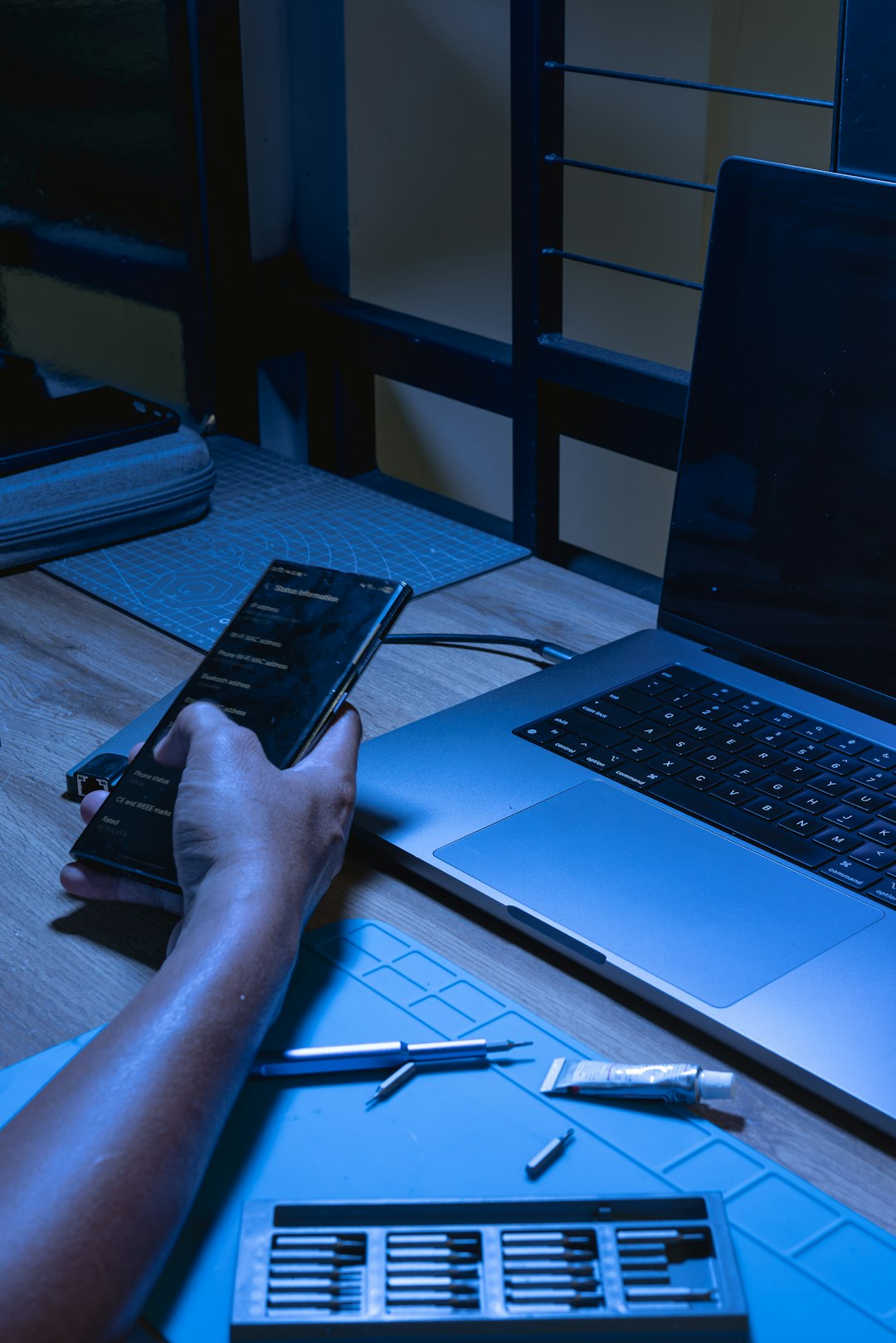
Important: Always disconnect the battery first before working on the trackpad or any internal components.
Once the trackpad is reseated and secured, reassemble the device carefully. Avoid over-tightening screws, as that can warp the chassis further.
When Professional Repair Is the Best Option
In many cases, professional repair is the safest route—especially when:
- Battery swelling is confirmed
- The chassis is warped
- Adhesive damage is extensive
- The device is still under manufacturer warranty
Microsoft-authorized service centers can replace:
- The battery
- The entire top case assembly
- The trackpad module
Although repair costs can vary, addressing the issue early is often cheaper than waiting until additional components are damaged.
How Much Does It Cost to Fix?
Costs depend on the root cause:
- Battery replacement: Moderate to high cost, depending on model.
- Trackpad replacement: Moderate cost if no other damage exists.
- Full top case replacement: Higher cost due to integrated components.
If your device is under warranty or covered by extended protection, you may qualify for reduced or free repair service.
How to Prevent It from Happening Again
While not all issues are preventable, you can reduce risk with proper care:
- Avoid exposing your laptop to extreme heat
- Use the correct charger and avoid cheap third-party alternatives
- Don’t leave it plugged in 24/7 unnecessarily
- Store the device on flat, stable surfaces
- Avoid pressure on the palm rest area
Heat is one of the biggest contributors to battery degradation. Keeping your Surface Laptop cool extends its lifespan and reduces the chance of swelling.
Warning Signs You Should Never Ignore
If your trackpad has popped out and you notice any of the following, stop using the laptop immediately:
- A chemical smell
- Heat coming from the palm rest
- Bulging from the bottom case
- Sudden shutdowns
- Cracking sounds from inside
These symptoms suggest internal pressure from a swollen battery. Continuing to use it can be dangerous.
Final Thoughts
A popped-out Surface Laptop trackpad isn’t something that fixes itself—and it’s rarely just cosmetic. While it may seem like a minor annoyance at first, it often signals deeper internal stress, most commonly from battery expansion or structural damage.
The key is acting quickly. Power it down, inspect for signs of swelling or impact damage, and avoid forcing the trackpad back into place. If you’re experienced with device repair and confident there’s no battery issue, a careful DIY fix may work. Otherwise, professional service is the safest and most reliable solution.
Your Surface Laptop is built as a precision device. When something shifts out of place, it usually means something inside needs attention. Addressing the issue early can save you from higher repair costs—and potentially dangerous situations—down the line.
