
Wordable Review: Features, Pricing & WordPress Publishing Alternatives

For teams that draft in Google Docs and publish in WordPress, Wordable is designed to remove the repetitive copy, paste, reformat, upload, and clean-up work that often slows down content operations. This review looks at Wordable’s core features, pricing approach, ideal users, limitations, and practical alternatives for WordPress publishing workflows.
TLDR: Wordable is a strong choice for content teams that publish frequently from Google Docs to WordPress and want to preserve formatting, images, links, and document structure. For example, a blog team publishing 40 articles per month could save 10–20 hours by reducing manual formatting and image uploads. It is most valuable when multiple writers, editors, and SEO specialists collaborate in Google Docs before moving content into WordPress. Smaller sites publishing only a few posts per month may find native WordPress tools or lower-cost alternatives sufficient.
What Is Wordable?
Wordable is a publishing automation tool that exports content from Google Docs directly into WordPress and other supported content management systems. Instead of manually copying an article into the WordPress editor, fixing headings, re-adding images, cleaning HTML, and checking links, users can send a polished draft from Google Docs into WordPress with just a few clicks.
The platform is especially popular among content marketing agencies, SEO teams, affiliate publishers, SaaS blogs, and editorial departments that rely on Google Docs for collaboration. Its main promise is simple: reduce production friction and make publishing cleaner, faster, and more consistent.

Key Features of Wordable
1. Google Docs to WordPress Export
The main feature is the ability to move content from Google Docs into WordPress while keeping the document structure intact. Headings, paragraphs, ordered lists, unordered lists, bold text, italic text, and hyperlinks are transferred more cleanly than with standard copy and paste.
This is particularly useful because Google Docs often brings unwanted styling into WordPress. Wordable helps clean that up and produces more predictable formatting in the WordPress editor.
2. Image Handling
One of Wordable’s biggest advantages is image management. It can export images from a Google Doc and upload them into the WordPress media library. For teams publishing image-heavy tutorials, product reviews, or how-to articles, this can save significant time.
Users can also manage image-related settings such as file names and alt text depending on their workflow. Since image optimization affects accessibility and search visibility, this feature is a major benefit for SEO-focused publishers.
3. Formatting Cleanup
Manual exports from Google Docs can create messy HTML, extra spans, inconsistent spacing, or unwanted styling. Wordable attempts to clean the code and make the post easier to manage inside WordPress. This helps editors avoid spending time removing hidden formatting errors after import.
4. SEO-Friendly Publishing Support
Wordable is not a full SEO platform, but it supports SEO workflows by preserving headers, links, images, and document hierarchy. A properly structured Google Doc can become a properly structured WordPress draft, reducing the risk of broken formatting before publication.
For content teams using separate SEO tools to create briefs and outlines, Wordable can serve as the bridge between the writing stage and the publishing stage.
5. Team Collaboration
Because Wordable works well with Google Docs, it fits naturally into editorial workflows where writers submit drafts, editors leave comments, and managers approve final versions. Once approved, the content can be exported without rebuilding the post from scratch in WordPress.
6. Multiple Site Support
Agencies and publishers managing several websites can connect more than one WordPress site. This is useful for teams that produce content for clients or run a portfolio of blogs.
Image not found in postmetaWordable Pricing
Wordable generally uses a tiered subscription model based on publishing volume, number of sites, and team needs. Exact prices can change, so potential users should check the official Wordable pricing page before subscribing.
In general, the pricing structure is aimed more at serious publishers than casual bloggers. A business that publishes dozens or hundreds of articles per month may find the cost easy to justify. A solo blogger publishing two posts per month may see less value, especially if manual formatting only takes a few extra minutes.
When evaluating the price, teams should calculate the real labor cost of publishing. For example, if an editor spends 20 minutes formatting each article and the team publishes 60 articles monthly, that equals 20 hours of production time. If Wordable reduces that by 75%, the team could save around 15 hours each month.
Pros and Cons
Pros
- Saves time: It reduces repetitive formatting and upload tasks.
- Preserves structure: Headings, links, lists, and images transfer more cleanly.
- Useful for teams: It fits well into Google Docs-based editorial workflows.
- Helps agencies: Multiple-site support is valuable for client work.
- Reduces human error: Fewer manual steps mean fewer missed links, lost images, or broken headings.
Cons
- Cost may be high for small blogs: Low-volume publishers may not need a dedicated export tool.
- Still requires review: Editors should check imported posts before publishing.
- Not a complete SEO tool: It helps with structure but does not replace keyword research or optimization software.
- Workflow dependency: It is most useful for teams already working heavily in Google Docs.
Who Should Use Wordable?
Wordable is best for organizations where content publishing is frequent, structured, and collaborative. It is a strong match for SEO agencies, affiliate sites, B2B SaaS companies, media teams, and content managers handling multiple writers.
It may be less necessary for hobby bloggers, businesses publishing occasional updates, or users who prefer writing directly inside WordPress. In those cases, the built-in WordPress editor may be enough.
Best WordPress Publishing Alternatives
1. Native WordPress Block Editor
The simplest alternative is the native WordPress editor, also known as Gutenberg. Users can write directly in WordPress, format content with blocks, upload images, and preview the post without using another tool. It is free and already included with WordPress.
The downside is that it may not suit teams that prefer Google Docs for collaboration, commenting, and approval workflows.
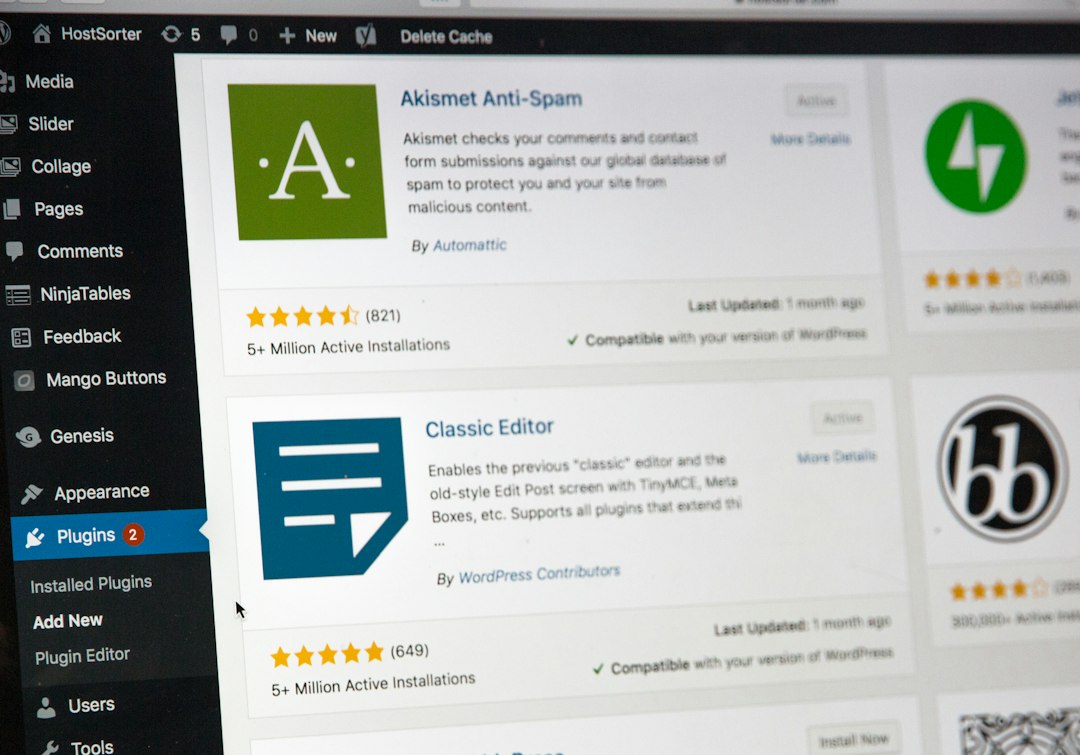
2. WordPress Classic Editor
Some publishers still prefer the Classic Editor plugin because it offers a familiar editing experience. It can be useful for basic posts, but it does not solve the Google Docs import problem on its own.
3. Docs to Markdown Tools
Google Docs to Markdown converters can help writers export clean text and formatting. This option works well for technical teams or publishers comfortable with Markdown. However, it often requires extra steps for images and may not be ideal for non-technical editors.
4. Mammoth .docx Converter
Mammoth is a WordPress plugin that converts .docx files into HTML. Writers can export Google Docs as Word files and upload them through the plugin. It can preserve many formatting elements, though it adds an extra file conversion step.
5. Zapier or Make Automations
Automation platforms such as Zapier and Make can connect Google Docs, WordPress, spreadsheets, and project management tools. They are flexible, but they may require more setup and may not handle rich formatting as smoothly as a dedicated publishing tool.
Final Verdict
Wordable is a practical and focused tool for teams that want to move content from Google Docs into WordPress faster and with fewer errors. Its strongest value is not just the export itself, but the way it supports a cleaner editorial workflow from draft to published post.
For high-volume publishers, Wordable can save enough time to justify its subscription cost. For small websites, the decision depends on how much time is currently spent formatting, uploading images, and cleaning posts. Overall, Wordable is a worthwhile option for content teams that treat publishing as a repeatable production process rather than a one-off task.
FAQ
Is Wordable only for WordPress?
Wordable is best known for Google Docs to WordPress publishing, though it may support additional platforms depending on the current product version. Users should confirm supported integrations before subscribing.
Does Wordable automatically publish posts?
Wordable can export content into WordPress, often as a draft. Most teams still review the imported post before scheduling or publishing it live.
Is Wordable good for SEO?
Wordable supports SEO-friendly workflows by preserving headings, links, images, and structure. However, it does not replace dedicated SEO tools for keyword research, content scoring, or technical audits.
Can Wordable upload images from Google Docs?
Yes, image uploading is one of its most useful features. It can help move images into the WordPress media library and reduce manual upload work.
Is Wordable worth it for small bloggers?
It depends on publishing volume. A blogger posting once or twice per month may not need it, while a site publishing several articles per week may benefit from the time savings.
What is the best Wordable alternative?
The best alternative depends on the workflow. The native WordPress editor is best for simplicity, Docs to Markdown tools are good for technical users, and automation platforms are useful for custom workflows.
