
Video Editing Apps for Beginners: The Best Beginner-Friendly Video Editing Apps for Mobile, Desktop, Social Media, and YouTube

CapCut is the best first video editing app for most beginners because it works on mobile and desktop, has strong auto captions, and makes short social videos fast. If you edit mainly for YouTube, start with iMovie on Mac or iPhone, Clipchamp on Windows, or DaVinci Resolve when you are ready for more control.
TLDR: Beginners should pick one editor based on where the video will be posted, not based on the longest feature list. For example, a small bakery making four Instagram Reels per week will usually finish faster in CapCut or Canva than in a professional desktop editor. A new YouTuber posting 8 to 12 minute videos should use iMovie, Clipchamp, Filmora, or DaVinci Resolve for cleaner timeline work. If you need captions, templates, music, and quick resizing, mobile-first apps save hours.
What Makes a Video Editing App Good for Beginners?
A beginner-friendly editor should make basic work feel obvious. You should be able to import clips, cut mistakes, add text, adjust audio, and export without reading a manual for two hours.
The best apps share a few traits:
- Simple trimming: Cutting clips should take seconds.
- Clear timeline: You need to see video, audio, text, and effects without confusion.
- Auto captions: Essential for TikTok, Instagram, Shorts, and silent viewing.
- Good templates: Helpful for ads, product videos, and fast social posts.
- Reliable export settings: 1080p and 4K should be easy to find.
- Fair pricing: Free plans should be usable, not just trial bait.
The catch is that many “easy” editors hide key controls behind paid plans. Some also push templates so hard that basic manual edits take longer than they should. Expect to waste time on sign-in prompts, stock asset upsells, and cloud sync delays in a few apps.
Best Overall Beginner App: CapCut
Best for: TikTok, Instagram Reels, YouTube Shorts, quick ads, creator content.
CapCut is the most practical choice for many beginners. It is available on iOS, Android, web, Windows, and Mac. Its biggest strength is speed. You can cut clips, add captions, use trending effects, clean up audio, and export vertical videos with little friction.
Auto captions are a major reason to use it. Short videos often perform better when viewers can understand them without sound. CapCut makes that easy. The app also gives beginners access to transitions, stickers, filters, speed changes, and background removal.
What is annoying: Some effects and assets sit behind paid plans. The interface can also feel busy because it pushes templates, AI tools, and effects at the same time. Still, for short videos, it remains one of the fastest options.
Best Mobile Video Editing Apps for Beginners
1. CapCut
Best mobile pick overall. Use it if your main goal is short-form content. It handles captions, vertical formatting, music, overlays, and quick exports very well.
2. iMovie
Best for iPhone users who want a clean app. iMovie is simple, stable, and free on Apple devices. It is not packed with social media effects, but it is excellent for family videos, school projects, simple YouTube uploads, and clean edits.
3. VN Video Editor
Best free-style mobile editor. VN offers multi-track editing, speed controls, transitions, and text tools. It feels less template-driven than CapCut. That is good if you want more manual control.
4. Adobe Premiere Rush
Best for users already paying for Adobe apps. Rush is simple and works across devices. It is good for basic cuts, titles, and color presets. Still, it has not kept pace with some newer mobile editors for social-first features.
Best Desktop Video Editing Apps for Beginners
1. Clipchamp
Best for Windows beginners. Clipchamp is built into many Windows systems and works well for simple edits. It includes templates, screen recording, captions, stock media, and easy exports. It is a safe first choice for presentations, small business videos, and social clips.
Weak point: Large projects can feel slower than expected. It also depends heavily on cloud-style workflows, which may frustrate users with slower internet.
2. iMovie for Mac
Best free Mac editor for beginners. iMovie is clean and dependable. The timeline is easy to understand. It supports titles, transitions, music, voiceover, color tweaks, and 4K export.
It is not ideal for complex projects with many layers. But for a first YouTube video, product demo, or travel recap, it gets the job done without drama.
3. Wondershare Filmora
Best paid beginner desktop editor. Filmora is easier than pro tools but more flexible than iMovie or Clipchamp. It has drag-and-drop effects, audio tools, color presets, motion tracking, and many templates.
Weak point: It can feel crowded with effects and paid add-ons. Check the export rules and plan details before building a long project.
4. DaVinci Resolve
Best free editor for serious beginners. Resolve has professional tools for editing, color correction, audio, and effects. The free version is extremely capable.
Honestly, it feels like overkill at first. Even trimming a clip can seem more formal than it should. But if you plan to edit YouTube videos, interviews, documentaries, or client work, learning Resolve is a smart long-term move.
Best Apps for Social Media Videos
Social media editing is about speed, captions, format, and timing. Most videos need to work in a vertical frame and catch attention within the first few seconds.
- CapCut: Best for TikTok, Reels, Shorts, captions, trends, and quick edits.
- Canva: Best for branded videos, ads, quote videos, simple promos, and teams.
- Instagram editor: Best for quick Reels when you want native stickers, music, and platform tools.
- TikTok editor: Best for trend-based edits and sounds that already live inside TikTok.
Canva deserves a special mention. It is not the most precise editor, but it is strong for beginners who care about branding. You can make a product promo, resize it for multiple platforms, add a logo, and keep fonts consistent. It drives me crazy that fine timeline edits can take a few extra clicks, but for simple business content, Canva is reliable.
Best Apps for YouTube Beginners
YouTube editing needs a different setup. Long-form videos require cleaner audio, better pacing, clear titles, and stronger file control. A simple editor is fine, but it must handle longer timelines without becoming messy.
- iMovie: Best free choice for Mac and iPhone users starting a channel.
- Clipchamp: Best easy choice for Windows users.
- Filmora: Best paid beginner option for tutorials, vlogs, and gaming edits.
- DaVinci Resolve: Best free option for creators who want room to grow.
- Final Cut Pro: Best premium Mac option after you outgrow iMovie.
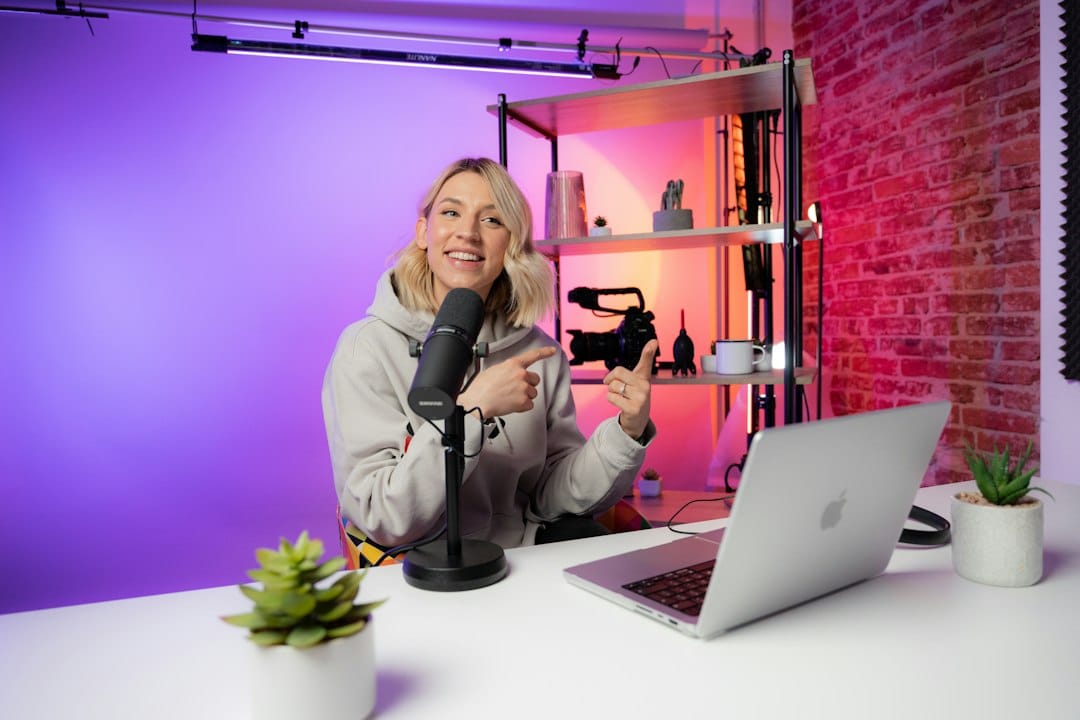
For YouTube, pay close attention to audio. Viewers forgive basic visuals before they forgive harsh sound. Choose an app with noise reduction, volume controls, music tracks, and waveform editing. Filmora and DaVinci Resolve are stronger here than most mobile apps.
Quick Recommendations by User Type
- Total beginner making TikToks: Use CapCut.
- Small business owner making ads: Use Canva or CapCut.
- iPhone user making family or travel videos: Use iMovie.
- Windows user making simple YouTube videos: Use Clipchamp.
- Beginner planning a serious YouTube channel: Start with Filmora or DaVinci Resolve.
- Student making class projects: Use iMovie, Clipchamp, or Canva.
Free vs Paid: What Should Beginners Choose?
Start free unless you already know what you need. A free app is enough for trimming, captions, music, and basic exports. Pay only when you hit a real limit, such as watermark removal, brand kits, advanced audio cleanup, or higher-quality stock media.
For most beginners, the best upgrade is not a paid app. It is a better microphone, better lighting, or a simple tripod. Clean footage makes editing easier. Bad footage forces you to fix problems that should have been avoided during recording.
Final Pick
Choose CapCut if you want the easiest all-around start. Choose iMovie if you use Apple devices and want a calm, clean editor. Choose Clipchamp if you are on Windows and need simple desktop editing. Choose DaVinci Resolve if you want a free editor that can grow with you.
The best beginner video editing app is the one you will actually use every week. Keep the first setup simple. Make five short projects before switching tools. That habit will teach you more than downloading every editor on the list.
