
My iPhone Won’t Turn On: Force Restart vs Recovery Mode for Troubleshooting Power Problems
Try a force restart first, then use recovery mode only if the iPhone still refuses to start or gets stuck during boot. A black screen does not always mean the phone is dead. It may be frozen, fully drained, stuck after an update, or dealing with a hardware fault. Start with the least risky steps before choosing anything that can affect your data.
TLDR: Charge the iPhone for at least 30 minutes, then perform a force restart using the button sequence for your model. If it still shows only a black screen, Apple logo, or recovery prompt, use recovery mode with a Mac or PC and choose Update before Restore. For example, if an iPhone 13 goes black after an iOS update, a force restart may take under 60 seconds, while recovery mode can take 15 to 60 minutes depending on download speed and software repair.
Force Restart vs Recovery Mode: The Short Difference
A force restart is a safe reset of the iPhone’s running system. It does not erase photos, apps, messages, or settings. Think of it as cutting through a software freeze when the screen will not respond.
Recovery mode is deeper. It connects the iPhone to a computer and lets Finder or iTunes reinstall iOS. If you choose Update, your data should remain in place. If you choose Restore, the iPhone is erased. That is why recovery mode should not be your first move unless the phone is clearly stuck in startup failure.
The catch is that both problems can look the same from the outside: a black screen, no response, and rising panic. The order of steps matters.
First, Rule Out Simple Power Problems
Before pressing button combinations or connecting to a computer, check the basics. This sounds dull, but it saves time. A deeply drained iPhone may not show a charging icon right away.
- Use a known good charging cable and power adapter.
- Charge from a wall outlet, not a weak USB port.
- Wait at least 30 minutes.
- Check the charging port for lint, dust, or bent debris.
- Try wireless charging if your model supports it.
- Remove thick cases that may block the cable from seating fully.
If the phone became warm, let it cool before trying again. If it was exposed to water, do not plug it in immediately. Moisture and power are a bad mix.

When to Use a Force Restart
Use a force restart when the iPhone screen is black, frozen, or unresponsive, but there is no clear sign of physical damage. It is also worth trying if the phone vibrates, rings, or connects to a car system while the display stays black.
Force restart is especially useful after:
- An app freezes the phone.
- The screen turns black after a call.
- An iOS update appears to hang.
- The phone is on, but touch does nothing.
- The Apple logo appears and disappears.
Force Restart Steps by iPhone Model
iPhone 8, iPhone SE 2nd generation or later, and iPhone X or newer:
- Press and quickly release Volume Up.
- Press and quickly release Volume Down.
- Press and hold the Side button.
- Keep holding until the Apple logo appears.
iPhone 7 and iPhone 7 Plus:
- Press and hold Volume Down and the Side button together.
- Keep holding until the Apple logo appears.
iPhone 6s, iPhone SE 1st generation, and earlier:
- Press and hold the Home button and Top or Side button together.
- Keep holding until the Apple logo appears.
Do not release the buttons too early. It may take 10 to 20 seconds. Honestly, it feels longer when the screen is black and nothing seems to be happening.
When Force Restart Is Not Enough
If a force restart fails, look at what the iPhone does next. The pattern matters.
- No screen, no vibration, no sound: possible battery, charging, display, or board issue.
- Apple logo loop: likely iOS startup failure or storage problem.
- Computer detects the iPhone, screen stays black: possible display failure or software crash.
- Recovery cable image appears: the phone is already asking for recovery mode.
- Phone gets hot and will not start: stop trying and seek service.
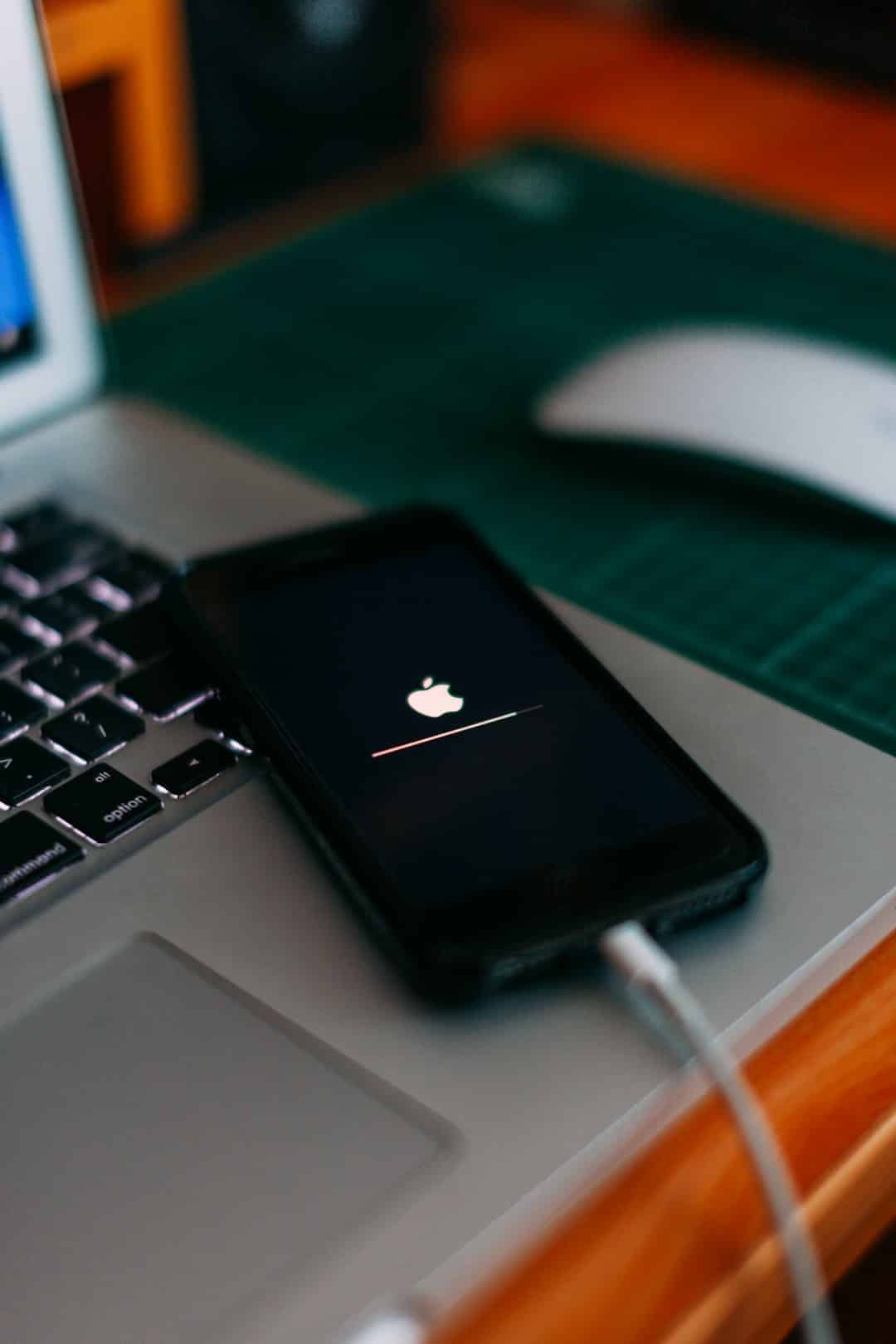
It drives people mad when a phone looks dead but is actually stuck in software. Recovery mode is meant for that middle ground, when the hardware still responds but iOS cannot start cleanly.
When to Use Recovery Mode
Use recovery mode if the iPhone will not start after charging and force restart, or if it is stuck on the Apple logo for several minutes. It is also the right tool when an iOS update fails and the phone will not complete startup.
You need a computer with Finder on macOS Catalina or later, or iTunes on Windows and older macOS versions. Use a reliable cable. Cheap damaged cables can cause recovery to fail halfway through, which only adds more stress.
How Recovery Mode Works
- Connect the iPhone to a Mac or PC.
- Open Finder or iTunes.
- Put the iPhone into recovery mode using the same button sequence as force restart, but keep holding until the recovery screen appears.
- When prompted, choose Update first.
- If Update fails, choose Restore only if you accept that the phone will be erased.
Update attempts to reinstall iOS without wiping personal data. Restore removes everything and returns the iPhone to factory settings. If you have an iCloud or computer backup, you can restore your data later. If you do not, Restore may mean permanent data loss.
Force Restart vs Recovery Mode: Which One Should You Choose?
| Situation | Best First Step |
|---|---|
| Black screen after normal use | Charge, then force restart |
| Frozen app or unresponsive touch | Force restart |
| Apple logo stuck for more than 10 minutes | Recovery mode |
| Failed iOS update | Recovery mode, choose Update |
| Phone dropped, cracked, or water damaged | Stop and get hardware service |
The safest sequence is simple: charge, inspect, force restart, recovery mode Update, then professional repair if needed. Do not jump to Restore unless you have tried safer options or have a current backup.
Signs This Is Probably a Hardware Problem
Software fixes cannot repair damaged parts. Get the iPhone checked if you notice any of these signs:
- The phone was dropped shortly before the issue started.
- The display is cracked, green, white, or flickering.
- The charging port feels loose.
- The battery is swollen or the screen is lifting.
- The iPhone heats up while charging but never turns on.
- No computer detects the iPhone after multiple cables and ports.
A failed display can mimic a dead iPhone. The device may still ring or vibrate. In that case, recovery mode will not fix the screen. A repair technician should test the display, battery, charging port, and logic board.
What to Avoid
- Do not keep holding random buttons for minutes at a time.
- Do not use heat, freezers, or pressure on the screen.
- Do not clean the charging port with metal tools.
- Do not choose Restore unless you understand the data risk.
- Do not ignore swelling, smoke, burning smells, or extreme heat.
If the iPhone contains data you cannot lose, be cautious. A repair shop may be able to test hardware without erasing the device. Apple may replace rather than repair some units, so ask about data options before service.
The Practical Bottom Line
If your iPhone will not turn on, force restart is the right first troubleshooting step after charging. It is quick, safe, and does not threaten your data. Recovery mode is the next step when the phone shows signs of iOS failure, such as a startup loop, recovery screen, or failed update.
If neither works, stop repeating the same steps. Repeating recovery attempts rarely fixes a battery, screen, or board fault. At that point, the smartest move is a proper hardware diagnosis, especially if the phone has physical damage or contains data that matters.
