
How to Search a PDF for Keywords When the Document Contains Hundreds of Pages
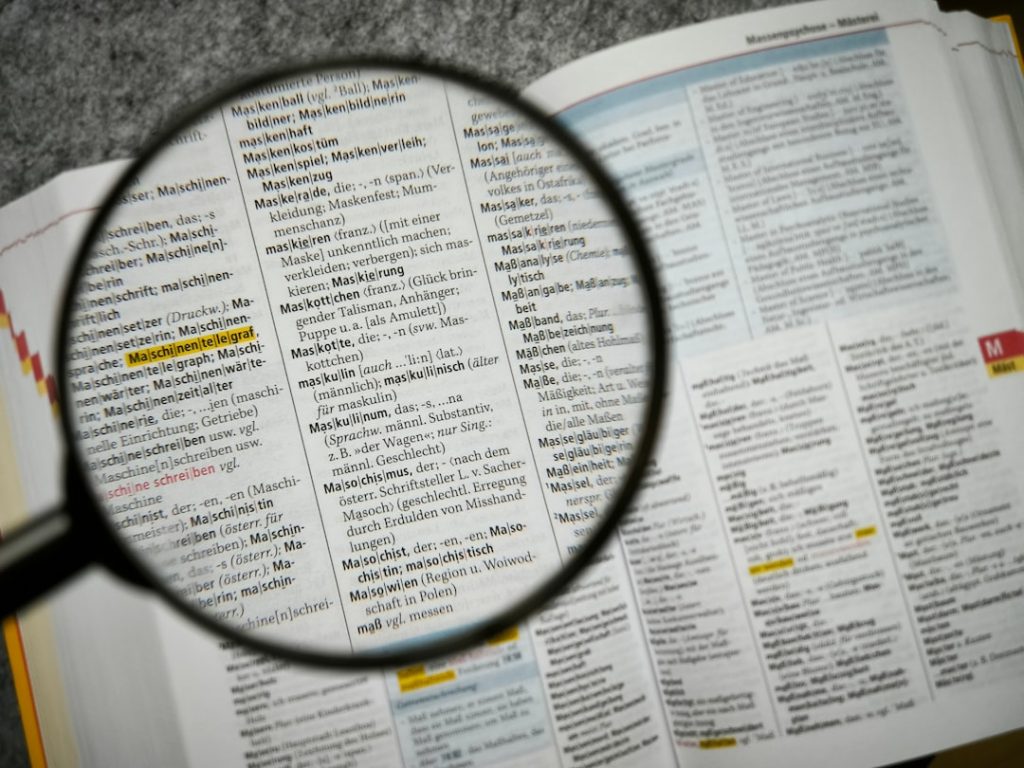
Use Advanced Search, not basic Find, when a PDF runs into hundreds of pages and you need more than one quick hit.
TLDR: Start with Ctrl+F or Command+F for a single keyword, then switch to Advanced Search for exact phrases, multiple terms, whole-folder searches, or scanned files. If the PDF is an image scan, run OCR first or your search may return nothing. For example, a compliance analyst checking a 742-page policy file for “data retention” and “vendor access” can cut a 2-hour manual skim to under 10 minutes by using phrase search, match case, and highlighted results.
Start with the fastest shortcut
The quickest way to search a PDF is simple:
- Windows: Press Ctrl + F
- Mac: Press Command + F
- Browser viewer: Press Ctrl + F or Command + F
- Mobile PDF app: Tap the search icon, often shown as a magnifying glass
Type the keyword, press Enter, and move through the matches. Most PDF readers will highlight every hit and show the page number. This works well for names, invoice numbers, project codes, dates, and short topic words.
Still, basic Find gets annoying fast in a 500-page report. It may show 300 results for a common word like “risk” with no easy way to filter them. That is when you need a better method.

Use exact phrases to avoid junk results
If you search for two words separately, your PDF reader may return every page that contains either word. That creates noise. Instead, search for the exact phrase.
For example, search for:
- “termination clause” instead of termination clause
- “net revenue” instead of revenue
- “patient consent form” instead of consent
Phrase search is especially useful in legal files, research papers, manuals, financial statements, and contracts. It trims results and sends you closer to the right page.
Switch to Advanced Search for large PDFs
In Adobe Acrobat Reader, press Shift + Ctrl + F on Windows or Shift + Command + F on Mac. This opens Advanced Search. It gives you more control than the small Find box.
Advanced Search can usually help you:
- Search the current PDF
- Search all PDFs in a folder
- Match whole words only
- Match case, such as “Apple” versus “apple”
- Find exact phrases
- Review results in a list with page numbers
This matters when you have hundreds of pages. A result list is easier to scan than clicking “next” 80 times. It drives me crazy that some simple PDF viewers make you jump result by result like it is still 2004. A proper results panel saves real time.
Check whether the PDF is searchable
Here is the problem many people miss: not every PDF contains real text. Some PDFs are just images of pages. You can see the words, but the computer cannot read them.
Try this test:
- Open the PDF.
- Try to select a line of text with your cursor.
- If you can highlight individual words, the PDF is searchable.
- If the whole page acts like one big picture, it needs OCR.
OCR means optical character recognition. It converts scanned page images into searchable text. Adobe Acrobat Pro, ABBYY FineReader, Microsoft OneNote, Google Drive, and several scanner apps can run OCR.
Once OCR is finished, save a new searchable copy. Then run your keyword search again. If the scan quality is poor, expect a few mistakes. A blurry “0” may become an “O.” A smudged “rn” may become “m.” Search for close variations if results seem missing.

Use the right keyword strategy
For long PDFs, the keyword itself matters as much as the search tool. A vague term can bury you in results. A specific term gets you there faster.
Use this approach:
- Start specific: Search for “late payment fee” before searching “payment.”
- Try synonyms: Search “supplier,” “vendor,” and “contractor.”
- Search acronyms and full terms: Try both “PII” and “personally identifiable information.”
- Use names and numbers: Case IDs, invoice numbers, and product codes are powerful anchors.
- Search dates in several formats: Try “01/12/2025,” “January 12, 2025,” and “12 Jan 2025.”
For research PDFs, search the term in singular and plural forms. Try “regulation” and “regulations.” For contracts, try related action words such as “terminate,” “termination,” and “terminated.”
Search within results when possible
Some PDF tools let you search again inside the result set, or at least sort results by page. Use that when the first search returns too much.
Say you search “insurance” in a 900-page vendor agreement and get 214 hits. Search next for “liability insurance” or “certificate of insurance.” You can also combine the keyword with a section term, such as “insurance notice” or “insurance renewal.”
This layered search works better than trying to read every highlighted result. It also reduces the chance of missing a key clause buried in an appendix.
Search multiple PDFs at once
If your “document” is really a folder full of PDFs, do not open each file one by one. Use a tool that searches across a folder.
Good options include:
- Adobe Acrobat Advanced Search: Good for searching folders of PDFs.
- Windows Search: Useful if PDF indexing is enabled.
- macOS Spotlight: Fast for indexed PDF text.
- Foxit PDF Reader: Offers strong search features in large files.
- PDF-XChange Editor: Handy for power users who need detailed search controls.
Folder search is ideal for audits, court filings, HR records, technical manuals, and archived reports. If you repeat the same searches weekly, indexing the folder can make results appear much faster.
Use bookmarks, thumbnails, and the table of contents
Keyword search should not work alone. In big PDFs, structure helps.
Open the bookmarks panel if the file has one. Check the table of contents. Use page thumbnails to spot section breaks, charts, forms, and appendices.
For example, if your keyword appears 60 times, bookmarks can show whether those hits sit in “Definitions,” “Fees,” “Risk Factors,” or “Appendix B.” That context matters. A term in a heading may matter more than the same term in a footnote.
Save your results and mark key pages
Once you find useful pages, do not trust your memory. Add comments, highlights, or bookmarks. Rename the file if needed, such as contract searched termination insurance.pdf.
You can also keep a short note like this:
- Keyword: “auto renewal”
- Pages: 48, 112, 319
- Useful result: Page 112, renewal window starts 60 days before expiration
This is boring, but it prevents duplicate work. It also helps when you need to explain where a detail came from.
Common reasons PDF search fails
- The PDF is scanned: Run OCR.
- The word is misspelled: Search close variants.
- The text is split by line breaks: Search one unique word instead of a full phrase.
- The file uses odd encoding: Try another PDF reader.
- The term appears in an image: OCR may be needed, even if the rest is searchable.
The best workflow is simple: start with a precise keyword, use Advanced Search, confirm the file is searchable, then narrow results with phrases and related terms. For hundreds of pages, that method beats scrolling every time.
