
How to Delete a Messenger Account: Messenger vs Signal for Private Messaging
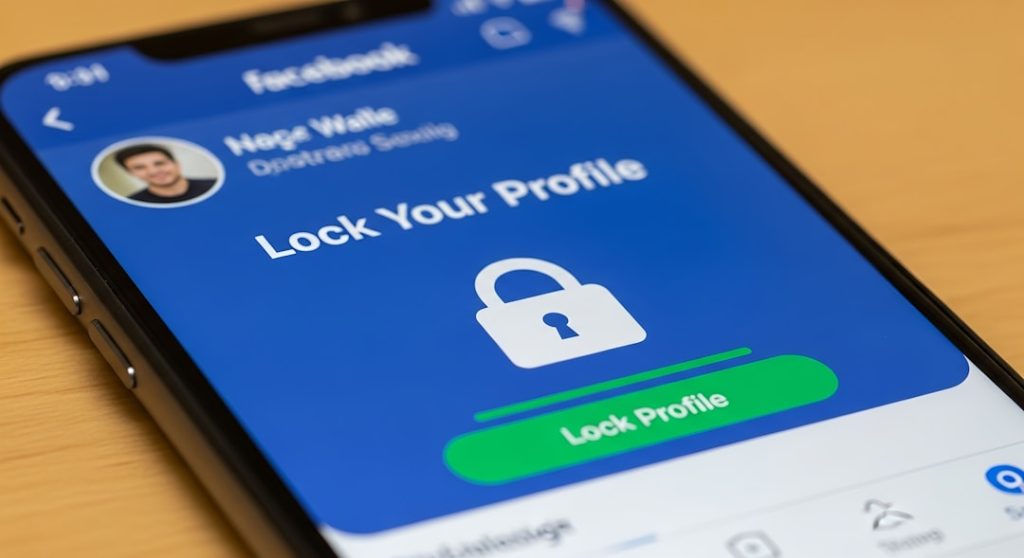
If you want private messaging, delete or deactivate Messenger through Meta’s account settings, then move sensitive chats to Signal. Uninstalling Messenger is not enough. Your account, contacts, profile, and message access can still exist unless you remove or deactivate the account behind it.
TLDR: Messenger is tied closely to Facebook and Meta, so deleting it usually means deleting or deactivating your Facebook account too. Signal is simpler: your phone number is your account, and account deletion happens inside the app in a few taps. For example, if Alex has 1,200 Messenger chats going back eight years, uninstalling the app removes none of that from Meta’s systems. If Alex switches to Signal, new chats get end-to-end encryption by default and far less account data is collected.
Messenger vs Signal: the short version
Messenger is convenient. It has reactions, calls, Stories, group chats, business messages, marketplace replies, and deep links to Facebook. That convenience comes with baggage. Messenger lives inside Meta’s wider system, which includes Facebook, Instagram, ads, contacts, device data, and social graphs.
Signal is built for privacy first. It does messaging, voice calls, video calls, groups, disappearing messages, and file sharing. It does not try to become a social network. It does not show ads. It collects very little account information compared with Meta products.
The annoying part? Messenger can feel like a drawer you cannot fully empty. You delete the app, then a friend still sees your profile. You deactivate Facebook, then Messenger may remain active unless you also deactivate Messenger. Honestly, it feels like Meta makes the exit door smaller than the entrance.
Can you delete only Messenger?
Usually, not in the clean way people expect. Messenger is not a fully separate account for most users. It is connected to your Facebook account or Meta account. That means your options are:
- Deactivate Messenger if your Facebook account is already deactivated.
- Delete your Facebook account, which also removes Messenger access after the deletion period.
- Remove the app, which only takes Messenger off your phone.
- Turn off active status and notifications, which hides activity but does not delete the account.
If your goal is privacy, uninstalling is the weakest option. It stops you from opening the app, but it does not erase your profile, old conversations, uploaded contacts, or Meta account connections.
How to deactivate Messenger
If you want a reversible break, deactivate Messenger. This is useful when you still might return later.
- Open the Messenger app.
- Tap the menu icon or your profile picture.
- Go to Account settings or Accounts Center.
- Choose Personal details.
- Select Account ownership and control.
- Tap Deactivation or deletion.
- Choose the account you want to change.
- Select Deactivate account.
- Follow the prompts and confirm with your password.
Meta changes menu names often, which is irritating. One month the option is under “Settings.” The next month it is buried in “Accounts Center.” Expect to waste a minute or two hunting if your app version looks different.
One key detail: if Facebook is still active, Messenger may stay active too. To fully deactivate Messenger, you may need to deactivate Facebook first, then deactivate Messenger.
How to delete Messenger permanently
To permanently delete Messenger, you usually need to delete the Facebook account connected to it.
- Open Facebook or Messenger.
- Go to Settings and privacy.
- Open Accounts Center.
- Select Personal details.
- Choose Account ownership and control.
- Tap Deactivation or deletion.
- Select your Facebook account.
- Choose Delete account.
- Confirm and follow the final steps.
Meta often gives a grace period before permanent deletion. If you log back in during that period, deletion may be canceled. So do not reopen Facebook “just to check.” That single login can undo the whole process.
Before you delete Messenger, do these 5 things
- Download your information: Save photos, message history, contacts, and posts if you need records.
- Tell close contacts: Send your Signal number or invite link first.
- Check linked logins: Some apps and games may use Facebook login.
- Remove uploaded contacts: Messenger may have synced your address book.
- Save business chats: Receipts, marketplace deals, or support messages may vanish later.
This part is boring, but worth doing. Losing access to a rental receipt or old marketplace agreement over a rushed deletion is the kind of tech mistake that stings.
How Signal handles account deletion
Signal is much more direct. Your Signal account is tied to your phone number. To delete it:
- Open Signal.
- Tap your profile icon.
- Go to Account.
- Choose Delete account.
- Enter your phone number.
- Confirm deletion.
You can also deregister your number from Signal if you no longer have the app. Signal provides a web form for that. This stops your number from being treated as a Signal account.
Signal does not store your full message history in the cloud like a social platform. Your messages live mainly on your devices and your chat partner’s devices. If you delete your account, that does not magically erase copies from someone else’s phone. No messaging app can promise that.
Privacy comparison: Messenger vs Signal
Encryption: Signal uses end-to-end encryption by default for messages and calls. Messenger has added more end-to-end encryption for personal chats, but business chats, some features, backups, and Meta integrations can still raise privacy questions.
Data collection: Signal collects very little. It needs your phone number and basic technical data to run the service. Messenger is part of Meta, so it can connect activity across accounts, devices, contacts, ads, and usage patterns.
Backups: Signal backups are optional and controlled by the user. Messenger is more cloud-based, which is convenient but less private.
Identity: Messenger is linked to a social profile. Signal is linked to a phone number, with usernames available in supported versions to reduce number sharing.
Social features: Messenger wins on convenience. Signal wins on restraint. That restraint is exactly why privacy-minded users prefer it.
Which app should you use?
Use Messenger if you need Facebook contacts, marketplace messages, community groups, or family members who refuse to install anything else. It is practical. It is everywhere. For many people, that matters.
Use Signal if your priority is private conversations, fewer trackers, cleaner settings, and stronger default encryption. It is a better fit for journalists, activists, therapists, small teams, couples, and anyone tired of chat apps that double as ad machines.
A good middle path is simple: keep Messenger only for low-risk chats and move personal conversations to Signal. For example, use Messenger to ask about a used sofa. Use Signal to discuss family issues, money, travel plans, health, or anything you would not want profiled.
Final recommendation
If you are serious about leaving Messenger, do not just uninstall it. Download anything you need, warn your contacts, remove synced contacts, then deactivate or delete through Meta’s Accounts Center. After that, set up Signal and invite your closest contacts first.
Messenger is built for reach. Signal is built for privacy. That difference shows up most clearly when you try to leave. Signal gives you a clean exit. Messenger makes you deal with the whole Meta account system first.
