
How to Clear Cache on Fire TV: Fire TV vs Android TV for Fixing App Problems
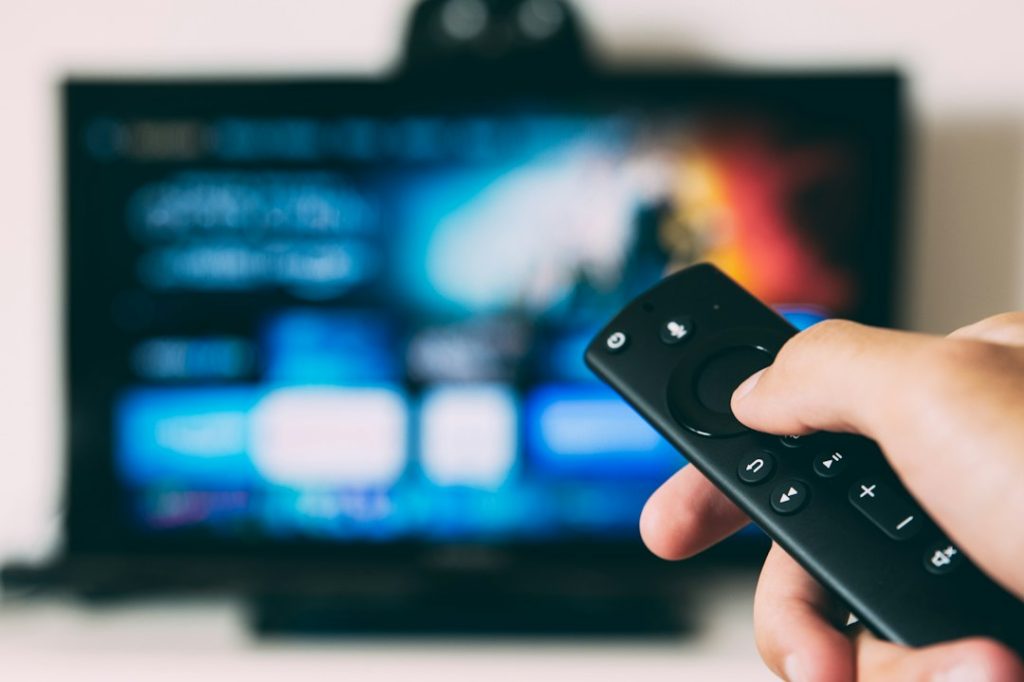
The fastest fix for a misbehaving streaming app is to clear its cache first, not reinstall it. On Fire TV, that means opening the app’s settings and using Clear cache. On Android TV, the same fix is usually under the app storage menu. This removes temporary files without deleting your login, profiles, or app settings.
TLDR: Clear the cache when an app freezes, buffers, shows old thumbnails, or opens slower than usual. For example, if Netflix normally opens in 5 seconds but starts taking 20 seconds, cached data may be part of the problem. In a typical household with 8 to 12 streaming apps installed, clearing cache on the worst offenders can free hundreds of megabytes. Fire TV makes this task more direct, while Android TV menus vary more by brand.
What App Cache Actually Does
Cache is temporary data saved by an app. Streaming apps use it for images, menus, search results, previews, ads, and playback data. Cache helps apps load faster when it works well.
When it goes bad, the app may act strangely. You may see blank rows, endless loading circles, missing subtitles, failed sign-ins, or playback errors. It drives me crazy that one corrupted thumbnail file can make an entire app feel broken, but it happens.
Clearing cache is safe. It does not remove the app. It does not usually sign you out. It does not delete your watch history, since that is normally stored in your account online.
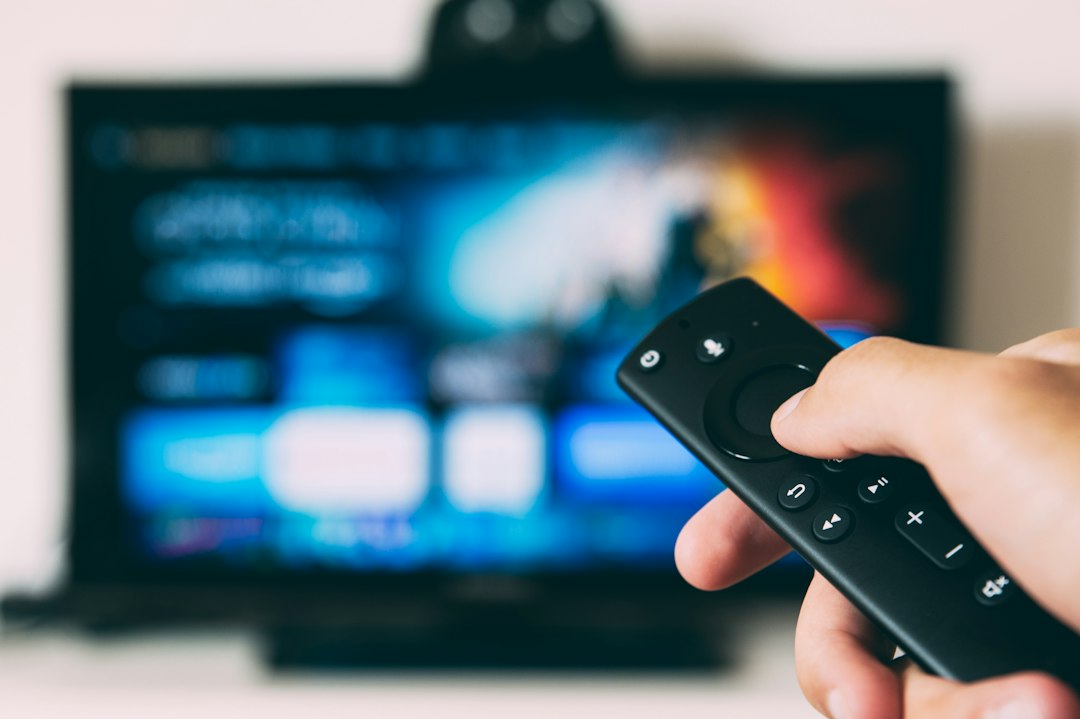
Fire TV: How to Clear Cache
Amazon Fire TV devices have a fairly consistent settings path. This includes Fire TV Stick, Fire TV Stick 4K, Fire TV Cube, and many Fire TV smart televisions.
- Press the Home button on the remote.
- Open Settings.
- Select Applications.
- Choose Manage Installed Applications.
- Select the problem app, such as Hulu, Max, YouTube, Disney+, or Prime Video.
- Choose Clear cache.
- Open the app again and test it.
Do not press Clear data unless you are ready to reset the app. Clear data can remove local settings and may sign you out. Clear cache is the lower-risk option.
If the app still fails, restart the Fire TV after clearing the cache. Go to Settings > My Fire TV > Restart. You can also unplug the power cable for 30 seconds, then plug it back in. A real restart often works better than simply pressing the power button on the remote.
Android TV: How to Clear Cache
Android TV and Google TV devices use similar software, but TV makers place menus in different spots. Sony, TCL, Hisense, Philips, Nvidia Shield, and Chromecast with Google TV may not show the same labels.
The usual path looks like this:
- Open Settings.
- Select Apps.
- Choose See all apps or App info.
- Select the app that is causing trouble.
- Open Storage & cache.
- Select Clear cache.
- Restart the app.
On some Google TV devices, you may need to select System, then Apps. On others, pressing and holding the app icon may open an app info panel. Honestly, it feels like every TV brand hides the same button in a slightly different drawer.

Fire TV vs Android TV: Which Is Easier?
Fire TV is usually easier for cache clearing. The settings path is more uniform across devices. If you have used one Fire TV Stick, you can usually fix another without thinking too much.
Android TV gives you more device variety. That is useful if you want more hardware choices, but it can slow down troubleshooting. The same app problem may require different steps on a Sony TV compared with an Nvidia Shield.
- Best for simple troubleshooting: Fire TV
- Best for flexible device options: Android TV
- Most consistent app settings: Fire TV
- Most variable menu layout: Android TV
- Best for advanced users: Android TV or Nvidia Shield
For app problems only, Fire TV has the edge. For broader control, Android TV can be stronger, especially on higher-end devices.
When Clearing Cache Helps Most
Clearing cache is worth trying when the problem is limited to one app. If YouTube fails but Netflix works, start with YouTube’s cache. If every app buffers, the issue may be Wi-Fi, internet speed, DNS, or device storage.
Clear the cache when you see these symptoms:
- App opens slowly or freezes at launch.
- Video thumbnails do not load.
- Menus show old or missing content.
- Playback stops with random errors.
- Search results fail to appear.
- The app crashes after an update.
A simple rule works well: clear cache, force stop, restart the app. If that fails, restart the device. If that still fails, update or reinstall the app.
Cache vs Data: Do Not Mix Them Up
Clear cache removes temporary files. It is low risk.
Clear data resets the app’s local state. It may remove downloads, preferences, location settings, and saved login sessions. Use it only when clearing cache does not help.
For example, clearing cache in a streaming app might remove stored posters and menu files. Clearing data may make the app act like it was just installed. That means typing your email and password again, which is annoying if your remote has stiff buttons.
What If the App Still Does Not Work?
If cache clearing does not fix the issue, use this order:
- Force stop the app. This shuts it down fully.
- Restart the device. This clears stuck background processes.
- Check for app updates. Bugs often get patched quickly.
- Check device storage. Keep at least 500 MB free when possible.
- Reinstall the app. Use this after simpler fixes fail.
- Test another app. This shows whether the issue is app-specific.
If several apps fail at once, check your internet connection. A 4K stream may need 25 Mbps or more for stable playback. Weak Wi-Fi can look like an app problem when the app is only waiting for data. Move the router closer, use Ethernet if supported, or test the TV near the router.
How Often Should You Clear Cache?
Do not clear cache every day. Apps use cache for speed, so removing it too often can make them slower at first. A sensible schedule is once every few weeks, or only when an app starts acting up.
Fire TV users with limited storage may benefit from checking cache monthly. Some Fire TV Stick models have tight storage, and large apps can grow quickly. Android TV boxes with more storage may need less attention.
Final Recommendation
For fixing app problems, start with Clear cache on the affected app. Fire TV makes the process simpler and more predictable. Android TV can do the same job, but the exact menu path depends on the device maker.
If you want the shortest route to a quick fix, Fire TV wins. If you prefer more hardware choice and deeper controls, Android TV remains a solid option. Either way, cache clearing should be your first repair step before reinstalling apps or resetting the whole device.
