
Aura Cam Features and Setup Guide
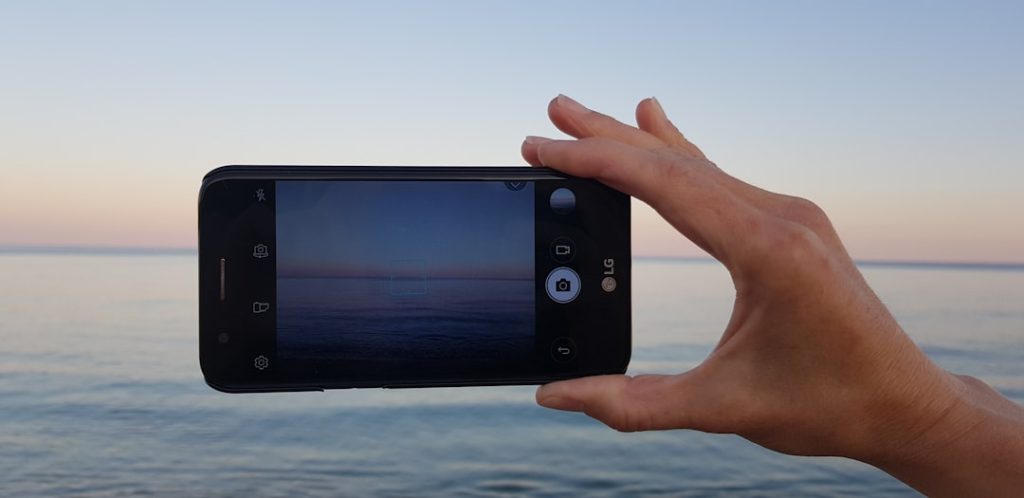
Aura Cam is commonly chosen by households, small offices, and creators who want a camera that feels simple to use while still offering modern monitoring features. Its appeal comes from a combination of clear video, app-based control, motion alerts, two-way communication, and flexible setup options. When configured correctly, it can become a reliable part of a home security system, pet monitoring setup, baby room arrangement, or general indoor surveillance plan.
TLDR: Aura Cam is a smart camera designed for easy monitoring through a mobile app, with features such as live view, motion detection, night vision, audio communication, and cloud or local storage options. Setup usually involves charging or powering the camera, installing the app, connecting it to Wi-Fi, and adjusting privacy and alert settings. Proper placement, stable internet, and regular firmware updates help the device perform at its best. The guide below explains the main features, setup process, and common troubleshooting tips.
Main Features of Aura Cam
Aura Cam is built around convenience and visibility. Instead of requiring a complex wired security system, it typically uses a mobile app and wireless connectivity to give the owner access to camera controls from a smartphone or tablet. Depending on the specific model, features may vary, but most Aura Cam systems focus on ease of installation, real-time monitoring, and automated alerts.
1. Live Video Monitoring
One of the most important features of Aura Cam is live video streaming. The owner can open the companion app and view the camera feed in real time. This is useful for checking the front door, monitoring a child’s room, keeping an eye on pets, or confirming activity in an office after hours.
Most smart cameras, including Aura Cam-style devices, support high-definition video. Some models may offer 1080p HD, while more advanced versions may include 2K or higher resolution. A clearer image makes it easier to identify faces, read details, and review recorded footage.
2. Motion Detection and Smart Alerts
Aura Cam often includes motion detection, allowing the camera to recognize movement within its field of view. When motion is detected, the app can send a notification to the owner’s device. This feature helps reduce the need to constantly watch the live feed.
Some models may support customizable motion zones. These zones allow the owner to choose which areas of the camera view should trigger alerts. For example, a camera facing a driveway could be set to monitor the entry path while ignoring movement from a nearby street or tree branches. This helps reduce false alerts and makes notifications more useful.
3. Night Vision
Night vision is another key feature. Aura Cam may use infrared LEDs or low-light enhancement to provide visibility in darkness. This is especially helpful for overnight security monitoring, nurseries, garages, hallways, and outdoor entry points.
For best results, the camera should not be pointed directly at glass, bright lights, or reflective surfaces at night. Reflections can interfere with infrared visibility and create glare in the video feed.
4. Two-Way Audio
Many Aura Cam models include a built-in microphone and speaker. This enables two-way audio, allowing the owner to speak through the camera using the app. It can be used to greet visitors, calm a pet, communicate with family members, or warn an unexpected person that the area is being monitored.
Audio performance depends on Wi-Fi strength, background noise, and device placement. A camera placed too close to appliances, vents, or televisions may capture unwanted noise. Positioning the camera in a quieter area usually improves voice clarity.
5. Cloud and Local Storage Options
Aura Cam may offer several ways to store video footage. Some systems provide cloud storage through a subscription plan, while others support local storage through a memory card or compatible hub. Cloud storage is convenient because footage can often be accessed even if the camera is damaged or removed. Local storage may appeal to owners who prefer more control over recorded files.
The best choice depends on the user’s priorities. Cloud storage is well suited for remote access and automatic backups, while local storage can reduce recurring costs. In either case, the owner should review storage limits, retention periods, and privacy settings before relying on the camera for important recordings.
6. App Control and Device Sharing
The companion app is usually the central control point for Aura Cam. Through the app, the owner can view live footage, change alert settings, update firmware, manage storage, and share access with trusted people. Device sharing is useful for families, roommates, or office teams.
Access permissions should be handled carefully. Only trusted users should be added, and unused accounts should be removed. Strong passwords and two-factor authentication, when available, provide better protection against unauthorized access.
What Comes in the Box
The exact contents depend on the model, but an Aura Cam package commonly includes the following items:
- Aura Cam device with built-in lens, microphone, and speaker
- Power cable or charging cable, depending on whether the camera is wired or battery powered
- Power adapter, if included by the manufacturer
- Mounting bracket or base for wall, shelf, or ceiling installation
- Screws and anchors for mounting
- Quick start guide with app and pairing instructions
Before setup begins, the owner should check that all parts are present and that the camera has no visible damage. If the camera uses a rechargeable battery, it should be fully charged before pairing and installation.
Aura Cam Setup Guide
The setup process is usually straightforward, but careful preparation helps prevent connection issues. The camera should be installed near a strong Wi-Fi signal and positioned where it can clearly capture the intended area.
Step 1: Choose the Right Location
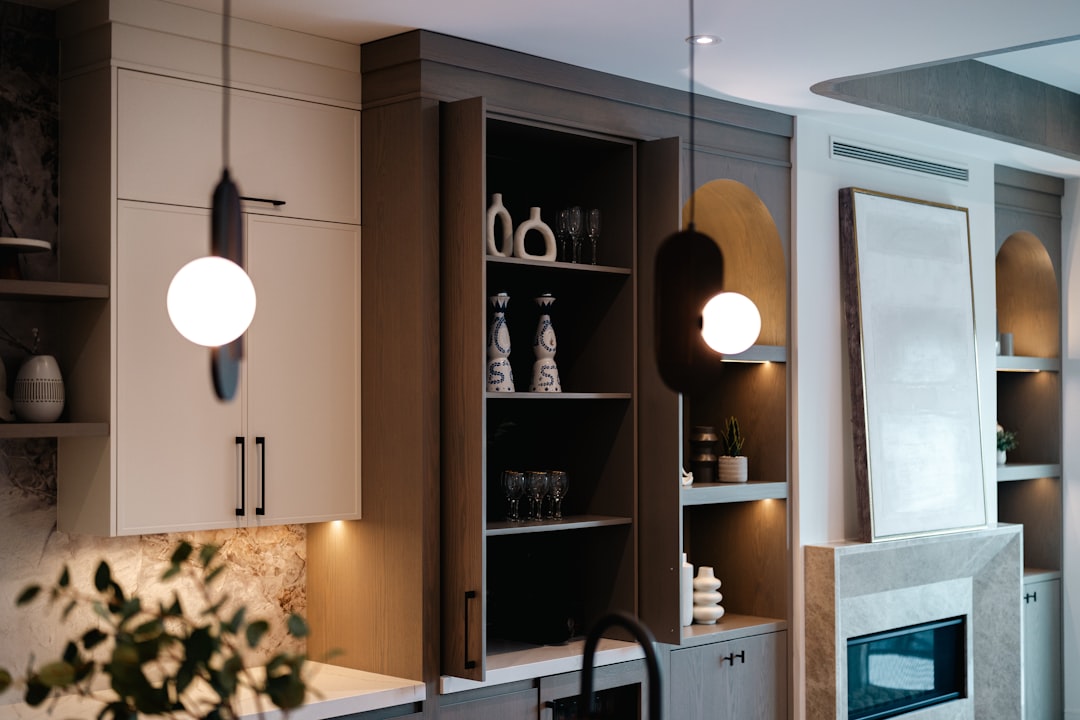
Placement is one of the most important setup decisions. The camera should have a clear view of the area being monitored. For indoor use, common locations include entryways, living rooms, nurseries, pet areas, and home offices. For covered outdoor use, the camera should be placed near doors, garages, porches, or side entrances, as long as the model is rated for outdoor conditions.
The camera should be positioned high enough to avoid accidental bumps but low enough to capture useful details. A height of about 6 to 8 feet is often practical for general monitoring. If facial identification is important, the camera should not be mounted too high or aimed too steeply downward.
Step 2: Power the Camera
If the Aura Cam is wired, it should be connected to a suitable power outlet using the provided cable and adapter. If it is battery powered, the battery should be charged fully before setup. Some cameras show a status light when charging is complete.
The owner should avoid using damaged cables, low-quality adapters, or unstable power sources. Power interruptions can cause connection problems or prevent firmware updates from installing correctly.
Step 3: Install the App
The next step is to install the official Aura Cam companion app on a smartphone or tablet. The app usually guides the owner through account creation, device pairing, Wi-Fi connection, and camera naming.
During account setup, the owner should use a strong password. A good password includes a mix of letters, numbers, and symbols. If two-factor authentication is available, it should be enabled for better account security.
Step 4: Connect to Wi-Fi
Aura Cam usually requires a Wi-Fi connection to stream video and send alerts. Many smart cameras work best on a 2.4 GHz Wi-Fi network because it provides better range than 5 GHz, though some models may support both.
The owner should keep the camera close to the router during initial pairing. Once the connection is complete, the camera can be moved to its final location. If the signal becomes weak after relocation, a Wi-Fi extender, mesh router, or different camera position may be needed.
Step 5: Pair the Camera
Pairing methods vary by model. The app may display a QR code for the camera to scan, or it may detect the camera through Bluetooth or Wi-Fi setup mode. The status light on the camera often indicates whether pairing is in progress, successful, or failed.
If pairing fails, the owner should confirm that the Wi-Fi password is correct, the phone is connected to the same network, and the camera is close enough to the router. Restarting the camera and phone can also help resolve temporary setup errors.
Step 6: Adjust Camera Settings
After pairing, the owner should review the camera settings carefully. Important settings may include:
- Video quality: Higher quality provides more detail but uses more bandwidth and storage.
- Motion sensitivity: Lower sensitivity can reduce false alerts.
- Detection zones: Custom zones help focus alerts on important areas.
- Night vision: Automatic mode is usually best for changing light conditions.
- Audio recording: This should be adjusted according to local laws and privacy preferences.
- Notification schedule: Alerts can often be limited to specific hours.
Step 7: Mount the Camera
Once the camera is connected and tested, it can be mounted. The installer should mark the screw holes, use anchors if mounting on drywall or masonry, and secure the bracket firmly. The camera should then be attached to the mount and adjusted to the preferred angle.
Before finishing, the owner should open the app and confirm that the final view is correct. Small adjustments can make a major difference in coverage, especially near doors, windows, and corners.

Tips for Better Performance
To keep Aura Cam performing reliably, the owner should follow a few best practices. The lens should be cleaned gently with a microfiber cloth to prevent blurry footage. Firmware updates should be installed when available because they may improve security, stability, and features.
The camera should also be placed where Wi-Fi is strong. A weak connection may cause delayed alerts, buffering, or failed recordings. If the app shows poor signal strength, the owner should consider moving the router, adding a mesh node, or relocating the camera.
Privacy should also be considered. Cameras should not be aimed at neighbors’ windows, private spaces, or areas where recording may violate expectations or laws. In shared homes or workplaces, people should be informed when monitoring is active.
Common Troubleshooting Issues
If Aura Cam is not connecting, the most common causes are incorrect Wi-Fi credentials, weak signal, low battery, or app permission problems. Restarting the camera, router, and phone often resolves basic issues. If the camera still fails to connect, a factory reset may be required, followed by a fresh setup attempt.
If motion alerts are too frequent, motion sensitivity should be lowered or detection zones should be adjusted. Moving objects such as curtains, pets, cars, and shadows can trigger unnecessary alerts. If video appears blurry, the lens may need cleaning or the camera may need to be refocused or repositioned.
FAQ
Does Aura Cam need Wi-Fi?
Most Aura Cam models require Wi-Fi for live viewing, alerts, app control, and cloud storage. Some models may record locally without internet, but remote access usually requires an active connection.
Can Aura Cam be used outdoors?
Only models rated for outdoor use should be installed outside. The owner should check the weather resistance rating and avoid placing indoor-only cameras in rain, direct moisture, or extreme temperatures.
How can false motion alerts be reduced?
False alerts can be reduced by lowering motion sensitivity, setting detection zones, changing the camera angle, and avoiding areas with moving branches, traffic, reflections, or bright shifting light.
Is cloud storage required?
Cloud storage may not be required if the camera supports local storage. However, cloud storage can provide easier remote access and backup protection if the camera is stolen or damaged.
Why is the video feed delayed?
Video delay is usually caused by weak Wi-Fi, slow internet speed, network congestion, or high video quality settings. Moving the camera closer to the router or reducing video resolution may improve performance.
How often should Aura Cam be updated?
The camera should be updated whenever official firmware updates are available. Updates often include security improvements, bug fixes, and performance enhancements.
Can multiple people access the same Aura Cam?
Many Aura Cam systems allow device sharing through the app. The owner should only invite trusted users and should remove access when it is no longer needed.
