
Alarm Not Going Off iPhone: iOS Clock vs Third-Party Alarm Apps for Reliable Notifications
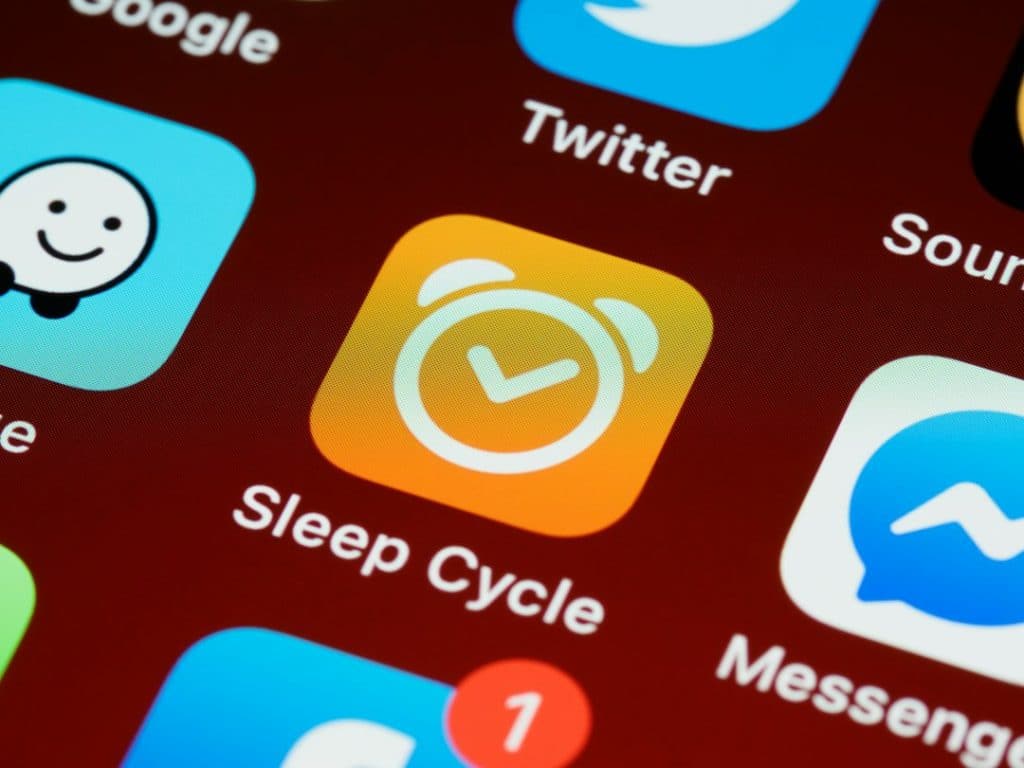
Use Apple’s built-in Clock app as your primary wake-up alarm, and treat third-party alarm apps as useful extras. The iOS Clock has deeper system access, works through Silent mode and most Focus settings, and is less likely to be stopped by background restrictions. Third-party apps can be great for puzzles, sleep tracking, loud tones, and routines, but they depend more heavily on notification permissions, app activity, and iOS limits.
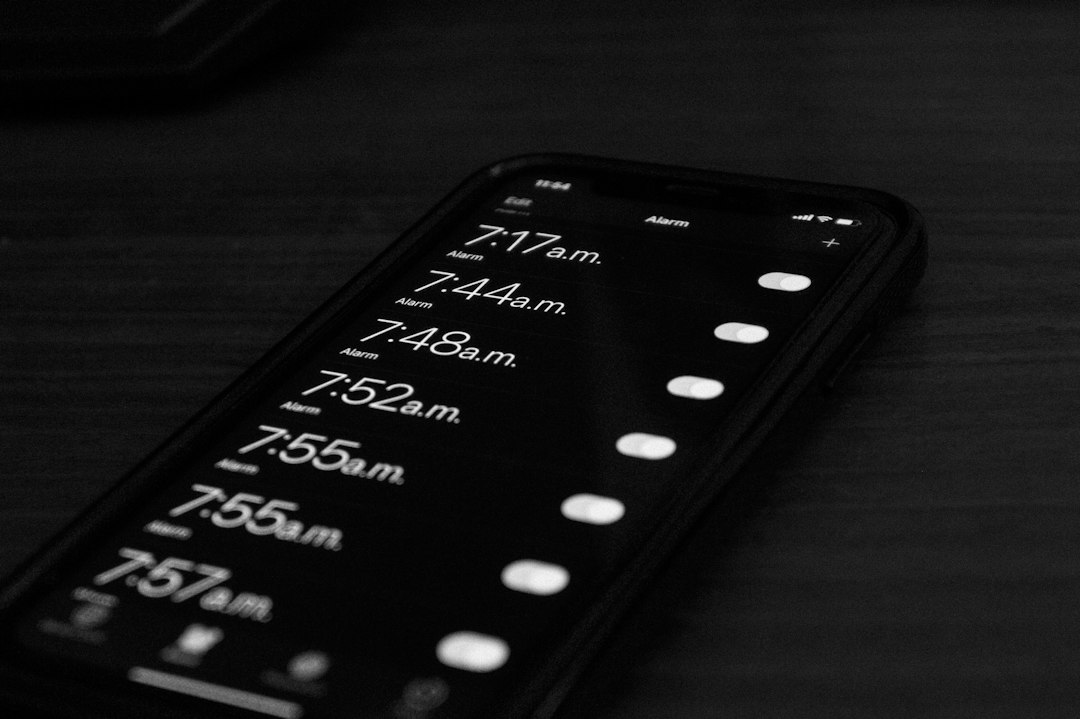
TLDR: If your iPhone alarm is not going off, first check the built-in Clock app settings, volume, alarm sound, and battery before blaming the phone. For example, a user who sets a 6:30 AM alarm with the sound set to None will see the alarm trigger silently, which feels like a failure even though iOS did exactly what it was told. In practical use, the Clock app is the safer choice for critical wake-ups, while third-party apps are better as backup alarms or habit tools. If missing one alarm could cost you a meeting, use two alarms set 5 minutes apart and keep the phone charging overnight.
Why iPhone Alarms Fail More Often Than People Expect
An iPhone alarm feels simple: set time, go to sleep, wake up. Then one morning it does nothing, and suddenly you are digging through settings while angry and half-awake. Honestly, it feels like the most basic phone feature should never need troubleshooting.
Most missed alarms come from a few common causes:
- The alarm sound is set to “None.” This is painfully easy to miss.
- The alert volume is too low. Media volume and alarm volume are not always the same thing.
- The iPhone battery died. An iPhone that is powered off will not ring.
- A third-party alarm app lost permissions. Notifications, Focus access, or background activity may be blocked.
- The user set PM instead of AM. Classic. Still common.
- Sleep Schedule and regular alarms conflict in confusing ways. This can make people think one alarm replaced another.
iOS Clock App: The Reliable Default
The native Clock app is the best option for alarms that truly matter. It is made by Apple, built into iOS, and treated differently from normal App Store apps. That matters because iOS is strict about what apps can do in the background.
Clock alarms can ring even when your iPhone is on Silent mode. They also work through most Focus modes, including Do Not Disturb. This is one reason the built-in app beats many alarm apps for reliability.
Still, Clock is not magic. It cannot wake a dead phone. It cannot ring loudly if the alert volume is nearly muted. It also cannot help if you picked a silent tone or accidentally turned off a recurring alarm.
Clock App Strengths
- Deep iOS access: Clock is not treated like a regular notification app.
- Works with Silent mode: Your side switch will not usually stop a Clock alarm.
- Simple recurring alarms: Weekday, weekend, and custom day schedules are easy to set.
- Snooze is built in: No extra permissions or tricks needed.
- Stable after updates: Apple rarely breaks its core alarm flow for long.
Clock App Weaknesses
- Limited wake-up methods: No math puzzles, barcode scans, or room-check tasks.
- Easy to misconfigure: A silent alarm looks normal until it fails you.
- No advanced reporting: You will not get rich analytics about sleep behavior.
- Attention Aware can reduce loudness: On Face ID models, some alert sounds may lower when the phone thinks you are looking at it.
Third-Party Alarm Apps: Feature-Rich but More Fragile
Third-party alarm apps can be clever. Some force you to solve math problems. Some make you scan a barcode in the bathroom. Others track sleep cycles and try to wake you during lighter sleep. That can be genuinely useful if you ignore normal alarms.
The catch is that these apps must obey Apple’s notification rules. Many rely on local notifications. Those notifications can be affected by permissions, Focus settings, notification summaries, app refresh limits, and whether the app was force-closed. Some apps ask you to keep them open overnight for best results. That is not exactly comforting.
Expect to waste time on setup if you want a third-party app to behave like a real alarm clock. You may need to allow notifications, enable sounds, allow Time Sensitive alerts, disable battery-saving habits, and test the app before trusting it.
Third-Party App Strengths
- Harder to dismiss: Puzzle alarms can stop sleepy tapping.
- Better routines: Some apps combine alarms with tasks, weather, calendars, or smart lights.
- Sleep tracking: Many apps estimate sleep duration, snoring, or movement.
- More sound options: Some offer louder tones, gradual volume, or custom audio.
- Backup potential: A second app can reduce risk if your main alarm is misconfigured.
Third-Party App Weaknesses
- Notification dependence: Disable notifications and the app may fail silently.
- Background limits: iOS may restrict what the app can do when not open.
- Focus mode issues: Alerts may be hidden unless Time Sensitive notifications are allowed.
- Subscription fatigue: Many good alarm apps push paid plans.
- More points of failure: App bugs, permissions, updates, and account prompts can all interfere.
Clock vs Third-Party Apps: Which Should You Trust?
For a job interview, flight, exam, school run, medication reminder, or early shift, trust the iOS Clock app first. It has the fewest moving parts. It does not need a subscription, login, or special background behavior.
Use a third-party alarm app when the problem is not reliability but behavior. If you wake up, hit snooze six times, and remember none of it, a puzzle alarm may help. If you want sleep analysis, gradual waking, or a smart home routine, third-party apps offer more.
A good setup is simple:
- Set your main alarm in Clock.
- Set a backup alarm 5 to 10 minutes later.
- Use a third-party app only as a second layer.
- Test both alarms during the day.
Settings to Check When Your iPhone Alarm Does Not Go Off
Before switching apps, check the basics. Most fixes take less than two minutes.
- Open Clock > Alarms and confirm the alarm is turned on.
- Check AM and PM. It sounds obvious because it is. It still gets people.
- Tap Sound and make sure it is not set to None.
- Go to Settings > Sounds & Haptics and raise Ringtone and Alerts.
- Turn off Change with Buttons if you keep lowering alert volume by accident.
- Charge your iPhone overnight. Powered-off iPhones do not ring alarms.
- Restart the phone if alarms act strangely after an update.
- Update iOS if you suspect a software bug.
If you use a third-party app, also check:
- Settings > Notifications and allow alerts, sounds, and banners.
- Time Sensitive Notifications if the app supports them.
- Focus settings to allow the app during Sleep or Do Not Disturb.
- Background App Refresh if the app requires it.
- Do not force-close the app unless the developer says it is safe.
What About Sleep Schedule in the Health App?
Apple’s Sleep Schedule can feel like a separate alarm system because, in a way, it is. It lives partly in the Health app and partly in Clock. It can set wake-up alarms, bedtime reminders, and sleep Focus behavior.
This is useful if you follow a regular routine. It is less ideal if your schedule changes often. If you set one wake-up time in Sleep Schedule and another in Clock, check both. Do not assume they sync exactly the way you expect.
For irregular mornings, manual Clock alarms are clearer. For steady routines, Sleep Schedule is clean and low effort.
Best Reliability Setup
If you want the safest alarm setup on iPhone, use this:
- Main alarm: iOS Clock app with a loud built-in tone.
- Backup alarm: Another Clock alarm 5 minutes later with a different sound.
- Behavior alarm: Optional third-party app with a puzzle or scan task.
- Physical backup: Cheap bedside alarm clock for flights, exams, or major events.
This may sound excessive, but it works. A $12 backup clock is boring until it saves a $400 missed flight fee.
Final Recommendation
The iOS Clock app is the better choice for reliable alarm notifications because it has system-level support and fewer dependencies. Third-party alarm apps are best for people who need stronger wake-up pressure, sleep data, or custom routines.
If your iPhone alarm did not go off, do not rush to download five new apps. First check sound, volume, AM/PM, battery, Focus, and notification settings. Then test your setup while you are awake. The best alarm is not the fanciest one. It is the one that rings when your morning depends on it.
