
How to Set the Default PDF Reader on Windows, Mac, and Other Desktop Platforms
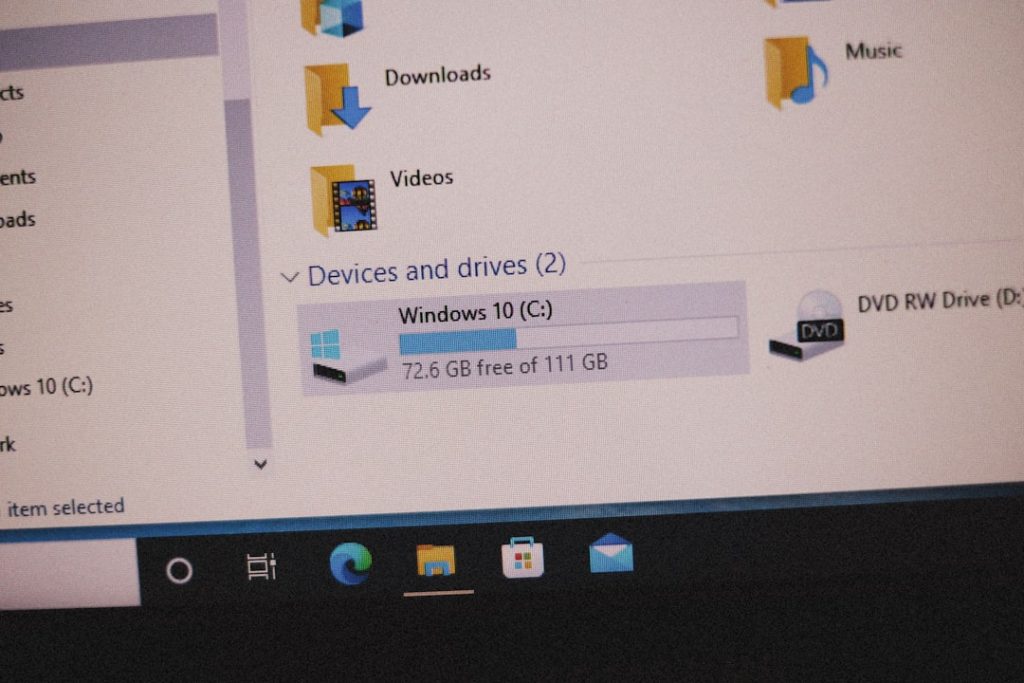
Set your default PDF reader by changing the file association for .pdf files in your system settings, then test it by double-clicking a saved PDF. This controls which app opens local PDF files from File Explorer, Finder, email downloads, and most desktop shortcuts.
TLDR: On Windows, use Settings > Apps > Default apps and assign your preferred app to the .pdf file type. On Mac, use Get Info on any PDF, choose the app under Open with, then click Change All. For example, if a finance team reviews 40 invoices a day, saving even 5 seconds per file by opening PDFs in the right editor can save more than 13 minutes daily. On Linux and ChromeOS, the setting is usually handled through file properties or app preferences.
Before You Change the Default PDF Reader
Install the PDF app you actually want to use before changing any settings. Common choices include Adobe Acrobat Reader, Microsoft Edge, Foxit PDF Reader, PDF Expert, Preview on Mac, and built-in document viewers on Linux.
The right choice depends on your work. If you only read PDFs, a lightweight viewer is enough. If you fill forms, verify signatures, redact files, or add comments, use a proper PDF editor. Honestly, it feels like a small setting until Windows opens a signed contract in a browser tab instead of the tool you need.
Tip: Changing the default PDF reader does not always change how PDFs open inside web browsers. Chrome, Edge, Firefox, and Safari may still preview PDFs in the browser unless you adjust their own download or content settings.

How to Set the Default PDF Reader on Windows 11
- Open Settings.
- Select Apps.
- Click Default apps.
- In the search box, type .pdf.
- Click the current default app listed for PDF files.
- Select your preferred PDF reader.
- Click Set default or confirm the choice when prompted.
Microsoft may show a prompt encouraging you to stay with Edge. Read the prompt carefully. Choose the option that confirms your preferred app. It drives me crazy that this can add extra clicks, especially when you are doing a basic file association task, but the setting usually sticks once confirmed.
Test the change right away. Save a PDF to your desktop, then double-click it. If it opens in the correct app, the file association is working.
How to Set the Default PDF Reader on Windows 10
- Open Settings from the Start menu.
- Go to Apps.
- Select Default apps.
- Scroll down and click Choose default apps by file type.
- Find .pdf in the list.
- Click the app shown next to it.
- Choose the PDF reader you want.
You can also right-click a PDF file, choose Open with, then select Choose another app. Pick your reader and check Always use this app to open .pdf files. This route is often faster if you already have a PDF file in front of you.
How to Set the Default PDF Reader on Mac
macOS uses Preview as the default PDF viewer in most cases. Preview is reliable for reading, signing, and making basic annotations. For heavier editing, you may want Acrobat, PDF Expert, or another PDF application.
- Find any PDF file in Finder.
- Right-click the file, or hold Control and click it.
- Select Get Info.
- Find the Open with section.
- Choose your preferred PDF reader from the menu.
- Click Change All.
- Confirm when macOS asks if you want all similar documents to open with that app.
If your preferred app is not listed, choose Other, then select it from the Applications folder. Make sure the app supports PDF files. macOS is strict about this, which prevents some bad file associations but can also make the menu feel limited.
How to Set the Default PDF Reader on Linux
Linux steps vary by desktop environment, but the idea is the same. You assign the application/pdf file type to your chosen app.
On Ubuntu with GNOME:
- Right-click a PDF file.
- Select Properties.
- Open the Open With tab.
- Select the PDF reader you want.
- Click Set as default.
On KDE Plasma:
- Open System Settings.
- Go to Applications.
- Select File Associations.
- Search for pdf.
- Set your preferred application at the top of the list for PDF files.
Popular Linux PDF readers include Evince, Okular, Xreader, and Firefox. For annotations, Okular is often a strong choice. For simple viewing, the default document viewer is usually fine.
How to Set the Default PDF Reader on ChromeOS
ChromeOS usually opens PDFs in the built-in Chrome viewer. That works well for reading and printing, but it may not be enough for editing or advanced forms.
- Open the Files app.
- Right-click a PDF file.
- Select Open with.
- Choose the app you want, if available.
ChromeOS is more restrictive than Windows or Mac. If you use a web-based PDF editor, PDFs may still open in Chrome first. In that case, download the file, then open it from within the PDF app or web service you trust.
Why Your PDF Still Opens in the Wrong App
If the change does not work, check these common causes:
- The app is not fully installed: Restart the computer after installing the reader.
- A browser is taking over: Change PDF handling inside Chrome, Edge, Firefox, or Safari.
- Work device policies apply: Company-managed computers may block default app changes.
- The file is not a real PDF: Some files use the wrong extension or are damaged.
- Multiple PDF tools are competing: Uninstall unused readers if settings keep resetting.
Security and Trust Considerations
Use a PDF reader from a trusted source. PDFs can contain scripts, embedded files, links, and form actions. A current reader with security updates is safer than an old app that happens to feel familiar.
For business documents, check whether the reader supports digital signatures, certificate validation, and protected mode. For sensitive files, avoid unknown online PDF tools unless your organization has approved them. Uploading a tax form, contract, or medical record to a random service can create real privacy risk.
Quick Recommendations
- For basic reading: Use Preview on Mac, Edge on Windows, or the built-in Linux viewer.
- For business forms: Use Adobe Acrobat Reader or a trusted editor with form support.
- For annotations: Use PDF Expert on Mac or Okular on Linux.
- For managed workplaces: Ask IT before changing defaults, since policies may reset them.
The best default PDF reader is the one that opens fast, displays documents accurately, supports your required tasks, and receives regular updates. Once you set it at the operating system level, test it with a normal PDF and a form-based PDF. That small check can prevent wasted time when a deadline is close.
