
Flyer Design Tools Compared for Fast and Professional Results
Flyers are still one of the fastest ways to promote an event, announce a sale, advertise a service, or turn a simple idea into something people can act on. The challenge is not just making a flyer look attractive; it is making it quickly, keeping it readable, and producing a file that works both online and in print. Today’s flyer design tools range from beginner-friendly template platforms to professional layout software, and the best choice depends on how much control, speed, and polish you need.
TLDR: If you need a flyer fast, template-based tools like Canva, Adobe Express, and VistaCreate offer the quickest path to a polished result. If you want more professional control, Figma, Affinity Designer, or Adobe Illustrator are better for custom layouts and brand precision. For most small businesses, creators, and event organizers, the ideal tool is the one that balances ready-made templates with easy editing and reliable export options.
What Makes a Flyer Design Tool “Fast” and “Professional”?
A good flyer design tool should save time without making the final design look generic. Speed usually comes from templates, drag-and-drop editing, stock images, preset sizes, and one-click exports. Professional results come from stronger typography controls, print-ready file formats, high-resolution output, brand kits, and layout flexibility.
Before choosing a platform, consider the type of flyer you need. A nightclub event flyer, a corporate training announcement, and a real estate open house handout all require different visual styles. The right tool should help you match the tone, not force every design into the same template-based look.
Canva: Best for Speed and Simplicity
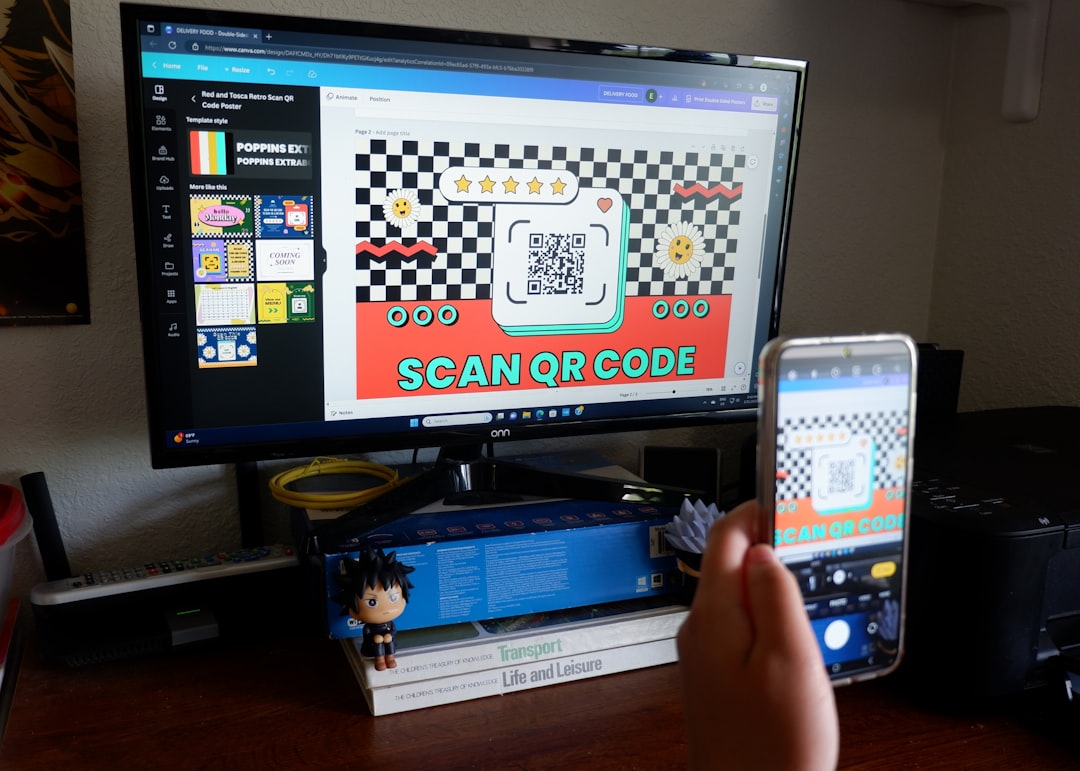
Canva is one of the most popular flyer design tools because it is approachable, fast, and packed with templates. Users can choose from thousands of flyer layouts, swap in their own text and images, adjust colors, and export the final design within minutes. It is especially useful for small businesses, schools, community groups, and solo creators who do not want a steep learning curve.
Its biggest strength is convenience. The interface is clean, the asset library is large, and features like brand kits and resizing make it easy to create multiple versions of the same flyer for print, Instagram, email, or a website banner.
Best for: beginners, fast event flyers, social media promotions, local business ads.
Limitations: designs can feel familiar if templates are not customized enough, and advanced layout control is more limited than in professional design software.
Adobe Express: Best for Polished Quick Designs
Adobe Express sits between casual template design and the Adobe professional ecosystem. It offers flyer templates, stock assets, quick editing tools, and easy export features. Its design quality is often strong out of the box, making it a good option for users who want a sleek result without opening more complex software.
One advantage is its connection to Adobe’s creative environment. Users who already work with Photoshop, Illustrator, or Adobe Fonts may find it helpful for keeping visuals consistent. It also includes useful tools for background removal, simple animations, and branded content creation.
Best for: marketers, content creators, small teams, users who want fast but refined designs.
Limitations: while easy to use, it may still feel less flexible than full Adobe design apps for detailed print work.
VistaCreate: Best for Visual Variety
VistaCreate is another template-driven platform that works well for flyers, posters, and social graphics. Its templates often lean toward bold, colorful, and promotional styles, which makes it suitable for sales, parties, product launches, and seasonal campaigns.
The interface is beginner-friendly, and the platform includes ready-made design objects, photos, videos, and typography combinations. If you want something energetic and attention-grabbing, VistaCreate can help you get there quickly.
Best for: promotional flyers, retail offers, creative events, colorful campaigns.
Limitations: like other template-heavy tools, it requires customization to avoid a stock design appearance.
Figma: Best for Teams and Custom Layouts
Figma is not a traditional flyer tool, but it is excellent for collaborative design. Teams can work in the same file, leave comments, test layout options, and build reusable design systems. For organizations that need flyers aligned with a larger digital brand, Figma can be surprisingly effective.
Its strength is precision and collaboration. Designers can set grids, create reusable components, and control spacing in detail. However, Figma does not provide the same print-focused workflow as dedicated desktop software, so users need to pay attention to export settings, dimensions, and resolution.
Best for: design teams, startups, brand-consistent campaigns, collaborative review processes.
Limitations: not ideal for users who want instant flyer templates or fully print-ready production tools.
Affinity Designer: Best One-Time Purchase Option
Affinity Designer is a strong professional alternative for users who want advanced control without a subscription. It supports vector design, precise typography, layered artwork, and print-friendly exports. For flyers that need original graphics, custom shapes, or careful brand execution, it is much more powerful than most browser-based tools.
It does require more design knowledge. A beginner can use it, but the workflow is closer to professional software than a drag-and-drop template editor. If you regularly create flyers, menus, brochures, posters, or ads, the learning investment can pay off.
Best for: freelancers, in-house designers, print-focused projects, custom promotional materials.
Limitations: fewer instant templates and more manual setup compared with online design platforms.
Adobe Illustrator: Best for Professional Print Control
Adobe Illustrator remains a standard for vector-based design and professional print production. It is ideal for flyers that require custom illustration, logo integration, exact color control, or complex layouts. Designers can create artwork that scales cleanly, set up bleed areas, and export files that printers can work with confidently.
For non-designers, however, Illustrator can be intimidating. It is powerful but not necessarily fast unless you already know the software. If speed is the main goal, a template-based platform may be better. If quality, originality, and production accuracy matter most, Illustrator is hard to beat.
Best for: professional designers, agencies, high-quality print campaigns, custom branded flyers.
Limitations: steeper learning curve and typically slower for quick edits by beginners.
Piktochart: Best for Informational Flyers
Piktochart is especially useful when a flyer needs to communicate data, steps, schedules, or educational content. It is often associated with infographics, but that makes it handy for flyers where clarity matters more than decoration.
Think workshop agendas, health awareness notices, nonprofit campaigns, school information sheets, or business one-pagers. Piktochart helps organize information visually with icons, charts, blocks, and clear hierarchy.
Best for: educational flyers, nonprofit notices, data-driven promotions, information-heavy layouts.
Limitations: less suited to highly artistic or entertainment-style flyer designs.
Microsoft Designer: Best for AI-Assisted Concepts
Microsoft Designer is useful for quickly generating design ideas with AI assistance. Users can enter a prompt, choose from generated visuals, and adapt the result. This makes it appealing when you know the purpose of the flyer but do not yet have a visual direction.
AI-assisted tools can speed up brainstorming, but they still benefit from human judgment. You may need to refine typography, check spacing, simplify the message, and ensure the design matches your brand or event tone.
Best for: quick concepts, brainstorming, simple promotional graphics, users who want AI support.
Limitations: results may need editing to feel distinctive and professionally finished.

Key Features to Compare Before Choosing
- Template quality: Are the layouts modern, readable, and appropriate for your industry?
- Customization: Can you adjust fonts, colors, grids, images, and spacing easily?
- Print settings: Does the tool support high-resolution exports, bleed, crop marks, or PDF output?
- Brand control: Can you save logos, colors, and fonts for consistent future flyers?
- Collaboration: Can teammates comment, edit, or approve designs?
- Asset library: Are stock photos, icons, illustrations, and shapes included?
- Learning curve: Can you get a good result today, or will it take weeks to learn?
Which Tool Should You Choose?
For the fastest results, choose Canva, Adobe Express, or VistaCreate. These tools are ideal when the deadline is close and the flyer needs to look good without much technical effort. They are also great for recurring promotional needs, such as weekly events or seasonal offers.
For professional design control, choose Affinity Designer or Adobe Illustrator. These are better when the flyer must be highly original, print-perfect, or tightly aligned with brand guidelines. For team-based design workflows, Figma is excellent, especially when multiple stakeholders need to review and refine the layout.
The best flyer design tool is not always the most powerful one. It is the one that helps you move from idea to finished design with the fewest obstacles. A successful flyer should have a clear headline, strong visual focus, readable details, and a direct call to action. Whether you use a simple template editor or advanced design software, those fundamentals matter most.
In short, choose speed when the design is straightforward, choose control when the brand or print quality is critical, and choose collaboration when multiple people need input. With the right tool, a flyer can be more than a quick promotional handout; it can become a sharp, memorable message that gets people to show up, click, call, buy, or learn more.
