
Troubleshooting 7tv Emotes: Why Aren’t They Working?
Third-party emotes have transformed live streaming culture, giving communities inside jokes, shared language, and unforgettable moments. Among the most popular services is 7tv, a powerful browser extension and emote platform used heavily on Twitch and other streaming platforms. But what happens when those beloved emotes suddenly stop appearing? Whether you’re a viewer or a streamer, troubleshooting 7tv emotes that aren’t working can feel frustrating—especially when everyone else seems to see them just fine.
TLDR: If your 7tv emotes aren’t working, the issue usually comes down to extension problems, browser conflicts, cache errors, or incorrect channel settings. Start by checking whether the 7tv extension is installed and enabled, then clear your cache and ensure it’s updated. Conflicts with other extensions like BTTV or FrankerFaceZ can also prevent emotes from loading. Finally, confirm that the streamer has enabled and added emotes correctly on the 7tv dashboard.
How 7tv Emotes Work
Before diving into fixes, it helps to understand how 7tv integrates into your streaming experience. 7tv works primarily as a browser extension that injects custom emotes into supported platforms like Twitch and YouTube. Unlike default platform emotes, 7tv emotes are rendered via the extension, meaning:
- You must have the extension installed.
- The streamer must have 7tv enabled on their channel.
- The extension must load successfully without interference.
Because it relies heavily on browser functionality, even small configuration errors can cause emotes to disappear or appear as plain text.
Common Reasons 7tv Emotes Aren’t Working
1. The Extension Isn’t Installed or Enabled
This might sound obvious, but it’s the most common issue. If you’re seeing text like “OMEGALUL” instead of the actual emote image, your browser likely isn’t running 7tv properly.
Fix:
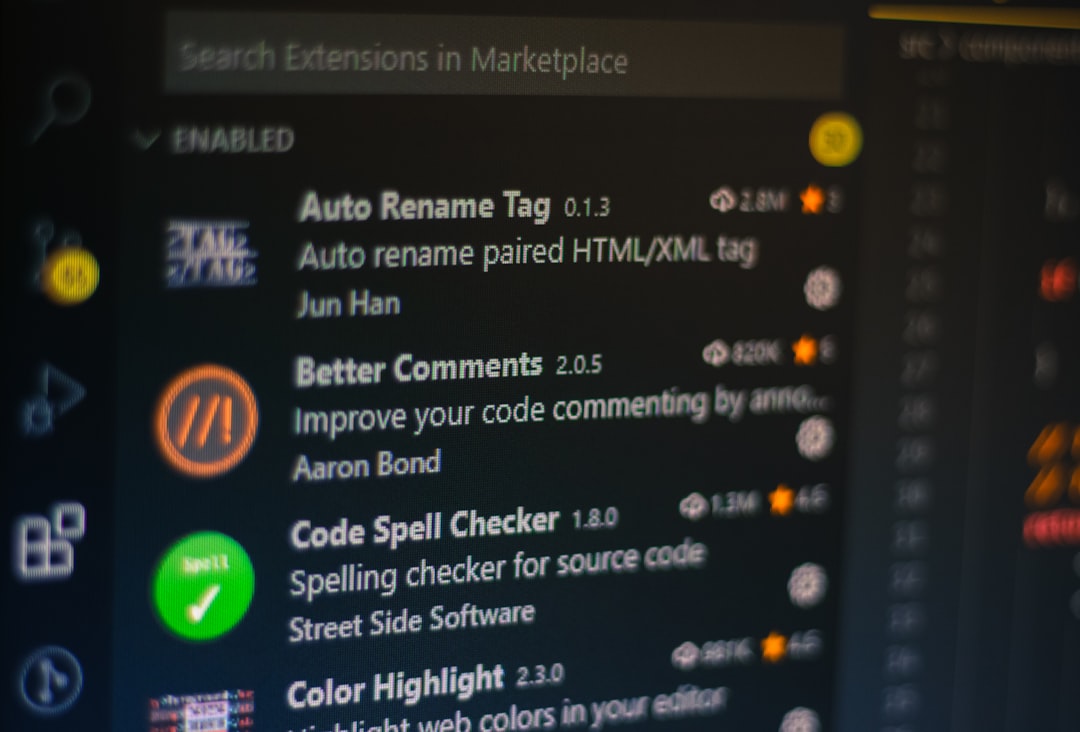
- Open your browser’s extension manager.
- Confirm that 7tv is installed.
- Make sure the toggle switch is turned on.
- Refresh the streaming page.
If you recently updated your browser, extensions sometimes disable automatically for security reasons.
2. The Extension Needs Updating
Streaming platforms frequently update their code. If the 7tv extension version you’re running is outdated, it may stop rendering emotes correctly.
Fix:
- Check for updates in your browser’s extension store.
- Enable automatic updates if available.
- Restart your browser completely after updating.
Outdated extensions are one of the most overlooked causes of emote failures.
3. Conflict with Other Emote Extensions
If you use BetterTTV (BTTV) or FrankerFaceZ (FFZ) alongside 7tv, extension conflicts can occur. While these tools often coexist peacefully, occasional display bugs happen when overlapping settings interfere.
Common signs of conflict:
- Some emotes load while others do not.
- Emotes flicker or duplicate.
- Chat appears broken or partially formatted.
Fix:
- Temporarily disable other emote extensions.
- Reload the page and check if 7tv works independently.
- Adjust compatibility settings inside each extension’s configuration panel.
Quick Comparison of Popular Emote Extensions
| Feature | 7tv | BTTV | FrankerFaceZ |
|---|---|---|---|
| Animated Emotes | Yes | Limited | Limited |
| High Emote Slots | Generous | Moderate | Moderate |
| Custom Cosmetics | Yes | No | No |
| Open Source | Yes | Partial | Yes |
| Best For | Highly customized communities | Classic Twitch culture | Advanced chat controls |
Understanding how these tools differ can help you diagnose whether the issue is platform-specific or extension-specific.
Browser-Related Problems
4. Corrupted Cache or Cookies
Browsers store cached files to speed up loading times. However, corrupted cache data can interfere with scripts—like the ones 7tv uses to inject emotes.
Fix:
- Clear browser cache and cookies.
- Reopen the browser.
- Log back into your streaming platform.
This simple step resolves more emote-loading issues than most people expect.
5. Unsupported or Outdated Browser
7tv works best on modern browsers such as:
- Google Chrome
- Mozilla Firefox
- Microsoft Edge
If you’re using a niche or outdated browser version, compatibility may suffer.
Fix: Update your browser to the latest version or switch to a supported one temporarily for testing.
Channel-Side Issues (For Viewers and Streamers)
6. The Streamer Hasn’t Enabled 7tv
Even if you have everything installed correctly, 7tv emotes won’t appear if the streamer hasn’t activated 7tv or added emotes to their channel.
Viewers can check:
- Visit the streamer’s 7tv profile page.
- Look for active emote sets.
- Ask moderators if emotes were recently removed.
Streamers sometimes reorganize emote libraries, which may temporarily remove favorites.
7. Emote Set Limit Reached
7tv has generous slot limits compared to other emote services, but there are still caps. If the set is full, newly added emotes won’t display until others are removed.
Streamer Fix:
- Open the 7tv dashboard.
- Review active emote slots.
- Remove unused emotes before adding new ones.
8. Incorrect Emote Permissions
Some emotes are restricted or tied to specific user permissions, especially if they belong to shared or global libraries.
Make sure:
- The emote hasn’t been deleted.
- It hasn’t been made private.
- Proper channel roles are assigned.
Advanced Troubleshooting Steps
If basic solutions don’t fix the issue, try these deeper technical checks:
Disable Hardware Acceleration
Some users report rendering conflicts tied to hardware acceleration settings in Chrome.
- Go to browser settings.
- Search for “hardware acceleration.”
- Toggle it off and restart.
Try Incognito Mode
Launch an incognito window with only 7tv enabled. If emotes work there, another extension is almost certainly causing interference.
Check Network Restrictions
If you’re on a school or workplace network, firewall restrictions may block certain CDN domains used for loading emotes.
A quick test is switching to:
- Mobile hotspot
- Home Wi-Fi
- VPN connection
If emotes load afterward, network filtering was the culprit.
When 7tv Is Down
Sometimes, the issue isn’t on your end at all. Like any online service, 7tv can experience:
- Server outages
- API issues
- CDN distribution delays
In these cases:
- Check community forums or social media for outage reports.
- Wait for official fixes.
- Avoid repeatedly reinstalling extensions unnecessarily.
Patience beats constant troubleshooting when servers are temporarily offline.
Preventing Future Emote Issues
To avoid repeated headaches, build a maintenance habit:
- Keep your browser updated monthly.
- Enable automatic extension updates.
- Avoid installing too many overlapping chat extensions.
- Periodically clear cache.
- Review extension permissions after major platform updates.
Small, routine maintenance goes a long way in preserving smooth chat experiences.
Final Thoughts
7tv emotes are more than just digital images—they’re social glue. When they stop working, it disrupts communication, humor, and shared experiences in chat. Fortunately, most problems stem from solvable extension conflicts, browser issues, or simple configuration oversights.
Start with the basics: check installation, update everything, clear your cache. If that doesn’t work, investigate conflicts and channel settings. And occasionally, accept that the problem might simply be temporary server downtime.
With a systematic troubleshooting approach, you can restore your emotes—and your chat’s personality—in no time.
