
How to Fix Self Protection Failed Error Code 4
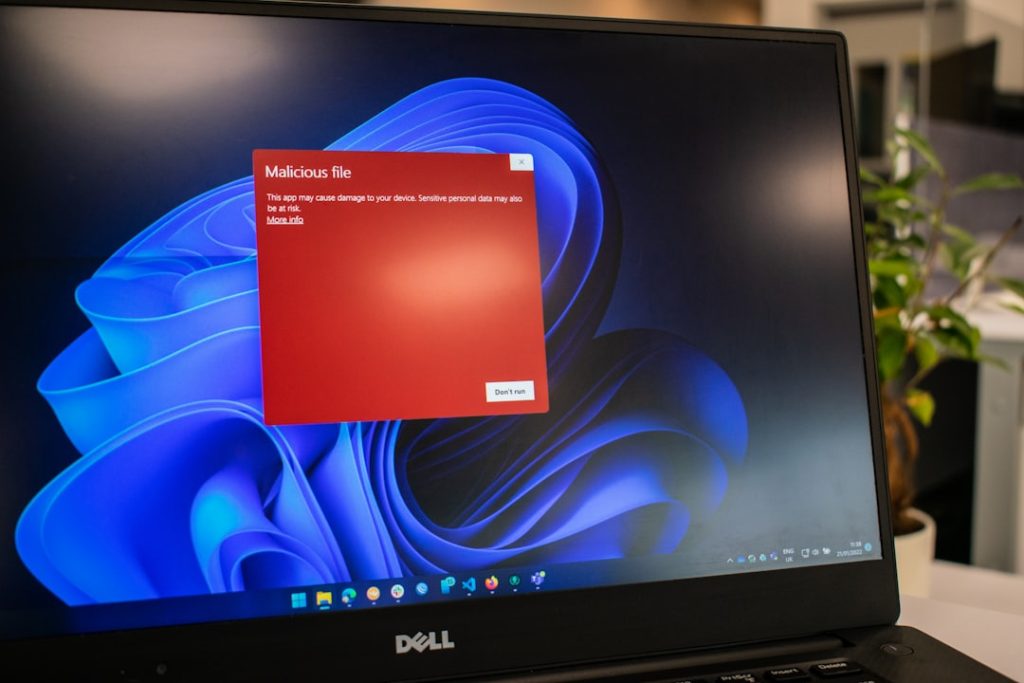
Encountering the Self Protection Failed Error Code 4 can be frustrating and concerning, especially because it typically appears when security software is unable to defend itself against modification or shutdown. This error often prevents antivirus programs from launching properly or safeguarding your system, leaving your device potentially exposed to threats. Understanding the root causes and applying the correct fixes is essential to restoring full protection.
TLDR: Self Protection Failed Error Code 4 usually occurs when antivirus self-defense mechanisms are blocked, corrupted, or conflicted by other software. The most common causes include damaged program files, conflicting security tools, malware interference, or insufficient permissions. Fixing it typically involves restarting services, reinstalling the antivirus, removing conflicting software, or repairing system files. Acting quickly ensures your device remains secure and fully protected.
What Is Self Protection Failed Error Code 4?
Many modern antivirus and endpoint protection programs include a self-protection module. This feature prevents malware, unauthorized users, or other software from disabling or modifying the security application. When this mechanism fails to initialize or operate correctly, the program may display Error Code 4.
This error typically means one of the following:
- The self-protection service failed to start.
- Required files are corrupted or missing.
- Another program is interfering with the antivirus.
- Administrative permissions are insufficient.
- Malware is actively blocking security functions.
Common Causes of Error Code 4
Before attempting a solution, it’s important to understand what might be causing the problem. Below are the most frequent triggers:
1. Corrupted Installation Files
If the antivirus software was not installed correctly or files became corrupted during an update, the self-protection module may fail.
2. Conflicting Security Software
Running multiple antivirus programs simultaneously can cause system conflicts. Security tools often compete for control over system processes, leading to service failures.
3. Disabled Services
The antivirus relies on certain Windows services to operate. If these services are stopped or set to manual instead of automatic, the program may show Error Code 4.
4. Malware Interference
Some advanced malware specifically targets antivirus self-defense systems. If malicious code compromises system processes, the error may appear.
5. Lack of Administrative Privileges
Without proper system permissions, the security software cannot protect its own registry settings and processes.
How to Fix Self Protection Failed Error Code 4
1. Restart Your Computer
It may seem basic, but restarting your system resets background services and clears temporary glitches that could be preventing the self-protection module from launching.
- Click Start
- Select Restart
- Wait for the system to reload fully
If the issue persists after rebooting, proceed with deeper troubleshooting steps.
2. Run the Antivirus as Administrator
Insufficient permissions are a common cause of Error Code 4.
- Right-click the antivirus shortcut
- Select Run as Administrator
- Confirm the prompt
If this resolves the issue, adjust the program settings to always run with administrative privileges.
3. Check Windows Services
The antivirus self-defense module depends on system services.
- Press Win + R
- Type services.msc
- Locate services related to your antivirus
- Ensure they are set to Automatic
- Click Start if the service is stopped
Restart your computer after making changes.
4. Remove Conflicting Security Software
Having more than one antivirus installed can cause deep conflicts. Remove any additional security tools:
- Go to Control Panel
- Select Programs and Features
- Uninstall extra antivirus or firewall applications
- Restart your system
Some vendors provide cleanup tools to fully remove residual files. Using an official removal utility is recommended.
5. Repair or Reinstall the Antivirus
If installation files are damaged, perform a repair or clean reinstall.
- Download the latest version from the official website.
- Uninstall the current version.
- Restart your computer.
- Install the fresh version.
This resolves most cases of corrupted self-protection components.
6. Scan for Malware in Safe Mode
If malware is interfering, deeper scanning may be required.
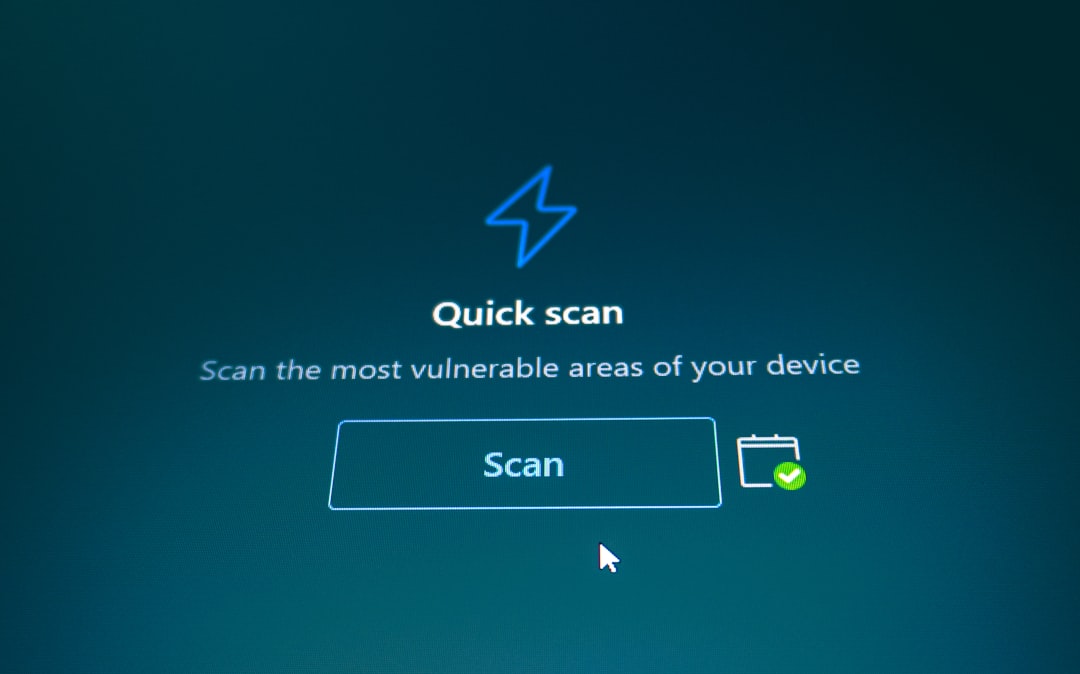
- Restart your PC in Safe Mode with Networking
- Run a full system scan
- Remove any detected threats
In severe cases, consider using a secondary trusted malware removal tool temporarily.
7. Run System File Checker
Corrupted system files can disrupt antivirus functionality.
- Open Command Prompt as Administrator
- Type: sfc /scannow
- Press Enter
Allow the process to complete and repair any detected issues.
Comparison of Common Fix Methods
| Fix Method | Difficulty | Time Required | Best For | Success Rate |
|---|---|---|---|---|
| Restart PC | Very Easy | 2-5 Minutes | Minor glitches | Low to Moderate |
| Run as Administrator | Easy | 1 Minute | Permission issues | Moderate |
| Check Services | Moderate | 10 Minutes | Service failures | High |
| Remove Conflicting Software | Moderate | 15-20 Minutes | Software conflicts | High |
| Reinstall Antivirus | Moderate | 20-30 Minutes | Corrupted files | Very High |
| System File Checker | Advanced | 15-25 Minutes | System corruption | High |
Preventing Error Code 4 in the Future
Prevention is always preferable to troubleshooting. Implement these best practices to reduce the risk of recurrence:
- Use only one primary antivirus program
- Keep Windows and security software updated
- Avoid installing cracked or unofficial software
- Schedule regular full-system scans
- Create restore points before major updates
Maintaining a clean and stable system environment dramatically reduces the chances of self-protection failures.
When to Contact Technical Support
If none of the solutions resolve the issue, professional assistance may be necessary. Contact the customer support team of your antivirus provider if:
- The error persists after a clean reinstall
- The program cannot be uninstalled
- You suspect advanced malware infection
- System instability continues
Be prepared to provide logs, screenshots, and details about recent system changes.
Final Thoughts
The Self Protection Failed Error Code 4 is more than just a nuisance—it indicates that your security software cannot fully defend itself, potentially leaving your system vulnerable. While the issue can seem alarming, it is usually solvable through systematic troubleshooting. From checking services and removing conflicting tools to reinstalling the software and running system diagnostics, each step targets a specific underlying cause.
By following the structured approach outlined above, you can restore your antivirus protection efficiently and confidently. Taking swift action not only resolves the immediate error but also reinforces the overall security and stability of your system.
