
Adobe Lightroom vs. Capture One: How Does Aperture Affect Your Photos?
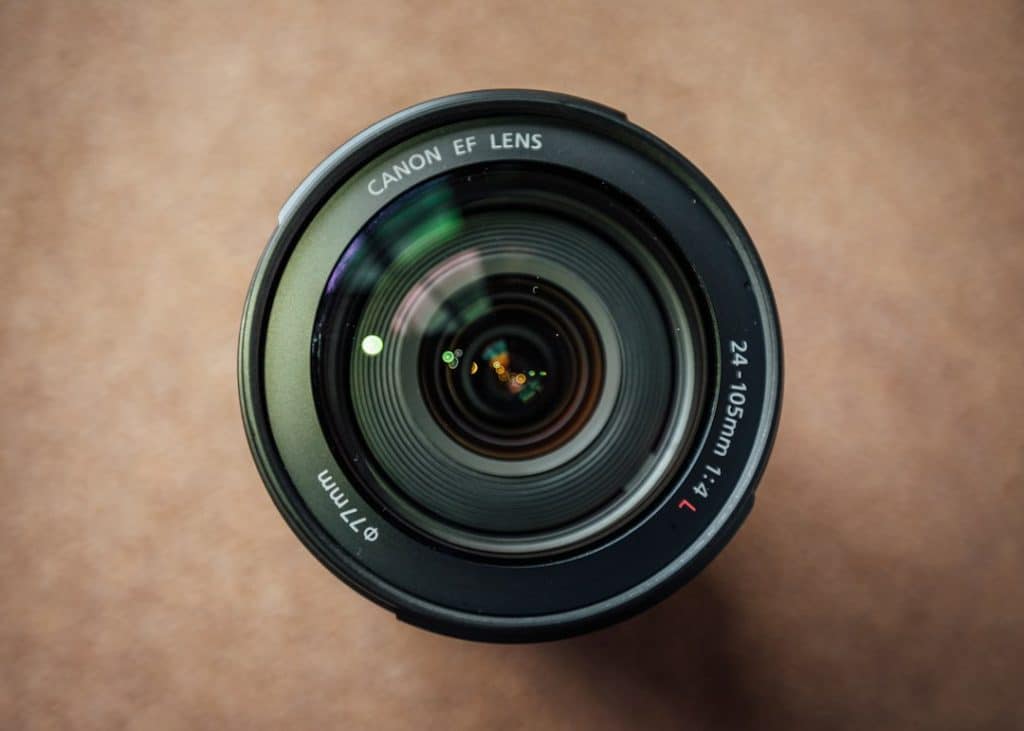
Aperture changes your photo before Lightroom or Capture One ever see it. It controls how much light enters the lens. It also controls how blurry the background looks. Adobe explains aperture as the lens opening that affects exposure and depth of field [source: Adobe].
TLDR: Lightroom and Capture One cannot truly change aperture after the photo is taken. They can only edit the results. For example, a portrait shot at f/1.8 may have creamy blur, while the same person at f/8 will show more background detail. If you edit 100 photos from a wedding, Lightroom may feel faster for sorting, while Capture One may give you richer color control on the 20 hero shots.
So, what is aperture?
Aperture is the hole inside your lens.
Yes. That simple.
It opens wide. It closes down. A wide opening lets in more light. A small opening lets in less light.
The weird part is the number system. A small f-number means a wide opening. A big f-number means a small opening.
- f/1.4 means a very wide aperture.
- f/2.8 means a wide aperture.
- f/5.6 means a middle aperture.
- f/11 means a small aperture.
- f/16 means a very small aperture.
It feels backwards. Because it is.
Aperture affects three big things:
- Brightness
- Background blur
- Sharpness across the image
If you shoot at f/1.8, more light enters the camera. The background goes soft. This is great for portraits, pets, food, and tiny details.
If you shoot at f/11, less light enters. More of the image looks sharp. This is useful for buildings, group shots, products, and wide scenic views.
Can Lightroom change aperture?
No. Lightroom cannot change real aperture after the photo is taken.
That setting is baked into the photo. Lightroom can read it. It can show it in the metadata panel. It can help you sort by it. But it cannot turn an f/8 photo into a true f/1.4 photo.
Lightroom can fake some things, though.
- It can brighten a dark photo.
- It can add blur with masking tools.
- It can sharpen soft areas.
- It can darken the background.
- It can make the subject pop.
That helps. A lot.
But fake blur is still fake blur. Hair edges can look odd. Glasses can confuse the mask. Tree branches can turn into mush. It drives me a bit nuts when a tool blurs half an ear and leaves the other half razor sharp.
Can Capture One change aperture?
Also no. Capture One cannot change real aperture either.
It can read the aperture from your file. It can sort images by lens data. It can edit color, contrast, sharpness, noise, and masks. But it cannot open the lens after the moment is gone.
Where Capture One shines is control.
Its color tools are loved by many studio and fashion photographers. Skin tones can look rich. Product colors can be tuned with care. Tethered shooting is also very strong, especially in a studio setup.
So the simple rule is this:
Lightroom is often easier. Capture One is often more precise.
Lightroom vs. Capture One for aperture mistakes
Let’s say you took a portrait at f/8. You wanted soft background blur. But you forgot to change the setting.
Annoying? Yes.
Can software save it? Maybe.
In Lightroom, you can select the subject. Then blur or darken the background. This is fast. The tools are friendly. If you edit lots of family sessions, travel shots, or social media photos, Lightroom keeps things moving.
In Capture One, you can build masks and adjust color in a more careful way. You may spend more time. But you may get a cleaner result. This matters when a client is paying for polished images.
Expect to waste time on edges in both apps. Hair is the usual enemy. So are veils, leaves, fences, and fur.
How aperture affects brightness
A wide aperture makes a photo brighter.
That means f/1.8 lets in more light than f/5.6. If you shoot indoors, this helps a lot. You can use a faster shutter speed. You can keep ISO lower. That means less noise.
Lightroom handles noisy photos well. Its noise reduction tools are easy to use. They are handy for dark wedding receptions, concerts, and indoor sports.
Capture One also handles clean detail very well. It can make files look crisp without feeling crunchy. This is useful for commercial work, portraits, and fashion images.
But again, software is not magic.
If your photo is very dark because the aperture was too small, you can brighten it. But shadows may get noisy. Colors may get weird. Skin may look tired.
So get aperture right in camera when you can.
How aperture affects background blur
This is the fun part.
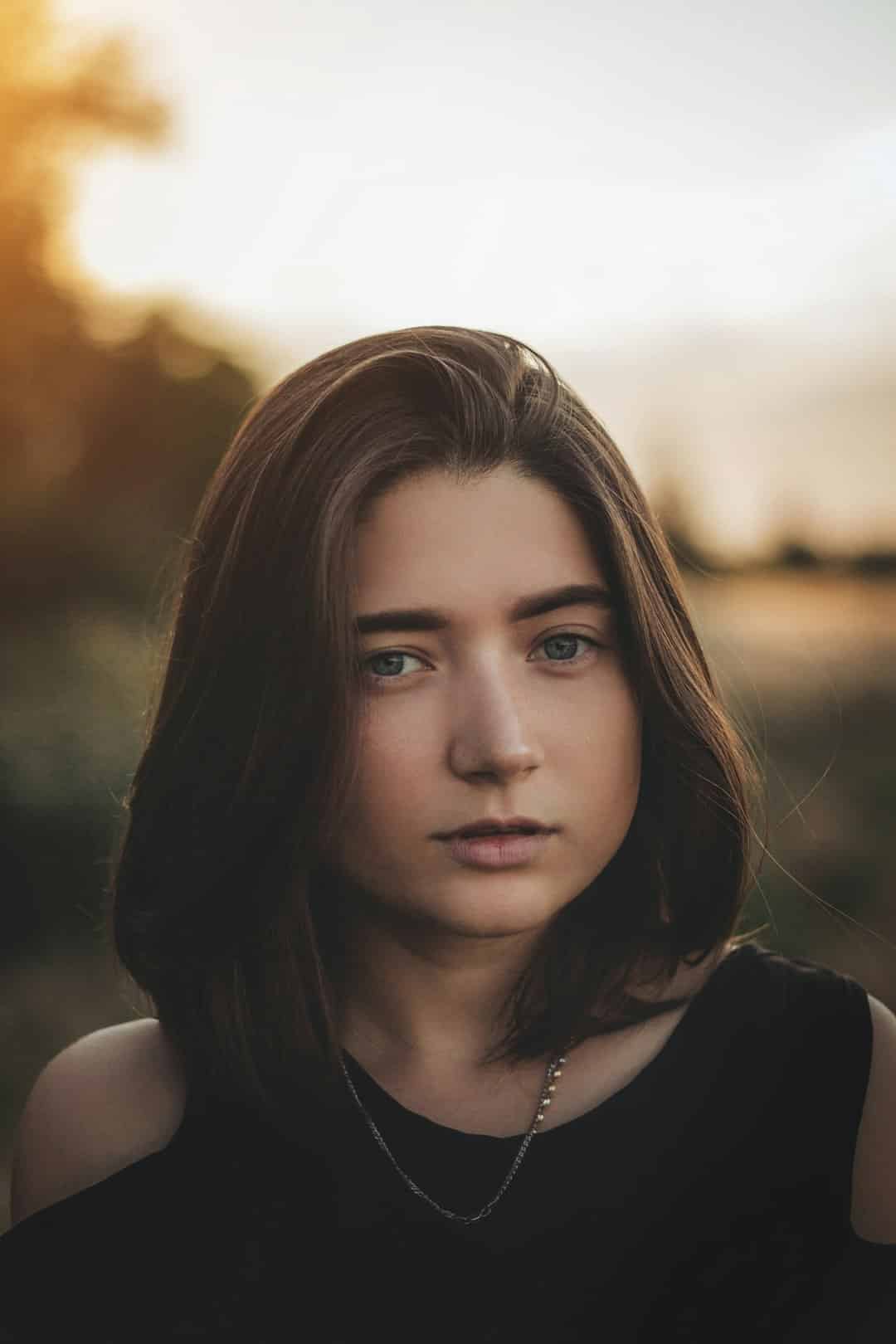
Wide aperture gives you more blur. Photographers often call this bokeh. It makes the subject stand out.
A portrait at f/1.4 can look dreamy. The eyes are sharp. The background melts away.
A portrait at f/8 looks different. The subject is sharp. The wall behind them may also be sharp. That can be fine. Or it can be distracting.
Lightroom can help with subject masks. You can brighten the face and make the background softer. This works well for quick edits.
Capture One can help with fine color separation. You can shape skin tones and background tones with more control. This works well when the final image needs to look premium.
How aperture affects sharpness
Aperture also changes how much of the scene is sharp.
This sharp zone is called depth of field.
At f/1.8, the sharp zone can be thin. If you focus on the nose, the eyes may look soft. That hurts. Especially in portraits.
At f/11, more is sharp. Great for groups. Great for interiors. Great for product shots where details matter.
But very small apertures can reduce fine detail because of diffraction. So f/22 is not always better. It may make the image look a little soft.
This is where editing helps only so much. Lightroom and Capture One can sharpen. They can add texture. They can boost clarity. But they cannot restore detail that was never captured.
Which app should you choose?
Pick Lightroom if you want speed.
- You edit many photos.
- You want simple tools.
- You use cloud storage.
- You shoot events, trips, families, or content.
- You want fast masks and quick exports.
Pick Capture One if you want deeper control.
- You care a lot about color.
- You shoot tethered in a studio.
- You edit product or fashion work.
- You want strong layer-based editing.
- You like careful manual control.
Lightroom feels more friendly. Capture One feels more exact. Neither one fixes bad aperture choices perfectly.
A simple aperture cheat sheet
- Portrait with blurry background: use f/1.4 to f/2.8.
- Couple photo: use f/2.8 to f/4.
- Group photo: use f/5.6 to f/8.
- Product photo: use f/8 to f/11.
- Wide outdoor scene: use f/8 to f/11.
- Low light photo: use the widest safe aperture your lens allows.
The final take
Aperture is a camera choice, not an editing slider.
Lightroom and Capture One can improve the photo. They can brighten. They can sharpen. They can blur. They can fix color. They can save a weak image from the trash.
But they cannot truly change the lens opening after the shot.
So choose aperture before you press the shutter. Then choose software based on your editing style. Use Lightroom for speed and ease. Use Capture One for color control and careful work.
And if you miss the aperture? Don’t panic. Just don’t expect one click to fix every fuzzy eyelash.
