
How to Send a Reminder Email: Gmail vs Outlook for Writing Professional Follow-Ups
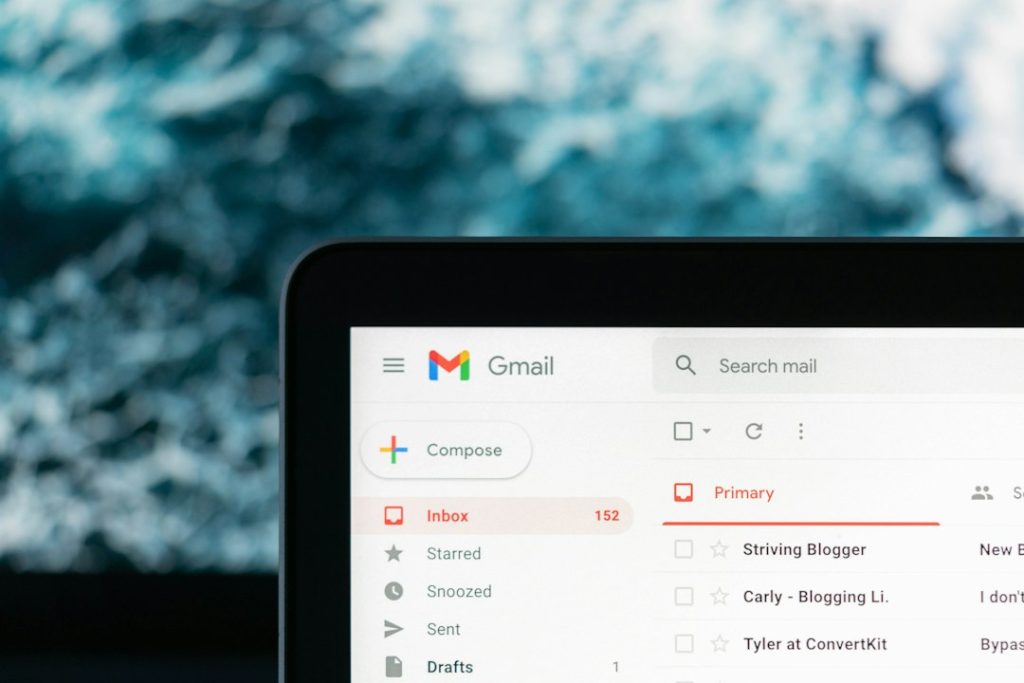
A professional reminder email works best when it is short, specific, and easy to answer. The sender should explain what is needed, repeat the deadline, and make the next step obvious. That matters because global email traffic was estimated at more than 361 billion emails per day in 2024, so vague follow-ups get buried fast [source: Radicati]. Gmail is better for simple, quick reminders. Outlook is stronger when follow-ups need tasks, flags, calendars, and a tighter office workflow.
TLDR: A good reminder email should be polite, clear, and no longer than a few short paragraphs. For example, if a client has not approved a proposal after 3 business days, the sender can reply in the same email thread with a one-line request and a deadline. A small sales team sending 40 follow-ups per week could save roughly 60 to 90 minutes by using Gmail templates or Outlook Quick Parts. Gmail suits lighter follow-ups, while Outlook suits tracked, task-based reminders.
What a Professional Reminder Email Should Include
A reminder email should not sound annoyed, even when the delay is annoying. It should help the recipient act quickly. The best reminders usually include:
- A clear subject line: “Reminder: Approval needed by Friday” works better than “Checking in.”
- Context: One sentence explaining the original request.
- The action: The exact reply, file, payment, signature, or decision needed.
- A deadline: A date and time, not “soon.”
- A polite close: It should stay calm and professional.
Timing matters. For routine work, a sender can follow up after 2 to 3 business days. For proposals, invoices, or approvals, 3 to 5 business days often feels fair. For urgent internal work, same-day reminders can be fine if the deadline was already agreed.
How Gmail Handles Reminder Emails
Gmail is simple. That is its main strength. A sender can open the original thread, click Reply, write a short reminder, and use Schedule send if the message should go out later. Google confirms that scheduled emails can be set for a future date and time [source: Google Help].
Gmail also has Snooze, which brings an email back to the top of the inbox at a chosen time. This is useful when the sender wants to remember to follow up manually. Gmail templates can also speed up repeat reminders, but they must be enabled in settings first. It drives some users crazy that Gmail feels quick until a sender needs a true “send only if no reply” workflow. That often requires an add-on or a sales email tool.
Best Gmail use case: a freelancer, account manager, recruiter, or small team member who needs fast and polite follow-ups without much setup.
How Outlook Handles Reminder Emails
Outlook is better for structured follow-up. A sender can reply to the original message, schedule delivery, use Follow Up flags, assign categories, and connect reminders with Microsoft To Do. In desktop Outlook, Delay Delivery can hold a message until a chosen time [source: Microsoft Support].
Outlook’s strongest feature is task control. A sent email can be flagged so the sender gets a reminder to check it later. That reminder is for the sender, not the recipient. To remind the recipient, the sender still needs to send or schedule an actual email.
Expect to waste time the first few tries in Outlook, especially when switching between classic Outlook, new Outlook, and Outlook on the web. Some buttons sit in different places. Still, once a team knows the setup, Outlook can keep follow-ups tied to deadlines, meetings, and project folders.
Best Outlook use case: a manager, legal team, finance team, enterprise salesperson, or project coordinator who tracks many deadline-based conversations.
Gmail vs Outlook: Quick Comparison
| Feature | Gmail | Outlook |
|---|---|---|
| Best for | Fast, simple follow-ups | Tracked, task-based follow-ups |
| Scheduling | Very easy with Schedule send | Strong, but menus vary by version |
| Personal reminders | Snooze and nudges | Flags, reminders, Microsoft To Do |
| Templates | Available after setup | Quick Parts, templates, signatures |
How to Write the Follow-Up
The email should start with the reason for writing. The sender should not bury the request under pleasantries. A friendly tone still works, but the message needs a clear ask.
Simple structure:
- Greeting
- One sentence of context
- The requested action
- Deadline or next step
- Thanks
Example:
Hello Maya,
This is a quick reminder about the proposal sent on Tuesday. Could the signed approval be returned by Friday at 3 p.m.? If another detail is needed, the sender can revise it today.
Thank you,
Daniel
That message works because it is short. It names the item, repeats the deadline, and gives the recipient a way to respond if something is blocking the decision.
Subject Lines That Work
- Reminder: Signature needed by Friday
- Following up: Proposal approval
- Action requested: Invoice confirmation
- Quick reminder: Meeting notes review
- Pending: Contract feedback
Subject lines should avoid guilt. “Third attempt” or “Still waiting” may get attention, but they can sour the relationship. A professional sender sounds firm, not irritated.

Common Mistakes to Avoid
- Writing too much: A reminder is not a full recap.
- Changing the subject line too often: Keeping the same thread preserves context.
- Using weak timing: “Whenever possible” invites delay.
- Sounding passive-aggressive: Polite pressure works better.
- Depending only on memory: Gmail Snooze or Outlook flags should handle the follow-up date.
Which One Should a Professional Choose?
Gmail is the better pick for speed. It suits people who want to write, schedule, and move on. Outlook is better for teams that need a paper trail, task reminders, calendar links, and project control. Neither tool writes the perfect reminder by itself. The sender’s wording still does most of the work.
The safest method is simple: write the reminder in the original thread, use a clear subject, state the action, add a deadline, and schedule the message for a reasonable time. That works in both Gmail and Outlook.
FAQ
- Can Gmail automatically send a reminder if nobody replies?
Not by default in a full conditional way. Gmail can schedule emails and snooze threads, but automatic no-reply follow-ups usually need an add-on or sales tool. - Can Outlook remind the sender to follow up?
Yes. Outlook flags and reminders can alert the sender to check a sent email later. The recipient will not get that reminder unless a new email is sent. - How long should a reminder email be?
Most professional reminders should be under 100 words. Shorter is usually better when the request is clear. - Should the sender include the original email?
Yes, in most cases. Replying in the same thread keeps the history visible and saves the recipient time. - Is it rude to send a second reminder?
No, if the tone stays respectful. A second reminder is normal when a deadline, payment, approval, or shared project is involved.
