
How to Use Jira for Beginners: Agile Project Management
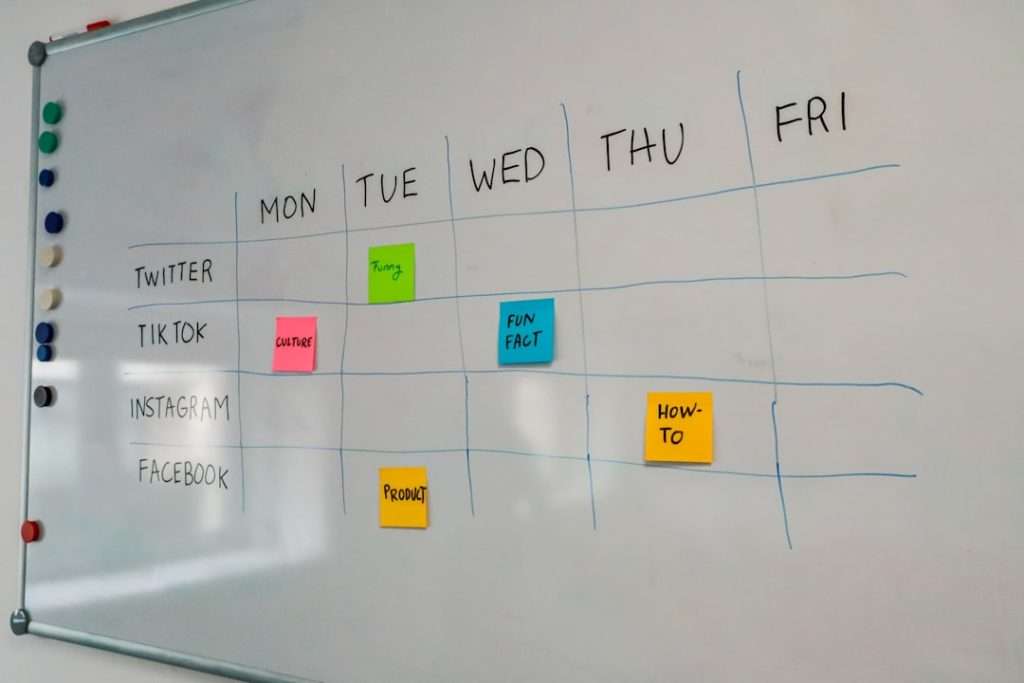
Jira can look intimidating the first time you open it: there are projects, issues, boards, workflows, sprints, backlogs, epics, labels, and a dozen other terms competing for your attention. But at its core, Jira is simply a tool for helping teams decide what needs to be done, who is doing it, and where the work stands. If you are new to Agile project management, learning Jira is less about memorizing every button and more about understanding how work moves from an idea to completion.
TLDR: Jira is an Agile project management tool that helps teams plan, track, and deliver work using boards, backlogs, sprints, and workflows. Beginners should start by learning the basics: projects, issues, epics, user stories, tasks, and statuses. The easiest way to use Jira is to create a project, add work items, organize them in a backlog, run sprints or use a Kanban board, and review progress regularly. Once the basics feel comfortable, Jira can be customized with automation, reports, dashboards, and integrations.
What Is Jira?
Jira is a project management and issue tracking platform created by Atlassian. It is widely used by software development teams, but it is also popular with marketing teams, operations teams, product teams, support teams, and business departments that need a structured way to manage work.
In Agile project management, work is usually broken into smaller pieces, prioritized, completed in short cycles, and improved through regular feedback. Jira supports this approach by giving teams a shared workspace where they can plan work, assign ownership, update progress, and measure delivery.
Think of Jira as a digital command center for your team. Instead of tasks being scattered across emails, spreadsheets, chat messages, and sticky notes, Jira brings them into one organized system.
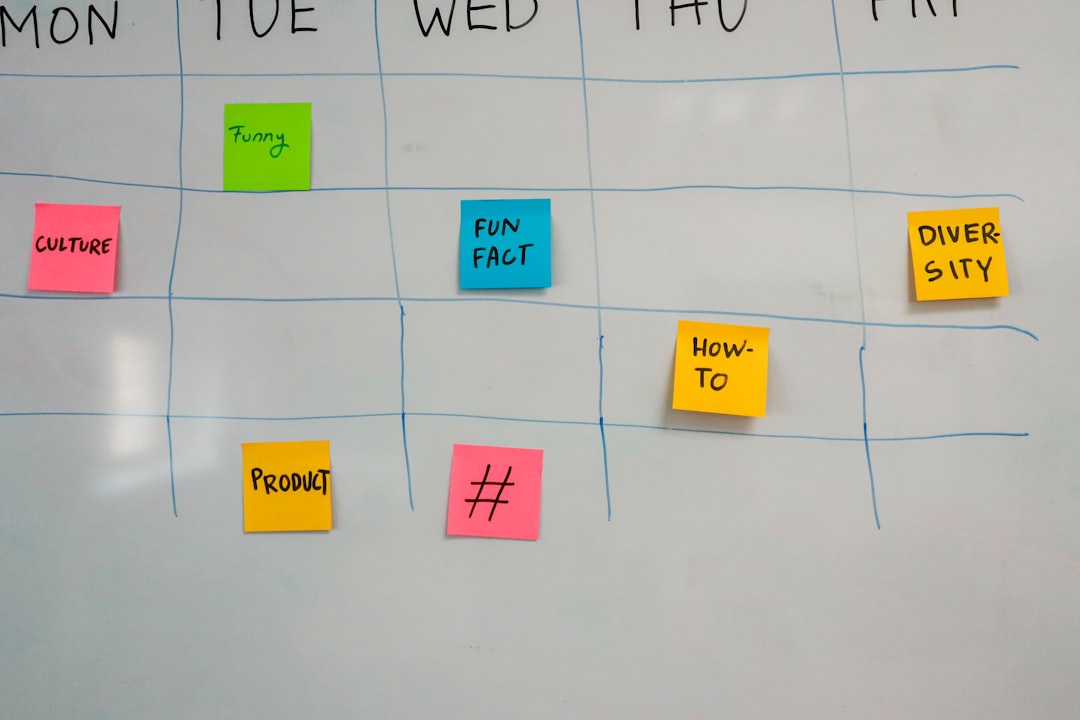
Understanding the Basic Jira Vocabulary
Before creating your first project, it helps to understand a few common Jira terms. These words appear everywhere in the platform, and knowing them will make Jira feel much less confusing.
- Project: A container for related work. For example, a mobile app project, website redesign, customer support workflow, or product launch.
- Issue: A single unit of work in Jira. An issue can be a task, bug, story, epic, or request.
- Epic: A large body of work that can be divided into smaller tasks or stories. For example, “Improve Checkout Experience.”
- Story: A user-focused requirement, often written from the perspective of the customer. For example, “As a shopper, I want to save my payment details so I can check out faster.”
- Task: A specific piece of work that needs to be completed.
- Bug: A problem or defect that needs to be fixed.
- Sub-task: A smaller step inside a larger issue.
- Board: A visual view of work, usually arranged in columns such as To Do, In Progress, and Done.
- Backlog: A prioritized list of work that has not yet been started.
- Sprint: A short, time-boxed period, often one to two weeks, during which a team completes selected work.
Scrum vs. Kanban in Jira
When you create a Jira project, you may be asked to choose between Scrum and Kanban. Both are Agile approaches, but they work differently.
Scrum is best when your team plans work in fixed cycles called sprints. At the start of the sprint, the team chooses items from the backlog. During the sprint, the goal is to complete those items. At the end, the team reviews what was done and discusses how to improve.
Kanban is best when work flows continuously. Instead of planning work into sprints, the team pulls items from the backlog as capacity becomes available. Kanban is often used for support, operations, maintenance, and teams with changing priorities.
If you are unsure which to choose, ask this simple question: Does your team work in planned cycles, or does work arrive continuously? If the answer is planned cycles, start with Scrum. If work is ongoing and unpredictable, start with Kanban.
Step 1: Create Your First Jira Project
To begin, create a new project in Jira. You will typically choose a project template, such as Scrum, Kanban, bug tracking, or task management. For beginners learning Agile project management, a Scrum or Kanban template is usually the best place to start.
Give your project a clear name. Avoid vague names like “New Project” or “Team Tasks.” Instead, use something specific, such as “Website Redesign,” “Mobile App Development,” or “Customer Onboarding Improvements.” A clear name makes it easier for team members to understand the purpose of the project.
Jira may also ask whether you want a team-managed or company-managed project. Team-managed projects are simpler and more flexible, making them a good choice for beginners. Company-managed projects offer more advanced configuration and are often used by larger organizations with standardized workflows.
Step 2: Add Issues to Your Backlog
Once your project is created, start adding issues. These are the building blocks of your work. A good issue should be clear enough that someone can understand what needs to be done without asking too many follow-up questions.
For example, instead of writing “Fix homepage,” write “Fix homepage banner alignment on mobile devices.” The second version is more specific and easier to act on.
A useful Jira issue often includes:
- A clear summary: A short title that explains the work.
- A description: More detail about the goal, context, or requirements.
- Acceptance criteria: Conditions that define when the work is complete.
- Assignee: The person responsible for the issue.
- Priority: How important the item is compared with other work.
- Due date: If there is a time-sensitive deadline.
- Attachments: Screenshots, documents, designs, or reference files.
Beginners often make the mistake of creating tasks that are too broad. If an issue feels too large or unclear, break it into smaller tasks or sub-tasks. Smaller work items are easier to estimate, assign, track, and complete.

Step 3: Organize Work with Epics and Priorities
As your backlog grows, organization becomes important. Epics help group related work under a larger goal. For example, an epic called “User Registration” might include tasks such as creating a sign-up form, adding email verification, designing error messages, and testing password reset functionality.
Prioritization is equally important. Not everything in the backlog should be treated as urgent. Jira allows you to rank items so the most valuable work appears at the top. This helps the team focus on what matters most.
A simple prioritization method for beginners is to ask:
- Does this item directly support our main goal?
- Does it solve a real user or business problem?
- Is it needed before other work can begin?
- What happens if we do not complete it soon?
Using these questions can prevent your backlog from becoming a random list of ideas. Instead, it becomes a strategic roadmap for the team.
Step 4: Use the Jira Board
The board is one of the most important parts of Jira. It shows work as cards moving through columns. A basic workflow might include To Do, In Progress, In Review, and Done.
Each card represents an issue. As work progresses, team members drag cards from one column to the next. This makes progress visible and helps everyone understand what is happening without needing constant status meetings.
For example, a developer might move a task from To Do to In Progress when they start working on it. After finishing the work, they move it to In Review. Once it is tested and approved, it moves to Done.
The board is powerful because it makes bottlenecks visible. If too many issues are sitting in In Review, your team may need more review capacity. If many tasks are stuck in In Progress, work may be too large, unclear, or overloaded.
Step 5: Run Your First Sprint
If you are using Scrum, you will work with sprints. A sprint is a focused period where the team commits to completing a selected set of backlog items. Most teams use one-week or two-week sprints.
To start a sprint in Jira, go to your backlog and choose the issues your team wants to complete. Be realistic. A beginner mistake is adding too much work to the sprint. It is better to complete a smaller amount of work well than to overload the sprint and carry unfinished tasks forward.
During sprint planning, discuss each item and make sure the team understands the requirements. Assign owners where appropriate, estimate effort if your team uses story points, and confirm the sprint goal. The sprint goal should summarize what the team hopes to achieve, such as “Complete the checkout redesign foundation” or “Improve login stability.”
Once the sprint begins, team members update issue statuses as they work. Jira then provides sprint reports, burndown charts, and velocity data to help the team understand progress.
Step 6: Track Progress with Reports and Dashboards
Jira includes reports that help teams improve over time. Beginners do not need to use every report immediately, but a few are especially useful.
- Burndown chart: Shows how much work remains in a sprint and whether the team is on track.
- Velocity chart: Shows how much work the team completes across sprints, helping future planning.
- Cumulative flow diagram: Shows how work moves through different statuses and reveals bottlenecks.
- Sprint report: Shows what was completed, what was not completed, and what changed during the sprint.
Dashboards allow you to create a personalized view of project information. For example, a project manager might create a dashboard showing open issues, overdue tasks, sprint progress, and high-priority bugs. A team member may prefer a dashboard showing only their assigned issues.

Step 7: Hold Agile Meetings Using Jira
Jira works best when it supports healthy team habits. Agile teams often use Jira during several recurring meetings.
In a daily standup, the team reviews the board and discusses what is in progress, what is blocked, and what needs attention. Instead of each person giving a long update, the board guides the conversation.
In sprint planning, the backlog helps the team choose what to work on next. Well-written issues make planning faster and more productive.
In a sprint review, completed work can be demonstrated and connected back to the issues in Jira. This makes it easier to show stakeholders exactly what was delivered.
In a retrospective, the team reflects on what went well, what was difficult, and what should change. Jira reports can provide useful evidence, such as whether too much work was added mid-sprint or whether issues regularly became stuck in review.
Step 8: Customize Jira Carefully
Jira is highly customizable, which is both a strength and a risk. You can create custom workflows, fields, permissions, issue types, automation rules, and notifications. However, beginners should avoid customizing too much too soon.
Start with a simple workflow and improve it only when you understand your team’s real needs. Too many statuses can make the board confusing. Too many required fields can slow people down. Too many notifications can cause users to ignore important updates.
A good beginner workflow is:
- To Do: Work that is ready but not started.
- In Progress: Work currently being done.
- In Review: Work waiting for feedback, testing, or approval.
- Done: Work that is completed and accepted.
Once your team understands its process, you can add refinements such as Blocked, Ready for QA, or Ready for Release.
Common Jira Mistakes Beginners Should Avoid
Jira is useful, but only if the team uses it consistently. Here are common mistakes to watch for:
- Creating vague issues: If tasks are unclear, people waste time asking what they mean.
- Not updating statuses: An outdated board makes project visibility unreliable.
- Overloading sprints: Too much committed work leads to stress and unfinished items.
- Ignoring the backlog: A messy backlog becomes difficult to prioritize.
- Using Jira only for managers: Jira should help the whole team, not just create reports.
- Over-customizing workflows: Complexity can make Jira harder to use.
Tips for Getting Comfortable with Jira
The best way to learn Jira is by using it on real work. Start small. Create a project, add a handful of issues, move them across the board, and review what happens. Do not worry about mastering every feature immediately.
Encourage your team to follow a few simple habits. Every task should have a clear owner. Every active issue should have an accurate status. Important decisions should be added to the issue comments or description. Completed work should meet agreed acceptance criteria.
It also helps to review your Jira setup every few weeks. Ask the team: Is the board easy to understand? Are the statuses useful? Are issues clear? Are reports helping us improve? Jira should evolve with your team, not become a rigid system that nobody enjoys using.
Final Thoughts
Jira is one of the most popular tools for Agile project management because it gives teams structure, visibility, and flexibility. For beginners, the key is to focus on the fundamentals: create clear issues, organize the backlog, use the board consistently, run focused sprints or maintain a smooth Kanban flow, and review progress regularly.
You do not need to become a Jira expert overnight. Start with a simple process, learn the core Agile concepts, and build better habits over time. When used well, Jira becomes more than a task tracker; it becomes a shared map of your team’s goals, priorities, progress, and continuous improvement.
