
How to Fix Skate Error Code 3967269002
If you’re an avid fan of the Skate franchise, chances are you’ve encountered a few bugs along the way. One particularly frustrating issue that players have been facing is the notorious Error Code 3967269002. This error has become increasingly common among players trying to connect to Skate’s online services, and it can severely disrupt your experience. Here, we offer a comprehensive, serious, and trustworthy guide to help you resolve this error and get back to doing what you love — skating freely in the game world.
TLDR
Error Code 3967269002 in Skate is typically associated with server issues, account misconfigurations, or corrupted cache data. Start by checking your internet connection and verifying the game’s server status. If the problem persists, try clearing system cache or reinstalling the game. Most users report success with a combination of these steps.
Understanding Skate Error Code 3967269002
Error Code 3967269002 usually appears when players attempt to launch Skate or access its online multiplayer features. The error prevents the game from connecting to the EA servers, effectively cutting off online-related functionalities. While EA has not provided an official statement for this specific code, player reports and community feedback point to a few recurring causes:
- EA server outages or maintenance
- Corrupted local game cache or system data
- Outdated software or game version
- Connection instability or poor network configuration
- Account verification issues with EA
Now that you understand the potential causes, let’s go through the most effective solutions to fix this problem.
Step-by-Step Fixes for Error 3967269002
1. Check the Server Status
The first thing you should do is verify whether the problem is coming from EA’s end. Server downtime is common during updates, and trying to fix things on your side won’t help if the issue is with the servers.
How to Check EA Server Status:
- Visit the official EA Help Skate page
- Follow EA’s official Twitter handle to check for outage announcements
- Use reliable websites like Downdetector to see if others are reporting similar issues
If the servers are down, you’ll need to wait it out. Once they’re back up, try restarting your game to see if the error resolves by itself.
2. Restart Your System and Network Equipment
Sometimes, a simple restart is all it takes. Exit the game completely, turn off your console/PC, and then restart both your router and modem.
Follow these steps:
- Power down your gaming device completely (not just resting or sleeping mode)
- Unplug your modem and router from the power source
- Wait at least 60 seconds before plugging them back in
- Turn on your modem first, then the router after 2 minutes
- Finally, start your system and launch Skate again
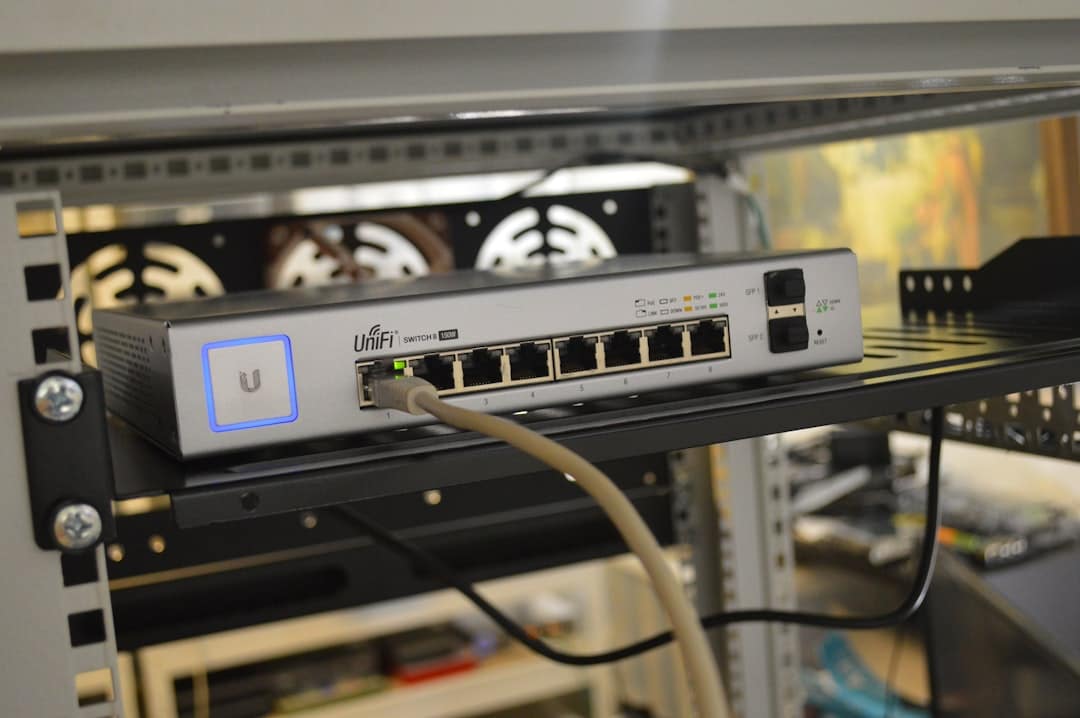
This can reset any existing IP or DNS issues that might be causing connectivity problems.
3. Clear Cache and Temporary Files
Corrupted cache data is a frequent cause of unexplained errors. Clearing the system or game cache can eliminate corrupted temporary files.
On Xbox:
- Hold the power button on your console until it shuts down completely
- Unplug it from the wall and wait 30–60 seconds
- Plug it back in and start up your console
On PlayStation:
- Turn off the console completely
- Unplug for 30–60 seconds
- Restart and attempt to launch the game again
On PC (if applicable):
- Navigate to:
C:\Users\[YourName]\AppData\Local\Skate - Delete folder contents that appear to be cache or temp files
- Empty your Recycle Bin and restart your PC
4. Reinstall or Update the Game
If the issue persists, it’s time to double-check whether your game is updated to the latest version. Outdated versions may fail to properly interface with updated EA server architectures.
On most platforms, you can check for updates by navigating to the game’s icon and selecting “Check for Updates.” If none are available or the problem still exists, consider uninstalling and reinstalling the game. This will ensure you get a fresh installation, free of lingering corrupt files or configurations.

Steps to Clean Install:
- Back up any saved local game data
- Uninstall Skate completely
- Restart your console or PC
- Reinstall the game from the official store
5. Verify Your EA Account
Sometimes, account verification issues can restrict server access. Log in to your EA account through a browser, and make sure all your information is current and that your email address is verified.
How to Verify Your EA Account:
- Go to EA Account Settings
- Check that your PlayStation Network ID, Xbox Live Gamertag, or Steam ID is properly linked
- Verify your email and enable login verification
If there are any account-related barriers, fixing them here should resolve the error.
6. Change DNS Settings (Advanced)
Some users have found success by switching to a more stable and faster DNS server like Google’s or Cloudflare’s. This is slightly more technical, but it’s a highly effective method if connectivity is the underlying issue.
Recommended DNS Settings:
- Google DNS: 8.8.8.8 and 8.8.4.4
- Cloudflare DNS: 1.1.1.1 and 1.0.0.1
You can change DNS server settings on your console or PC through the network configuration menus.
Contacting EA Support
If you’ve attempted all the above fixes and the error still persists, it’s time to escalate the issue to EA Support. Provide them with as much detail as possible, including:
- Device/platform you’re using
- When the error occurs (startup, login, multiplayer)
- Steps already taken to troubleshoot
Depending on workload and severity, support might suggest more advanced solutions or update you on potential backend fixes in development.
Conclusion
Error Code 3967269002 can be a disruptive but ultimately solvable problem. By methodically checking server status, clearing cache, verifying your account, and updating your system, you greatly increase your chances of resolving the issue without professional help. Remember, patience and thoroughness are key when troubleshooting online gaming errors.
Use this guide as your trusted reference, and you’ll be back grinding rails and pulling kickflips in no time.
