
7 Website Screenshot Tools For Capturing And Sharing Web Pages
The internet moves fast. Pages change. Posts disappear. Designs get updated. That’s why capturing a website screenshot is so useful. Whether you’re saving inspiration, reporting a bug, or sharing an article, a good screenshot tool makes life easier.
TLDR: Website screenshot tools help you capture, edit, and share web pages quickly. Some work as browser extensions, others are full desktop apps. The best tools offer scrolling capture, annotations, and easy sharing links. Below are seven simple and powerful tools that make screenshotting the web fun and effortless.
Let’s explore seven great tools you can start using today.
1. Awesome Screenshot
Best for: All-in-one browser capturing
Awesome Screenshot lives right in your browser. It works as an extension for Chrome, Firefox, and Edge. Once installed, it’s just one click away.
You can capture:
- The visible part of a page
- The entire scrolling page
- A selected area
- Your webcam with screen recording
The scrolling capture feature is a real time saver. No more stitching images together.
After capturing, you can:
- Add arrows and shapes
- Highlight text
- Blur sensitive information
- Add comments
This makes it perfect for teams. Developers love it for bug reports. Marketers love it for sharing ideas. Teachers love it for tutorials.
Why people like it: It’s simple. It’s fast. It does almost everything.
2. GoFullPage
Best for: Quick full-page screenshots
Sometimes you don’t need editing tools. You just want the whole page. Now.
That’s where GoFullPage shines.
It captures an entire scrolling webpage in one click. No setup. No complicated menus. Just press the icon.
Once done, you can:
- Download as PNG
- Download as PDF
- Edit with simple drawing tools
It’s lightweight and doesn’t slow down your browser. Bloggers often use it to archive articles. Designers use it to save layout inspiration.
Why people like it: It does one job and does it very well.
3. Snagit
Best for: Advanced editing and professional use
Snagit is more than a browser extension. It’s a full desktop application. That means more power.
You can capture:
- Web pages
- Desktop apps
- Scrolling windows
- Video recordings
But the magic happens in the editor.
You get advanced features like:
- Step-by-step guides with auto-numbering
- Smart text recognition
- Templates for documentation
- Animated GIF exports
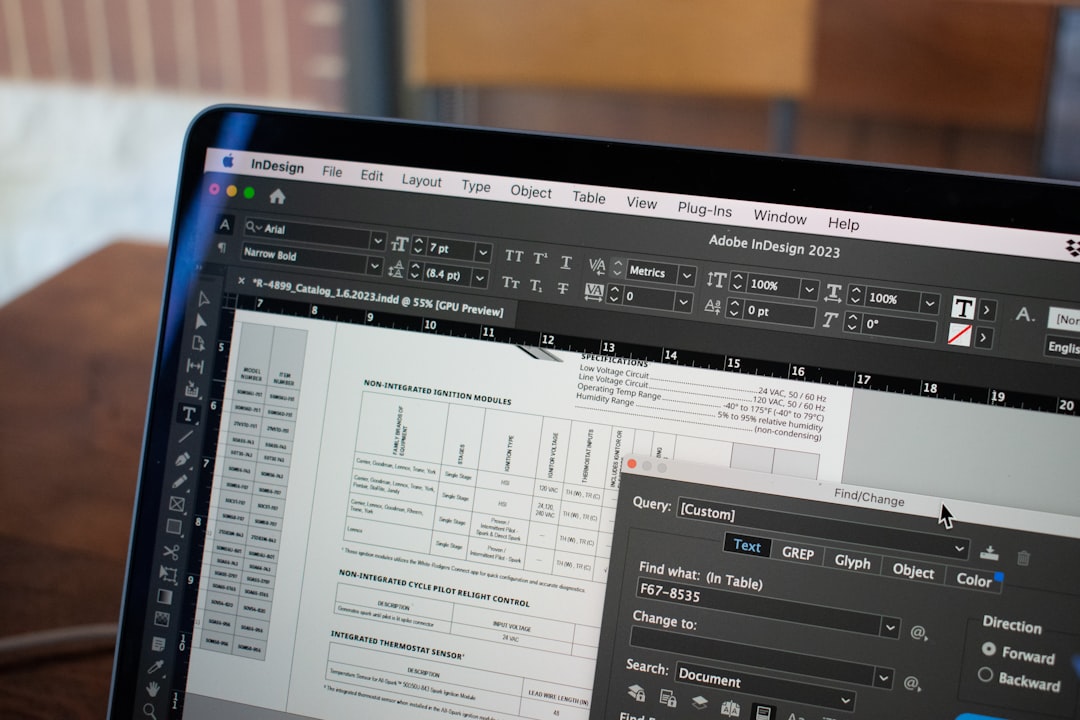
It’s ideal for creating manuals, onboarding guides, and training materials.
Why people like it: It turns screenshots into polished content.
4. Lightshot
Best for: Fast and simple sharing
Lightshot is all about speed.
Press a shortcut key. Select the area. Done.
No heavy menus. No learning curve.
After capturing, you can:
- Add quick annotations
- Upload instantly
- Get a shareable link
It’s perfect for quick conversations. Need to show a teammate something wrong on a page? Lightshot makes it easy.
It also has a simple image search feature. That’s helpful if you want to find visually similar images online.
Why people like it: It’s fast. Really fast.
5. Nimbus Capture
Best for: Flexible capture options
Nimbus Capture offers a nice balance between simple and powerful.
You can capture:
- Entire web pages
- Selected areas
- Browser windows
- Blank images for drawing
One standout feature is screen video recording. You can record your screen and webcam at the same time. This is great for walkthroughs.
The editing toolbox includes:
- Text annotations
- Arrows and shapes
- Blur tool
- Color adjustments
It also saves directly to cloud storage. That means no clutter on your desktop.
Why people like it: It gives you many options without feeling overwhelming.
6. Fireshot
Best for: Capturing long webpages
Some web pages are extremely long. Think research articles. Product listings. Documentation pages.
Fireshot handles these easily.
It captures entire pages and keeps formatting clean. That’s important. Broken images ruin everything.
You can export your capture as:
- JPEG
- PNG
- Clipboard copy
It integrates smoothly into browsers and works quietly in the background.
Professionals often use it for compliance records or saving online receipts.
Why people like it: Reliable full-page capture without glitches.
7. ShareX
Best for: Power users and automation lovers
ShareX is a free, open-source desktop tool. But don’t let “free” fool you. It’s packed with features.
It supports:
- Scrolling capture
- Custom region capture
- GIF recording
- Workflow automation
Here’s where it gets interesting.
You can create automated workflows. For example:
- Capture screenshot
- Add watermark
- Upload to cloud
- Copy link to clipboard
All in seconds. Automatically.
It also supports many hosting services. That makes sharing seamless.
Why people like it: Maximum control and customization.
How To Choose The Right Screenshot Tool
Not all tools are built for the same job. Ask yourself:
- Do I need full-page scrolling capture?
- Do I need editing tools?
- Will I record videos too?
- Do I want quick sharing links?
- Am I working alone or with a team?
If you just want quick snapshots, go simple. Tools like Lightshot or GoFullPage are perfect.
If you build tutorials or documentation, consider Snagit.
If you love automation and deep customization, ShareX may be your new best friend.
Why Website Screenshots Matter More Than Ever
The web is temporary. Content changes daily.
Screenshots help you:
- Save proof of transactions
- Document design changes
- Capture social media posts
- Report website bugs
- Store inspiration
They also make communication clearer. Instead of writing long explanations, you can simply say, “Here, look at this.”
Visuals reduce confusion. They speed things up. They make collaboration smoother.
Final Thoughts
Website screenshot tools are small helpers with big impact.
They save time. They improve communication. They help you stay organized.
The best part? Most of these tools are easy to install and simple to use.
Try one. Capture a page. Share it with a friend or teammate.
You might be surprised how often you start using it.
Because once you have the power to capture the web… you won’t want to browse without it.
