
How to Fix Error Code Weasel in Destiny 2: Network Troubleshooting Guide

Nothing ruins a perfect Crucible match like getting kicked to orbit by an animal. Especially a sneaky one like Error Code Weasel. You are mid-fight. Super is charged. Boom. Gone. If this keeps happening, do not worry. Weasel is annoying, but it is usually fixable. Let’s break it down in a fun and simple way.
TLDR: Error Code Weasel usually means Destiny 2 lost connection to Bungie’s servers. It often happens because of unstable internet, multiple logins, or strict network settings. Restart your router, avoid using multiple devices with the same account, and check your NAT type first. If that fails, tweak router settings or contact your internet provider.
What Is Error Code Weasel?
Error Code Weasel is a network error. It appears when your connection to Destiny 2 servers drops or gets interrupted. Sometimes it also shows up if your account is logged in on more than one device.
Think of it like this. Destiny 2 is constantly talking to Bungie’s servers. If that conversation gets cut off, even for a second, the game kicks you out. Weasel just means, “Hey, something interrupted the connection.”
Why Does Weasel Happen?
Here are the most common causes:
- Unstable internet connection
- WiFi signal drops
- Router issues
- Strict NAT type
- Multiple logins on the same account
- VPN or firewall blocking traffic
- ISP (internet provider) problems
The good news? Most of these are under your control.
Step 1: Log Out of Other Devices
This is the easiest fix.
If your Destiny 2 account is logged in on:
- Another console
- A friend’s console
- Steam on another PC
- Cross-save platforms at the same time
You might trigger Weasel.
Fix: Log out everywhere else. Restart your main device. Then launch the game again.
Simple. Often effective.
Step 2: Restart Everything (Yes, Everything)
This sounds boring. But it works.
Do this in order:
- Close Destiny 2.
- Turn off your console or PC.
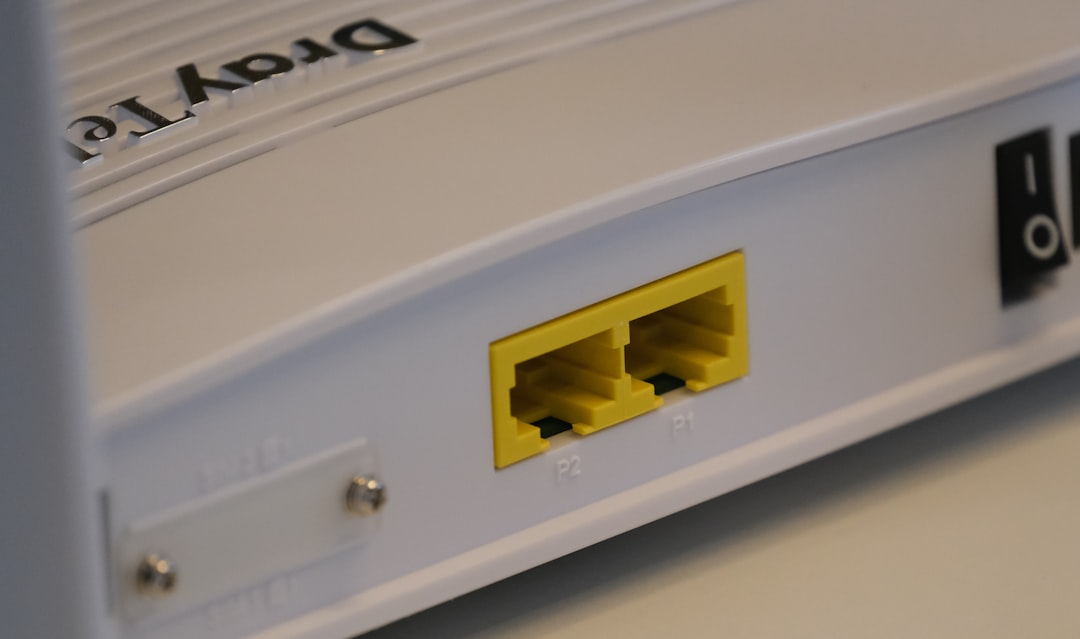
- Unplug your router and modem.
- Wait 2 full minutes.
- Plug modem back in.
- Plug router back in.
- Turn your system on.
This clears temporary network glitches. It also refreshes your IP connection with your ISP.
If Weasel was caused by a small interruption, this alone might fix it.
Step 3: Switch from WiFi to Wired
WiFi is convenient. But it is not always stable.
Walls. Phones. Microwaves. Other devices. They all interfere with wireless signals.
If possible, use an Ethernet cable.
A wired connection is:
- More stable
- Faster
- Lower latency
- Less prone to packet loss
For online games like Destiny 2, stability matters more than raw speed.
Step 4: Check Your NAT Type
Your NAT type affects how your device communicates with other players and servers.
There are usually three types:
- Open (Type 1) – Best
- Moderate (Type 2) – Usually fine
- Strict (Type 3) – Problematic
If your NAT is strict, you are more likely to see connection errors like Weasel.
How to Fix a Strict NAT
- Enable UPnP in your router settings
- Forward Destiny 2 ports manually
- Place your console in DMZ (advanced users only)
To access router settings, type your router’s IP address into a browser (usually 192.168.1.1 or 192.168.0.1). Login using admin credentials found on the router label.
Be careful. Do not change random settings if you are unsure.
Step 5: Disable VPNs and Firewalls
VPNs are great for privacy. But they can confuse online games.
If you are using a VPN:
- Turn it off.
- Restart Destiny 2.
Also check firewall or antivirus software. Sometimes they block game traffic.
Add Destiny 2 as an exception if needed.
Quick Comparison: Common Fixes
| Fix | Difficulty | Effectiveness | Best For |
|---|---|---|---|
| Restart Router | Very Easy | High | Random Disconnects |
| Use Ethernet Cable | Easy | Very High | WiFi Drops |
| Log Out Other Devices | Very Easy | High | Cross Save Users |
| Enable UPnP | Medium | High | Strict NAT |
| Port Forwarding | Advanced | Very High | Persistent NAT Issues |
| Disable VPN | Easy | Medium | VPN Users |
Step 6: Check for ISP Issues
Sometimes the problem is not you. It is your internet provider.
Signs of ISP issues:
- Frequent short disconnects
- Lag spikes in all games
- Websites load slowly
- Other online services drop
Run an online speed test. But pay attention to more than speed.
- Ping should be low (under 30ms is great).
- Packet loss should be 0%.
If packet loss is higher than 0–1%, call your ISP. Ask if there are stability issues in your area.

Step 7: Update Everything
Outdated software can cause weird problems.
Make sure:
- Your console firmware is updated.
- Your PC network drivers are updated.
- Your router firmware is updated.
- Destiny 2 is fully patched.
Manufacturers fix bugs all the time. A simple update might solve the issue.
Step 8: Clear Console Cache
This can help with repeated errors.
On PlayStation:
- Turn off completely (not rest mode).
- Unplug power cable.
- Wait 2 minutes.
- Plug back in.
On Xbox:
- Hold the power button for 10 seconds.
- Unplug for 2 minutes.
- Restart.
This clears temporary system data.
When It Is Bungie’s Fault
Yes. Sometimes it is not you.
Bungie servers go down occasionally. Especially during:
- Big updates
- New season launches
- Hotfix releases
Check:
- Bungie Help Twitter
- Official Bungie website
- Down detector type websites
If servers are down, you just have to wait. Grab a snack. Stretch. The Traveler will still be there later.
Advanced Fix: Port Forwarding for Destiny 2
If nothing works, you can manually forward ports.
You will need:
- Your device’s local IP address
- Access to router settings
Common ports for Destiny 2 include:
- TCP: 7500–17899 (varies by platform)
- UDP: 3074, 3097 (example for consoles)
Check Bungie’s official support page for platform-specific details.
This step is powerful. But only do it if you are comfortable inside router settings.
How to Prevent Error Code Weasel
Once fixed, keep it away with these habits:
- Use wired internet when possible.
- Do not share your account.
- Keep router firmware updated.
- Restart router once a month.
- Avoid gaming during heavy home internet usage.
If someone in your house is streaming 4K movies while you raid, your connection may suffer.
Final Thoughts
Error Code Weasel feels dramatic. But most of the time, it is just a small network hiccup.
Start simple. Restart things. Check for multiple logins. Switch to wired. Fix NAT.
Work step by step. Do not change everything at once.
Once your connection is stable, Destiny 2 runs smoothly. No surprise trips to orbit. No angry teammates. Just clean headshots and shiny loot.
Now go. The galaxy needs you. And hopefully, Weasel stays far away.
