
5 Solutions to Fix Your System Has Run Out of Application Memory Error
Your computer is humming along. You have tabs open. Maybe a video playing. A few apps running. Then boom. You see the dreaded message: Your system has run out of application memory. Annoying. Stressful. Sometimes scary. But don’t worry. This problem is common. And yes, you can fix it.
TLDR: The “system has run out of application memory” error happens when your device can’t handle the apps and tasks you are running. It can be caused by too many open apps, memory leaks, low disk space, or outdated software. You can fix it by closing heavy apps, checking Activity Monitor, freeing disk space, updating your system, or adjusting virtual memory. These steps are simple and do not require advanced tech skills.
Let’s break it down in simple terms and fix it step by step.
What Does “Out of Application Memory” Mean?
Your device has something called RAM. Think of RAM as your computer’s short-term memory. It stores what you’re actively using.
When you open apps, those apps use RAM. When you open more apps, they use more RAM. If you run out, your system starts to panic. That’s when you see the error message.
Imagine your desk. If it’s clean, you can work fast. If it’s piled high with books and papers, there’s no space left. Same idea.
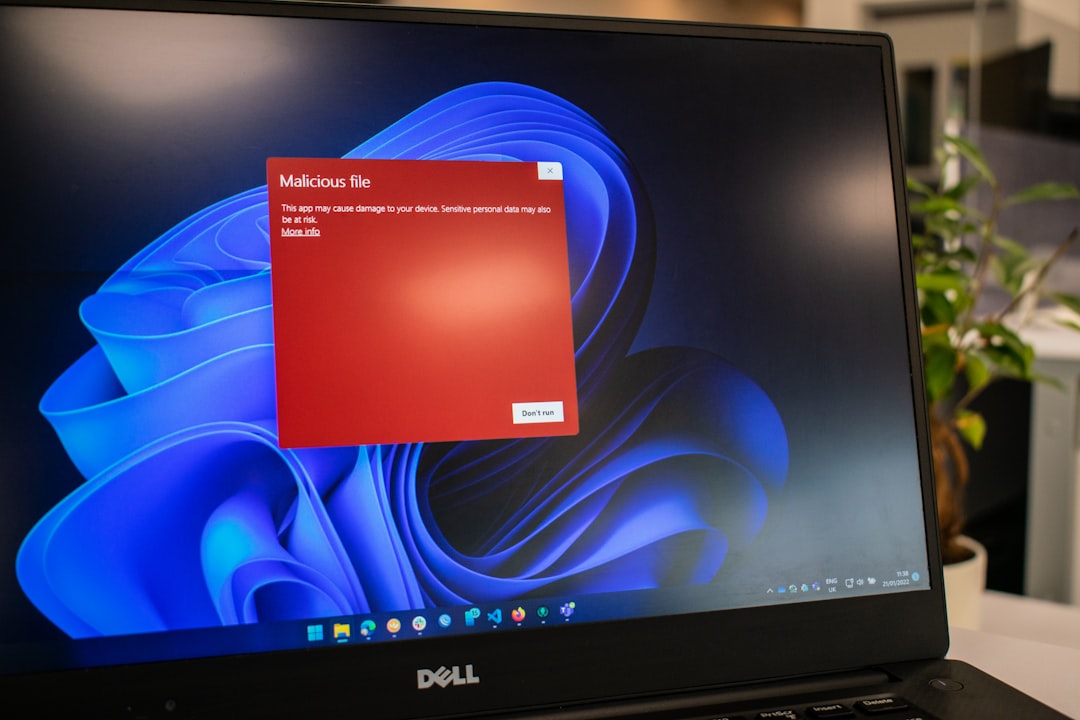
Here’s what it usually looks like:
Now let’s fix it.
Solution 1: Close Apps You’re Not Using
This is the quickest fix. And often the most effective.
Many apps continue running even after you stop using them. Browsers are especially guilty. Each tab uses memory. Yes, every single tab.
What to do:
- Save your work.
- Close unused apps.
- Reduce the number of browser tabs.
- Quit heavy programs like video editors or games.
On Mac:
- Press Command + Option + Esc.
- Force quit frozen apps.
On Windows:
- Press Ctrl + Shift + Esc.
- Open Task Manager.
- End high-memory tasks.
Simple. Fast. Often enough to solve the issue.
Solution 2: Check Activity Monitor or Task Manager
Sometimes you don’t know what’s using all your memory. That’s where built-in system tools help.
These tools show exactly what’s eating your RAM.
On Mac:
- Open Activity Monitor.
- Click the Memory tab.
- Look at the Memory Pressure graph.
If the graph is red, your system is stressed.
On Windows:
- Open Task Manager.
- Click on the Performance tab.
- Select Memory.
You will see which apps are using the most RAM.
Pro Tip: If one app keeps using too much memory every time, it may have a memory leak. That means it’s buggy. Updating or reinstalling it often fixes the issue.
Solution 3: Free Up Disk Space
Your system does not only rely on RAM. It also uses disk space as “virtual memory.” When RAM fills up, the system borrows space from your hard drive.
If your disk is almost full, your system has nowhere to borrow from. Then you get the memory error.
Check your storage:
Mac:
- Go to System Settings.
- Click General.
- Select Storage.
Windows:
- Open Settings.
- Click System.
- Choose Storage.
What to delete:
- Old downloads
- Large video files
- Unused applications
- Temporary files
- Trash or Recycle Bin contents
A good rule? Keep at least 15–20% of your disk free.
You can also move large files to:
- External drives
- Cloud storage
More free space equals better system performance.
Solution 4: Update Your Operating System and Apps
Outdated software often causes memory issues.
Developers release updates to fix bugs. Some of those bugs are memory leaks or performance problems.
If you ignore updates for too long, things break.
To update:
Mac:
- Go to System Settings.
- Click General.
- Select Software Update.
Windows:
- Open Settings.
- Click Windows Update.
- Check for updates.
Also update:
- Your web browser
- Creative software
- Office tools
- Plugins and extensions
After updating, restart your computer. A fresh reboot clears temporary memory issues.
Solution 5: Adjust Virtual Memory or Upgrade RAM
If this error keeps coming back, your system may simply need more memory.
You have two main options:
Option A: Adjust Virtual Memory (Windows)
Windows allows you to manually increase paging file size.
- Open Control Panel.
- Select System.
- Click Advanced system settings.
- Under Performance, click Settings.
- Go to the Advanced tab.
- Select Virtual Memory.
Increase the allocated size based on system recommendations.
This is like giving your system a little backup brain.
Option B: Upgrade Your RAM
This is the most powerful solution.
If you regularly:
- Edit videos
- Play modern games
- Run design software
- Keep 30 browser tabs open
You may need 16GB or more RAM.
Many modern laptops allow upgrades. Some do not. Check your device model first.
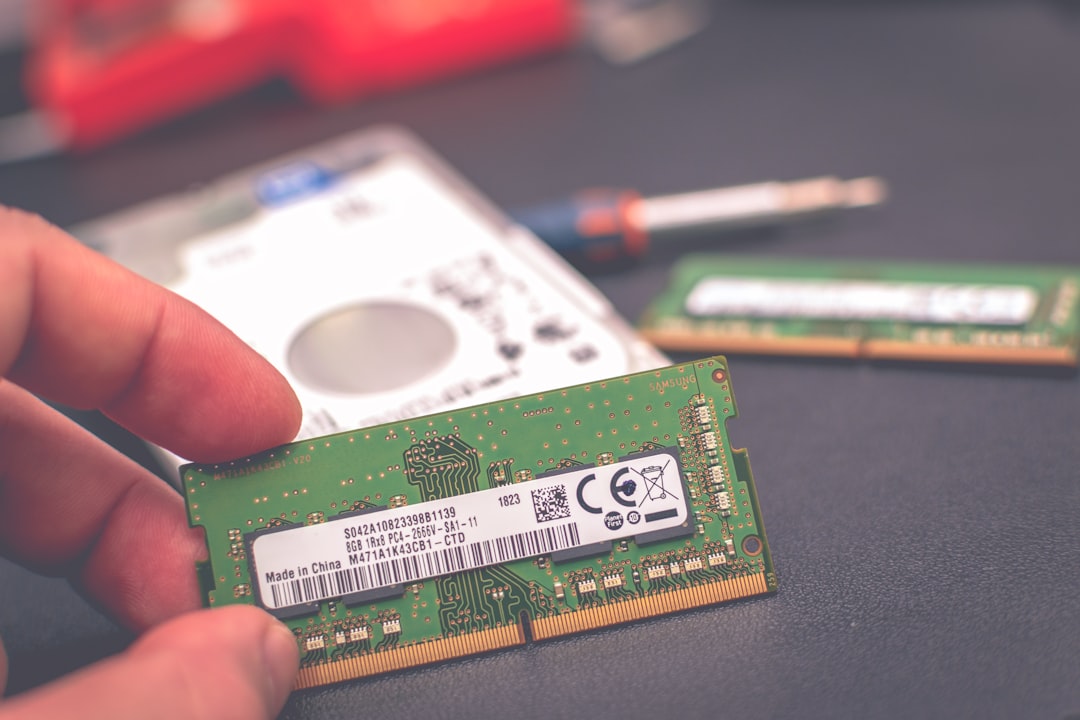
Think of this as expanding your desk. More space. Less stress.
Quick Comparison of the 5 Solutions
| Solution | Difficulty | Cost | Best For | Speed of Fix |
|---|---|---|---|---|
| Close Unused Apps | Very Easy | Free | Sudden memory spikes | Immediate |
| Check Activity Monitor | Easy | Free | Finding problem apps | Fast |
| Free Disk Space | Easy | Free | Full storage drives | Moderate |
| Update System | Easy | Free | Bug-related memory leaks | Moderate |
| Upgrade RAM | Medium | Paid | Heavy long-term users | Permanent Fix |
Bonus Tips to Prevent This Error
Now that you’ve fixed it, let’s stop it from happening again.
- Restart your computer at least once a week.
- Avoid sketchy browser extensions.
- Limit startup programs.
- Keep at least 20% disk space free.
- Monitor memory usage monthly.
Small habits make a big difference.
When Should You Worry?
Most of the time, this error is not serious. It simply means your system is overloaded.
But you should investigate further if:
- The error happens daily.
- Your system freezes constantly.
- You see random shutdowns.
- Performance keeps getting worse over time.
In rare cases, it could indicate failing hardware.
If nothing works, consider professional support.
Final Thoughts
The “Your system has run out of application memory” error sounds dramatic. But it’s usually fixable in minutes.
Start simple. Close apps. Restart. Clean up. Update. If needed, upgrade.
Your computer is like a workspace. Keep it tidy. Give it room to breathe. And it will run smoothly.
No more panic messages. No more frozen screens. Just fast, stress-free computing.
