
How to Group Nodes in ComfyUI (Step-by-Step Guide)
ComfyUI is a powerful node-based interface for building AI image generation workflows, but as your projects grow, your canvas can quickly become chaotic. Dozens of nodes connected by tangled lines make it harder to debug, tweak, or share your workflows. That’s where grouping comes in. Learning how to group nodes in ComfyUI is one of the simplest ways to make your workspace cleaner, more organized, and far more efficient.
TLDR: Grouping nodes in ComfyUI helps you organize complex workflows into clean, manageable sections. You can select multiple nodes, combine them into a group, label them clearly, and even color-code them for better visual structure. Groups improve readability, speed up editing, and make your workflows easier to share. Once you start using them, you’ll never want to build a large workflow without grouping again.
Why Grouping Nodes Matters
As your ComfyUI workflows become more advanced, you may find yourself working with:
- Multiple model loaders
- Several conditioning nodes
- Complex upscaling chains
- Custom latent processing paths
- ControlNet or LoRA branches
Without structure, these nodes quickly turn into a visual maze. Grouping solves this by letting you wrap related nodes into logical sections. Instead of seeing 50 individual nodes, you see clearly labeled blocks like “Prompt Processing” or “Upscaling Pipeline.”
Benefits of grouping include:
- Improved readability for you and collaborators
- Faster debugging when something breaks
- Cleaner exports when sharing workflows
- Better project scaling as workflows grow
Think of node groups as folders on your computer. They don’t change the contents — they just organize them.
Step-by-Step: How to Group Nodes in ComfyUI
Step 1: Select the Nodes You Want to Group
To create a node group, you first need to select multiple nodes.
You can do this in two main ways:
- Click and drag around multiple nodes to box-select them
- Hold Shift and click nodes individually to multi-select
Make sure all relevant nodes are selected before moving to the next step. You’ll know they’re selected when they become highlighted.
Image not found in postmetaStep 2: Create the Group
Once your nodes are selected:
- Right-click on one of the selected nodes
- Choose the “Group” option (or similar grouping function depending on your version)
ComfyUI will automatically create a visual container around the selected nodes. This container acts as your group.
At this point, nothing about the workflow logic has changed. The nodes are simply wrapped inside a visual boundary.
Step 3: Rename the Group
This is where grouping becomes powerful.
After creating the group, you should immediately rename it to something meaningful. For example:
- Base Model Setup
- Text Prompt Encoding
- Latent Noise Generator
- High-Res Fix Branch
To rename:
- Click on the group title (usually at the top of the container)
- Edit the text directly
A clear naming system dramatically improves long-term usability, especially if you revisit projects weeks later.
Step 4: Customize Group Appearance
One of the most underrated features of grouping in ComfyUI is visual customization.
You can often:
- Resize the group container
- Change the group color
- Adjust positioning without breaking connections
Color-coding is particularly helpful. For example:
- Blue groups for input processing
- Green for generation pipelines
- Purple for upscaling
- Orange for experimental branches
This creates intuitive visual separation across large canvases.
Best Practices for Grouping Nodes
Grouping is easy — grouping well is an art. Here are some smart practices to follow.
1. Group by Function, Not Position
Don’t group nodes simply because they are near each other. Group them because they serve the same logical purpose.
Example structure:
- Input Group
- Model Loading Group
- Conditioning Group
- Sampling Group
- Post-Processing Group
This functional separation mirrors how the actual generation pipeline works.
2. Avoid Over-Grouping
Too many small groups can become just as confusing as no groups at all.
Instead of grouping two tiny nodes together, ask yourself:
- Does this represent a full stage of the workflow?
- Will grouping make it clearer?
If the answer is no, leave it ungrouped.
3. Keep Connections Clean
Try to minimize long connection lines crossing multiple groups. Clean, directional flow improves readability.
A good workflow typically goes:
Left → Right or Top → Bottom
Keep input groups on one side and output groups on the opposite side for clarity.
4. Use Spacing Strategically
White space is powerful. Don’t pack groups too tightly together. Leave visual breathing room between them to make navigation easier.
Example: Grouping a Basic Stable Diffusion Workflow
Let’s walk through a practical real-world example.
A simple Stable Diffusion setup might include:
- Checkpoint Loader
- CLIP Text Encode (positive)
- CLIP Text Encode (negative)
- KSampler
- VAE Decode
- Image Output
You could organize this into:
- Model Loading (Checkpoint + VAE)
- Prompt Encoding (Positive + Negative CLIP)
- Sampling (KSampler)
- Output (Decode + Save)
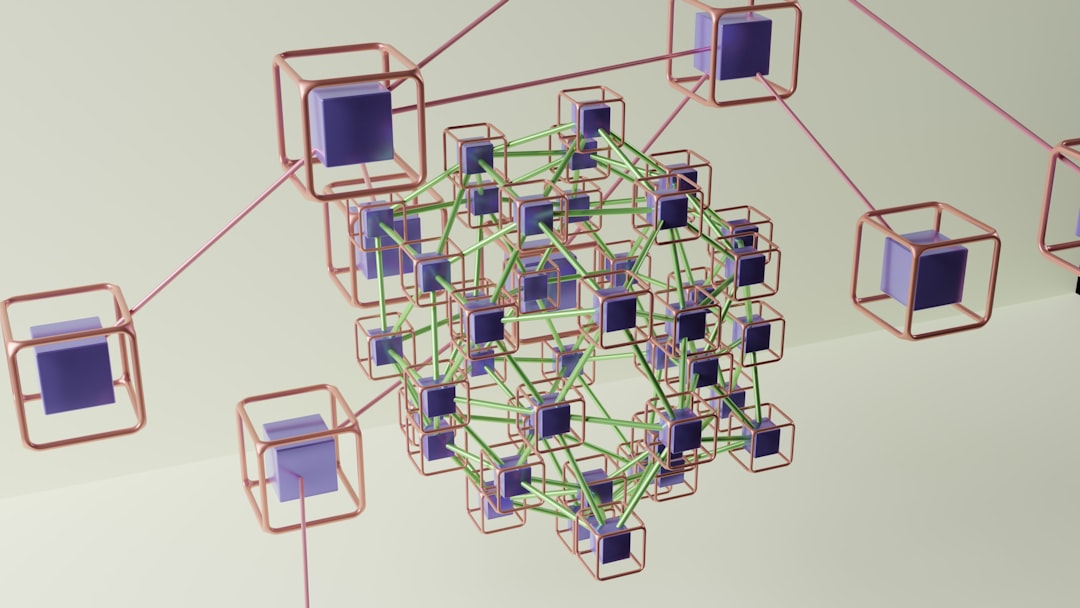
With just four labeled sections, the workflow becomes dramatically easier to understand — even for beginners.
How Grouping Helps with Advanced Workflows
As you add more advanced components like:
- ControlNet branches
- LoRA stacks
- Multiple samplers
- Latent upscalers
- Custom scripting nodes
Grouping becomes essential.
You can:
- Isolate experimental branches
- Temporarily disable or inspect certain sections
- Duplicate entire process blocks easily
- Share reusable pipeline sections
For example, if you build a powerful “Detail Enhancer” section, grouping lets you quickly copy and reuse it in other projects without rebuilding everything from scratch.
Common Mistakes to Avoid
Even experienced users make grouping mistakes. Watch out for these:
❌ Forgetting to Rename Groups
Leaving groups labeled “Group 1” defeats the purpose of organization.
❌ Mixing Unrelated Nodes
Keep workflow stages separate. Mixing conditioning and output nodes creates confusion.
❌ Ignoring Visual Hierarchy
Try to keep important stages more visually prominent. Slightly larger groups for major stages can help guide the eye.
❌ Letting Groups Overlap Sloppily
Messy layout reduces the clarity you worked to create.
Tips for Sharing Organized Workflows
If you share ComfyUI workflows with others, grouping gives you a major advantage.
Before exporting:
- Double-check all groups are clearly named
- Standardize color usage
- Remove unused experimental branches
- Align groups neatly
Other users will instantly understand your layout — and that makes your workflow more valuable and professional.
Final Thoughts
Grouping nodes in ComfyUI may seem like a small organizational trick, but it fundamentally changes how you build, edit, and scale workflows. Instead of wrestling with clutter, you move through clearly defined sections. Instead of confusion, you get clarity.
The more complex your projects become, the more essential grouping becomes. Start simple: organize your next workflow into logical stages. Use color strategically. Name everything clearly. Leave breathing room.
Once you adopt grouping as a standard habit, you’ll find your productivity increases — and your creativity flows more freely — because your system finally works with you instead of against you.
Clean canvas. Clear logic. Better results.
