
Best 6 Data & Partition Recovery Tools That NAS Owners Use to Retrieve Files After Volume Corruption or Accidental Formatting
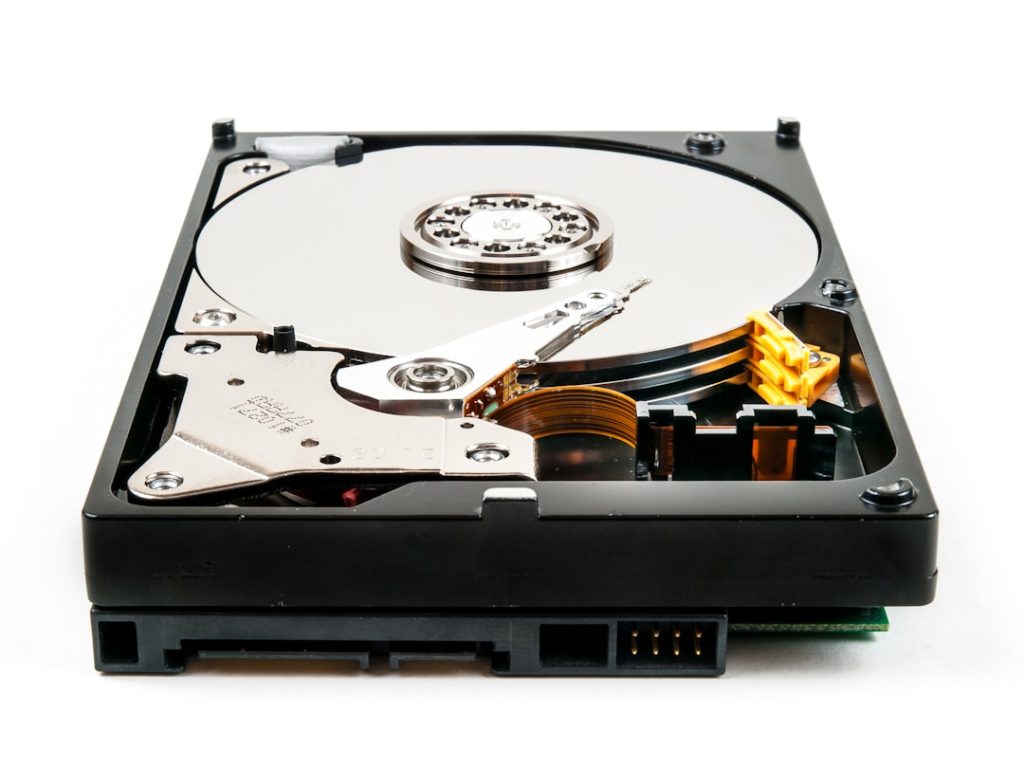
Data loss from Network Attached Storage (NAS) devices can occur unexpectedly due to volume corruption, system crashes, or accidental formatting. NAS owners often store critical personal and business data, which makes file retrieval after any failure paramount. Fortunately, a variety of specialized tools exist to help users recover partitions and lost files efficiently.
TL;DR
Losing data from a NAS device is never ideal, but there are dedicated data recovery tools that can help. Solutions like EaseUS Data Recovery Wizard, R-Studio, and UFS Explorer are particularly well-suited for dealing with complex NAS environments. Whether handling EXT4, Btrfs, or RAID configurations, these tools provide file-level recovery even after severe damage. Ensure backups are maintained, but in case disaster strikes, the tools listed below can likely save your files.
Best 6 Data & Partition Recovery Tools That NAS Owners Use
Below is a detailed overview of the top 6 data and partition recovery tools that are favored by both amateur and professional NAS users around the world. Their functionalities range from RAID reconstruction to file-level recovery, making them essential allies in a data emergency.
1. EaseUS Data Recovery Wizard
EaseUS has long been recognized for its user-friendly interface and powerful recovery capabilities. NAS owners appreciate its ability to work with a wide range of file systems, including EXT3/EXT4 which are common in NAS environments like Synology or QNAP.
- Key Features: Lost partition recovery, RAID support, deleted file recovery
- Supported OS: Windows, macOS
- Pros: Simple navigation, effective deep scan mode
- Cons: Expensive license for full features
2. R-Studio
R-Studio is a robust data recovery suite used by IT professionals and advanced users. It provides full support for recovering data from NAS volumes, including those configured with complex RAID settings or Linux-based file systems.
- Key Features: RAID reconstructor, damaged partition analysis, HEX editor
- Supported OS: Windows, Linux, macOS
- Pros: Advanced RAID reconstruction, excellent file preview options
- Cons: Steeper learning curve for beginners
3. UFS Explorer
UFS Explorer Professional is widely used for NAS recovery, particularly for devices using Linux-based systems or proprietary RAID formats such as those from Synology, QNAP, and Asustor.
- Key Features: Supports various RAID levels, NAS-specific modules, virtualization support
- Supported OS: Windows, Linux, macOS
- Pros: Great support for EXT, Btrfs, XFS, and ZFS file systems
- Cons: Professional license is quite pricey

4. ReclaiMe File Recovery
ReclaiMe is known for its simplicity and efficiency. It’s especially helpful for home users who need a quick and easy way to recover files without dealing with complex setups.
- Key Features: No disk-imaging required, RAID automatic detection, recovery previews
- Supported OS: Windows
- Pros: Easy to use, automatic RAID recognition
- Cons: Limited advanced features for professionals
5. DiskInternals RAID Recovery
If you’re dealing with corrupt RAID arrays on your NAS, DiskInternals RAID Recovery offers powerful scanning and intelligent RAID reconstruction. It’s particularly effective when you no longer remember the original configuration settings.
- Key Features: Auto RAID parameters detection, virtual RAID assembly, file preview
- Supported OS: Windows
- Pros: Good for unknown RAID setup recovery, simple export options
- Cons: Does not support Linux and macOS platforms
6. Stellar Data Recovery Technician
Stellar’s premium technician edition includes both partition and RAID recovery tools. It’s geared toward users who need a dynamic solution capable of working with corrupted NAS devices or accidental formatting.
- Key Features: Partition recovery, RAID 0/5/6 support, cloned disk recovery
- Supported OS: Windows, macOS
- Pros: Versatile recovery tools, intuitive interface
- Cons: RAID recovery may be slow with very large volumes
When to Use NAS Recovery Tools
It’s critical to understand the scenarios in which these recovery tools offer the most value. Here are the most common instances when NAS users turn to them:
- Volume corruption after firmware updates or power surges
- Accidental formatting of NAS storage pools
- Failed RAID arrays due to disk replacements, mismatched drives, or rebuild errors
- Virus or ransomware attacks leading to inaccessible or encrypted files
Tips for Better NAS Recovery Outcomes
Even with the best software, poor handling after initial data loss can make recovery harder. Follow these tips for a higher success rate:
- Immediately shut down the NAS to prevent overwriting any recoverable data.
- Avoid rebuilding RAID configurations without expert assessment—it might make things worse.
- Use disk imaging before performing recoveries on original drives.
- Contact professionals for advanced RAID setups, particularly proprietary ones (like SHR on Synology).
FAQ
1. Can I use these tools even if my NAS is not accessible through the network?
Yes. You can remove the hard drives from your NAS and connect them directly to a PC using SATA or a compatible dock. Most recovery tools support direct disk access and RAID reconstruction offline.
2. Do I need to know the RAID configuration for recovery?
It helps, but it’s not mandatory. Tools like R-Studio and ReclaiMe can detect RAID parameters automatically. However, manual input is sometimes more precise.
3. Can I recover data from a formatted NAS?
Yes. If the data has not been overwritten, many tools can scan formatted drives and partitions to locate and recover files.
4. Is NAS recovery more complex than regular hard drive recovery?
Generally, yes. NAS setups often include RAID, Linux file systems, and proprietary configurations which complicate recovery. Specialized tools are therefore essential.
5. Are there any open-source tools for NAS recovery?
Yes. Tools like TestDisk and PhotoRec can be useful for basic recovery, though they lack advanced RAID or NAS-specific features found in paid software.
6. Will file permission or ownership settings be restored?
That depends on the tool and the integrity of the metadata. Some tools do retain permissions, but many focus on file content only.
7. Should I create a backup image before recovery?
Absolutely. Creating a disk image protects your original data from further corruption in case the recovery process causes unintended changes.
NAS recovery doesn’t have to be a nightmare. With the right tools and cautious steps, users can often retrieve their essential data without professional assistance.
