
Amazon Prime Video Buffering Issues on Smart TVs and the Fix Users Found That Actually Works
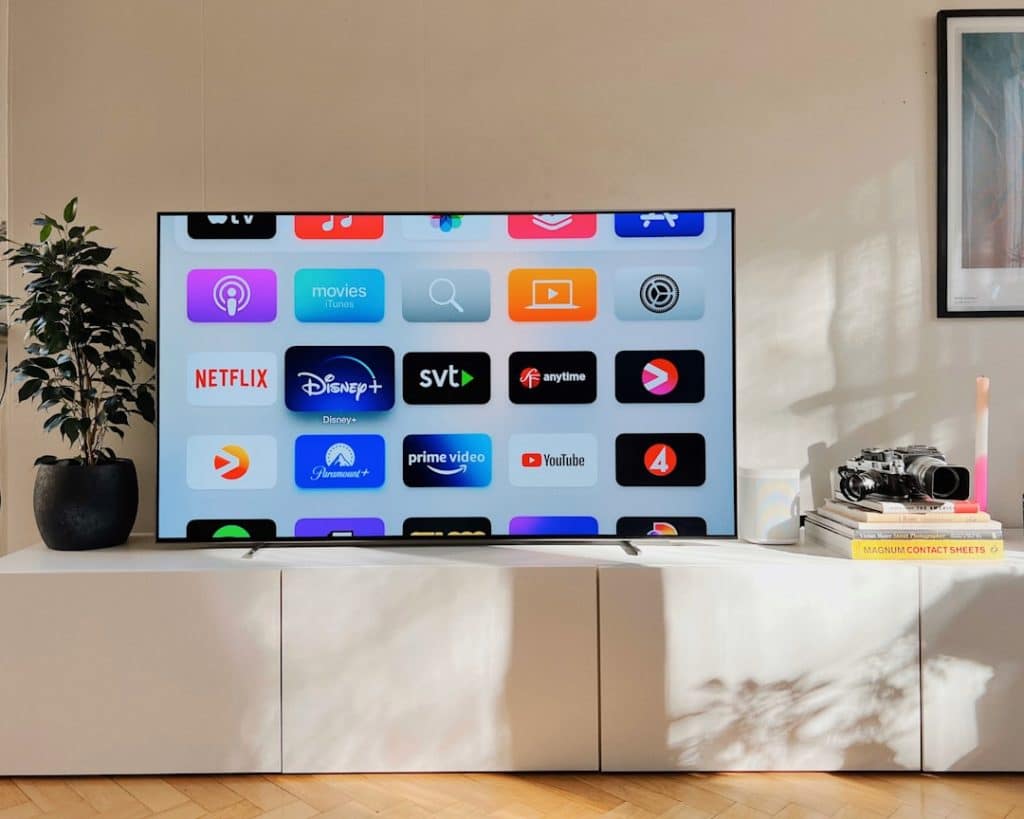
Amazon Prime Video has become one of the most widely used streaming platforms globally, offering a vast catalog of movies, TV shows, and exclusive originals. However, in recent times, many users have reported persistent buffering issues while using Prime Video on their Smart TVs, marring what should be a seamless entertainment experience.
TL;DR
Many Smart TV users report ongoing buffering issues with Amazon Prime Video, even with high-speed internet and seamless performance on other apps. A surprising fix was discovered that actually works for most users: disabling the “Match Frame Rate” or “Motion Smoothing” settings on their TVs and clearing the Prime Video app’s cache. This workaround has helped thousands regain smooth, uninterrupted streaming. Below, we break down the issue and the exact steps to recreate the fix yourself.
Understanding the Amazon Prime Video Buffering Problem
Compared to other streaming apps such as Netflix, Disney+, and Hulu, Amazon Prime Video appears to struggle more frequently with buffering on Smart TVs. While some users experience minor hiccups, others face persistent loading circles, constant resolution drops, and even complete failure to start playback.
What’s baffling is that these buffering issues often occur even when the internet connection is strong and when other streaming services run perfectly on the same network and device. This has led to frustration among users and sparked extensive discussion across online forums and tech support pages.
Root Cause Theories
Several theories have emerged around the underlying cause of this issue:
- App Performance: Some suspect the Amazon Prime Video app may not be optimized for certain Smart TV operating systems (like Samsung Tizen, LG webOS, or Android TV).
- Memory Overload: Smart TVs with limited RAM are prone to app slowdowns, especially when multiple background processes are running.
- Video Format Conflicts: Advanced streaming features like HDR, Dolby Vision, or automatic frame rate matching may conflict with the TV’s built-in video processor.
- Cache Corruption: Old or corrupted app data might interfere with performance, especially if the app has been installed for a long time without updates or resets.
The Fix That Actually Works
After months of collective troubleshooting, Smart TV users on Reddit, YouTube, and online forums began sharing a common solution that eliminated buffering entirely for many of them. Interestingly, this fix is surprisingly simple and doesn’t require new hardware or technical expertise.
Step-by-Step Fix:
- Clear Prime Video App Cache:
- Go to your TV’s Settings.
- Find the Applications or Storage section.
- Select Prime Video and choose Clear Cache and Clear Data.
- Disable “Match Frame Rate” or “Motion Smoothing”:
- Access your TV’s Picture Settings.
- Locate and turn off settings like Auto Motion Plus (Samsung), TruMotion (LG), or frame rate matching.
- Reboot Your TV and Router:
- Power off both devices, unplug them, wait for 2 minutes, then reconnect.
After completing these steps, most users report immediate improvements. Videos no longer buffer continuously, resolution stays consistent, and the app responds more quickly overall.
Why This Fix Works
Disabling frame rate-related settings helps avoid unnecessary processing load that Smart TVs may not handle smoothly with Amazon’s specific encoding protocols. While other streaming platforms may better optimize their playback engines, Prime Video’s app seems more prone to these conflicts, particularly with dynamic frame adjustments.
Additionally, clearing the cache removes outdated configurations or glitches that might have accumulated over time, especially after app updates or software changes to the TV’s firmware.
Other Helpful Tips and Considerations
- Use a Wired Ethernet Connection: Whenever possible, use a direct LAN connection instead of Wi-Fi to ensure maximum stability.
- Update TV Firmware and App: Check for updates to both your Smart TV and the Prime Video app to ensure the latest optimizations are in place.
- Disable VPN or Proxy: VPN usage can sometimes interfere with Prime Video, causing slower speeds and buffering.
- Try an External Streaming Device: If issues persist, consider using a Fire TV Stick, Roku, or Apple TV, which tend to have more stable app versions.
User Experiences
Many users have found solace in online forums after months of frustration. One user shared, “I was about to cancel Prime Video because nothing would play for more than 30 seconds on my LG OLED. But after I turned off TruMotion and cleared the cache — it’s like night and day!”
Another commenter noted, “Funny how Netflix and YouTube ran perfectly, but Prime Video was a skip-fest. Glad I found this tip — totally fixed it!”
Amazon’s Official Response
Amazon has yet to release a formal acknowledgment or permanent solution for the Smart TV buffering issue. While their help center suggests typical steps like restarting the TV or checking Wi-Fi, the more effective workaround of disabling motion processing remains an unofficial, community-driven discovery.
Long-Term Outlook
Until Amazon optimizes its Smart TV app further or releases more compatible updates, users may have to rely on these user-discovered fixes. The good news is that this workaround seems to work for a wide range of brands — including Samsung, LG, Sony, TCL, and Vizio — suggesting it addresses a common flaw found in the interaction between Prime Video and modern TV processing features.
Frequently Asked Questions (FAQ)
-
Why does Prime Video buffer more than Netflix or Hulu on my TV?
Prime Video may not be as optimized for all Smart TV platforms. It can conflict with advanced features like motion smoothing or frame rate matching, leading to buffering even on strong connections. -
Is clearing the cache safe for the Prime Video app?
Yes, clearing the cache and data is safe and often helps improve app performance. You will need to re-login afterward. -
What setting should I disable to fix this issue?
Disable any features related to “Motion Smoothing,” “Auto Motion Plus,” “TruMotion,” or “Frame Rate Matching.” These vary by TV brand. -
Will using an external device eliminate buffering?
In many cases, yes. Streaming media players like Fire TV, Roku, and Apple TV often run Prime Video more efficiently than a built-in app. -
Does this solution work on older Smart TVs?
Yes, users with both old and new models have reported success with this method.
While it’s frustrating to deal with streaming issues on a premium subscription service, it’s encouraging that a community-tested fix can restore smooth playback. Until Amazon implements a permanent update, Smart TV users now have a proven way to enjoy their favorite shows and movies without interruptions.
